
Refer-a-friend program emails
What are refer-a-friend program emails?
Refer-a-friend program emails are transactional emails sent automatically to customers at key moments — when they share a referral link, log in to the referral portal, or earn a reward.
Invitations & authentication
- One-Time Password (OTP) Request: sent when a customer requests a one-time password to access the referral portal.
- Friend invitation: sent when a customer shares their referral link via email.
- Friend invitation from embeddable/popup form: sent when a customer shares their referral link via an embeddable signup form or popup.
Reward notifications
- Referrer reward: sent to the referring customer when they earn a reward.
- Referral reward: sent to the referred customer when they earn a reward.
- Post-purchase reward: sent to a customer after a purchase with a reward.
- Birthday reward: sent to a customer on their birthday with a reward.
- Anniversary reward: sent to a customer on their signup anniversary with a reward.
Enable program emails
- Go to Settings under Program.
- Scroll to the Other section. Toggle to enable the email notifications:
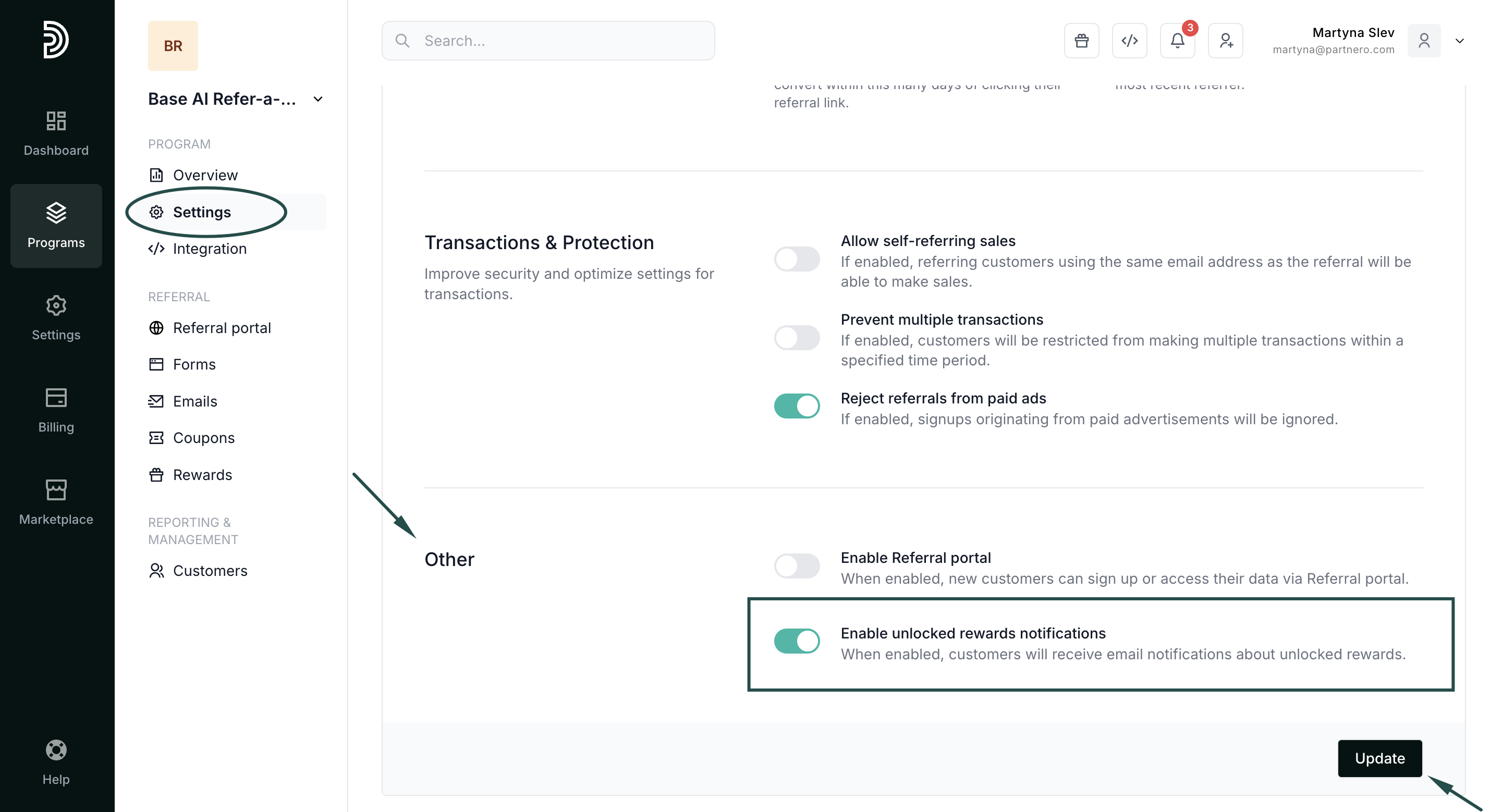
- Click Update.
Email settings
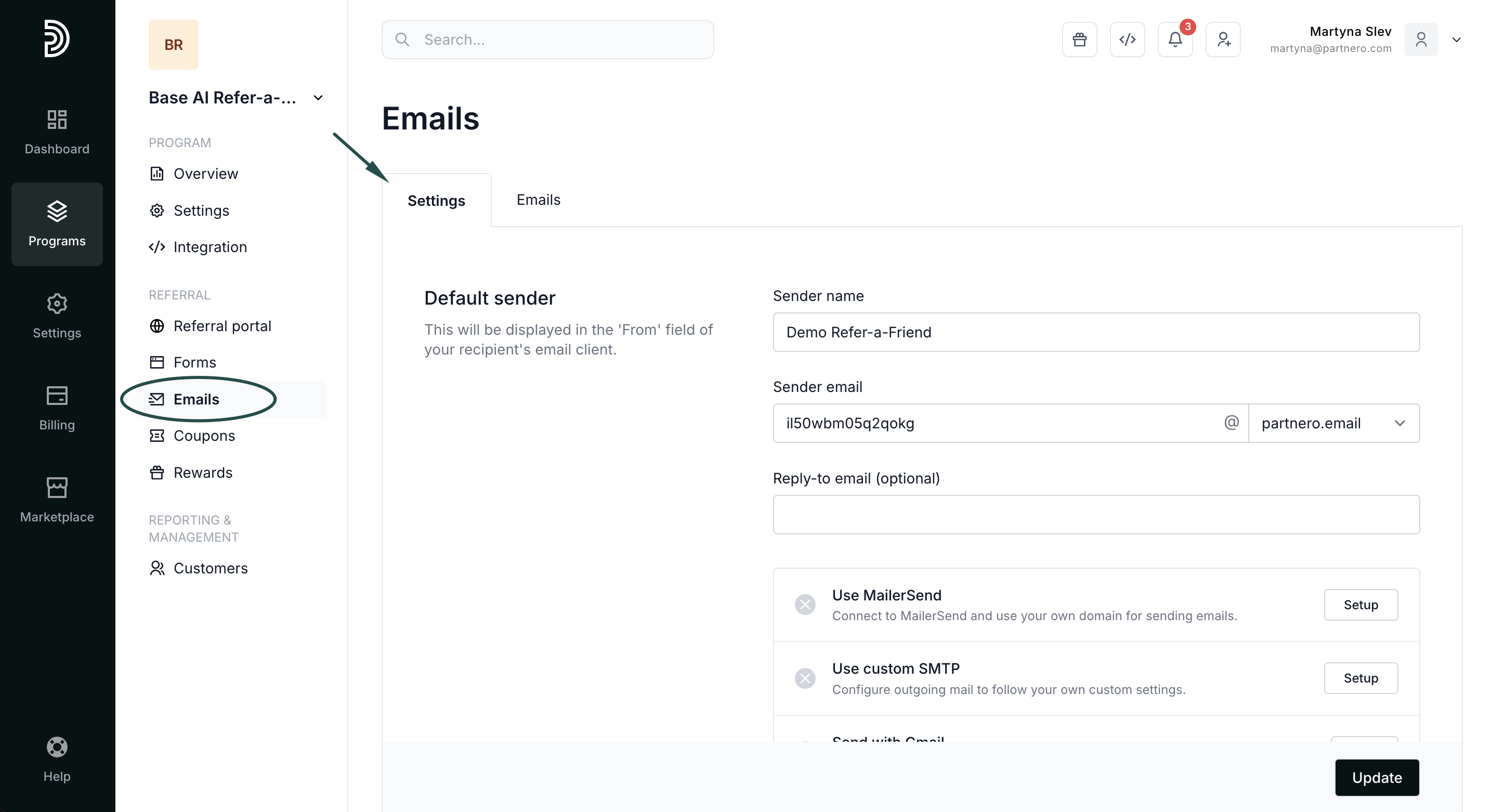
Navigate to Emails under Referral. In the Settings tab, you’ll find the following sections:
1. Default sender
| Field | Description |
|---|---|
| Sender name | The name that appears in the From field of your recipient's email client. |
| Sender email | All emails are sent from the default domain @partnero.email. Enter your preferred prefix (e.g., yourbrand@partnero.email). |
| Reply-to email | Optional. An inbox address to receive customer replies (e.g., your support email). |
| Email sending domains | Connect a custom sender domain using one of the options below. |
2. Logo and disclaimer
Further down in the Settings tab, you'll find the Logo and disclaimer section. Add your default logo and footer information to be used in the email footer section.
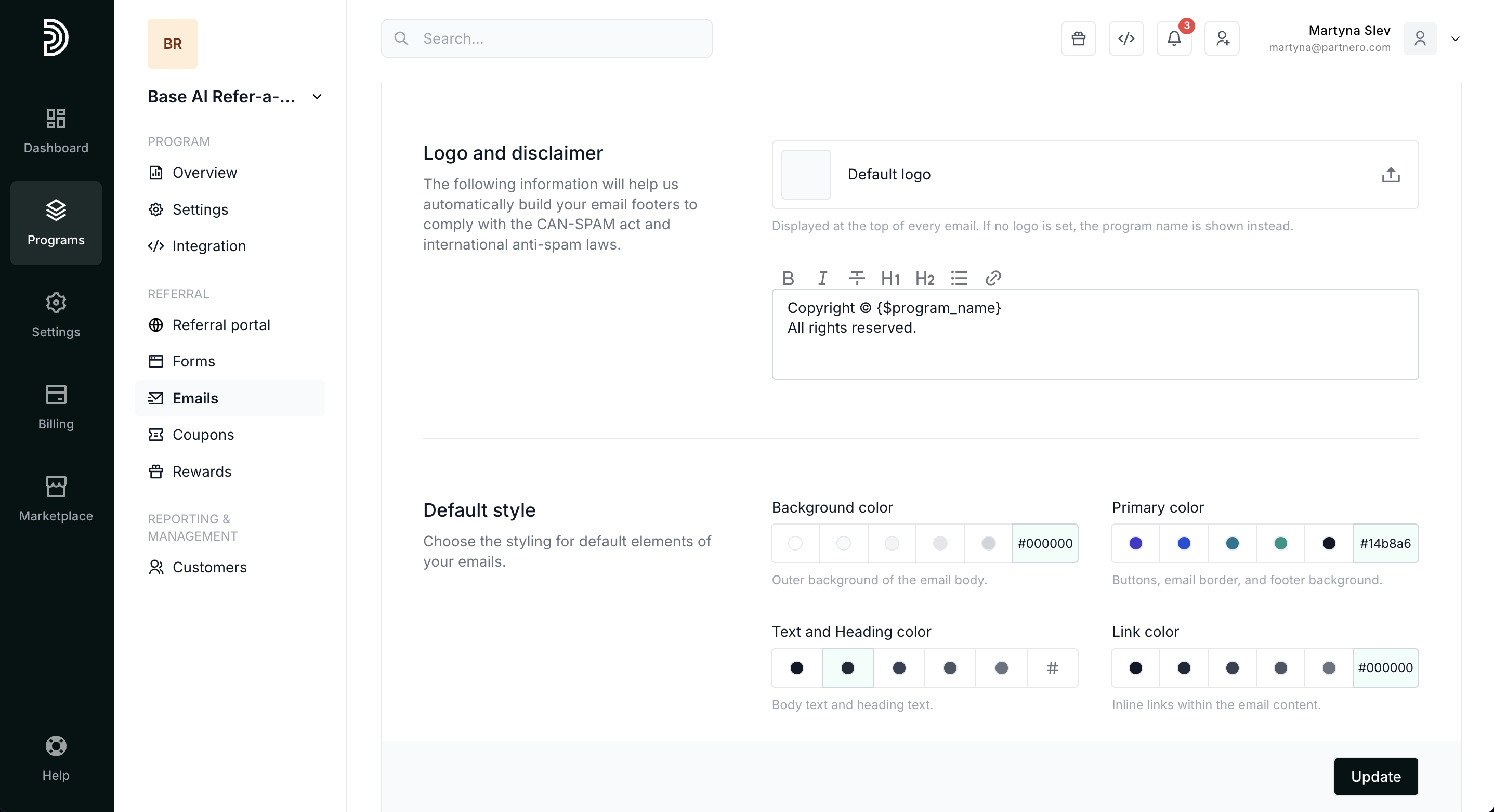 3. Default style
 3. Default style
Lastly, you'll see the Default style section, where you can define styling for default elements of your emails, such as:
- background color
- primary color
- text and heading color
- link color.
Connect your domain for email sending
Connecting your own domain improves deliverability and makes your emails more recognizable to customers.
Via MailerSend
- Under Emails → Settings, click Setup next to MailerSend.
- Enter your MailerSend API token (here's how to find it).
- Click Connect.
- Once connected, your domain will appear under Sender email domain.
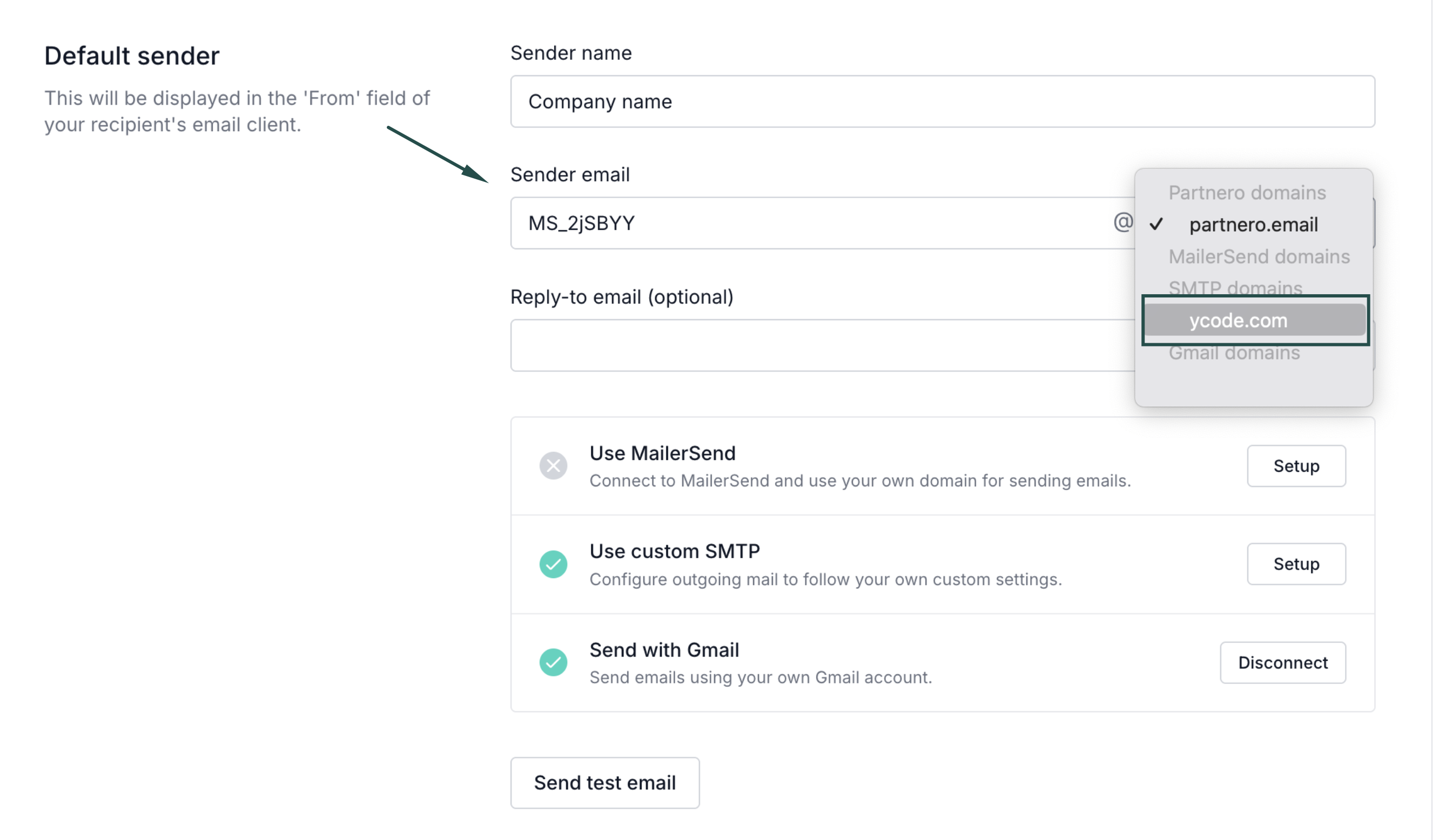 Select it and click Update.
 Select it and click Update.
Via custom SMTP
- Under Emails → Settings, click Setup next to SMTP.
- Enter your server information, username, password, and From email address.
- Click Connect.
- Once connected, select the domain under Sender email domain and click Update.
Via Gmail
Read how to connect your domain through Gmail →
Customize the email content
Each email can be edited to match your brand voice.
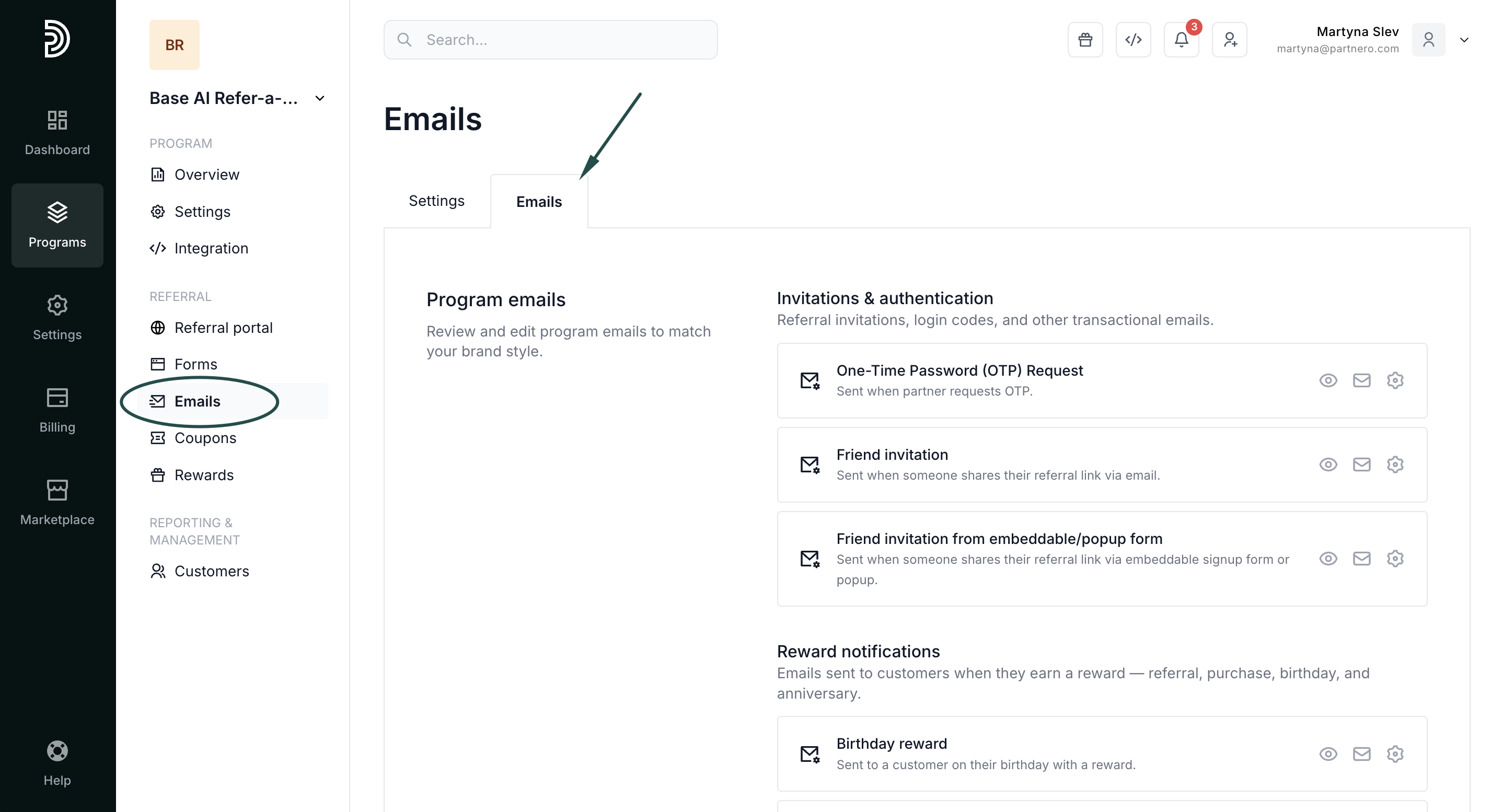
- In your program, go to Emails under Referral. Switch to the Emails tab:
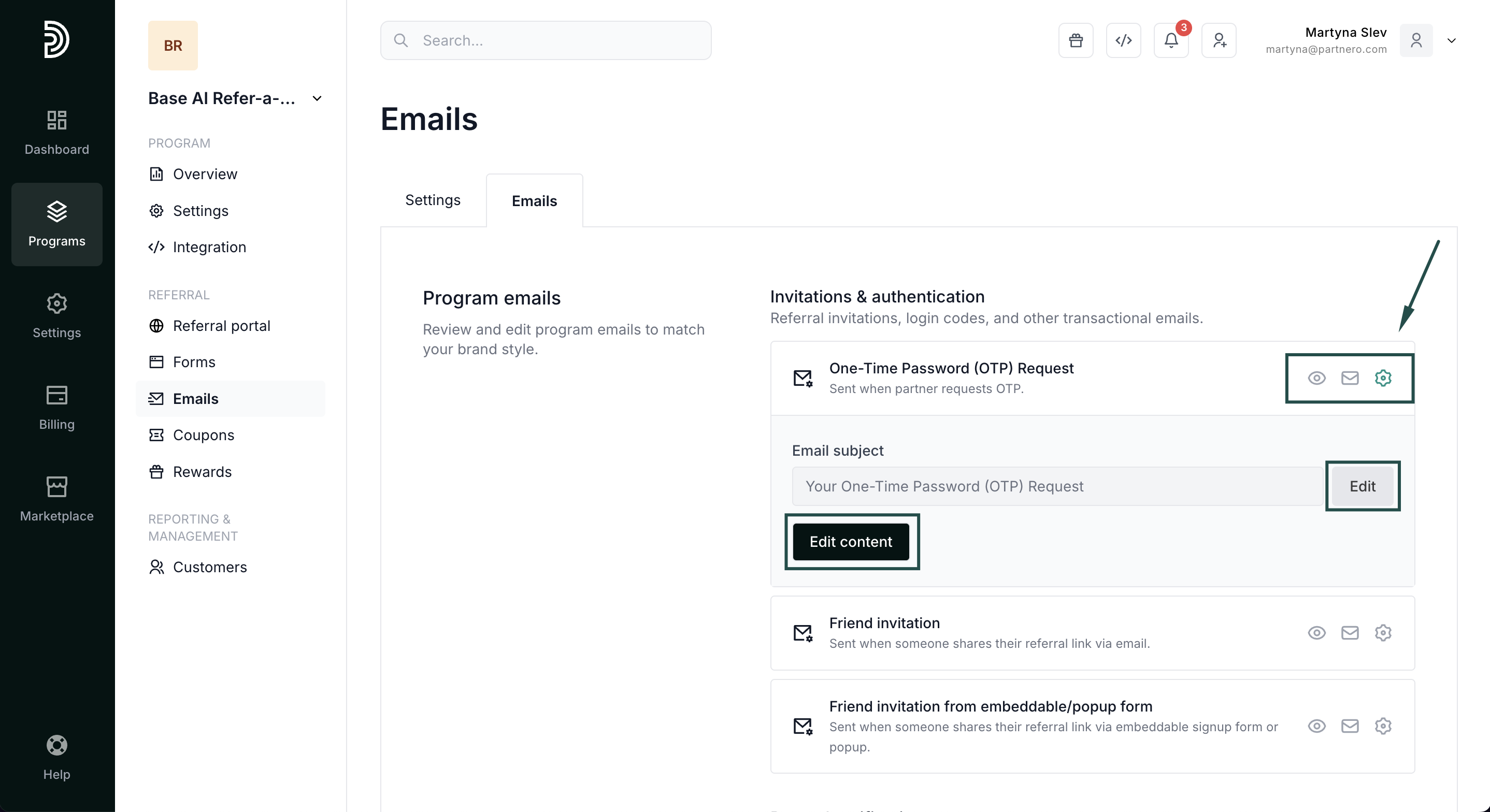
- Click the gear icon next to the email you want to edit. Edit the subject, content, or send a test email.
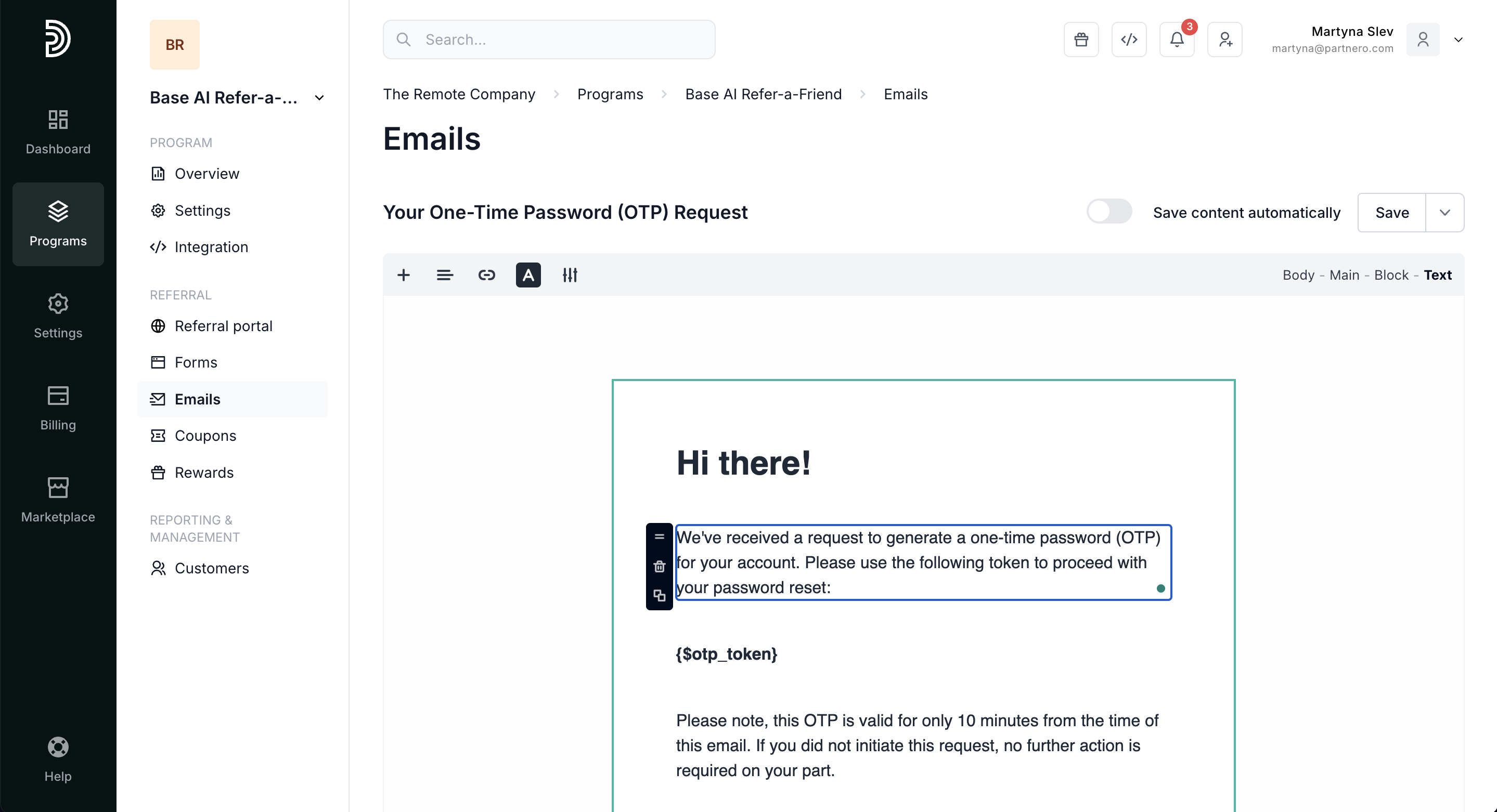
- Click Edit content to open the email editor. Change the text and layout to fit your needs:
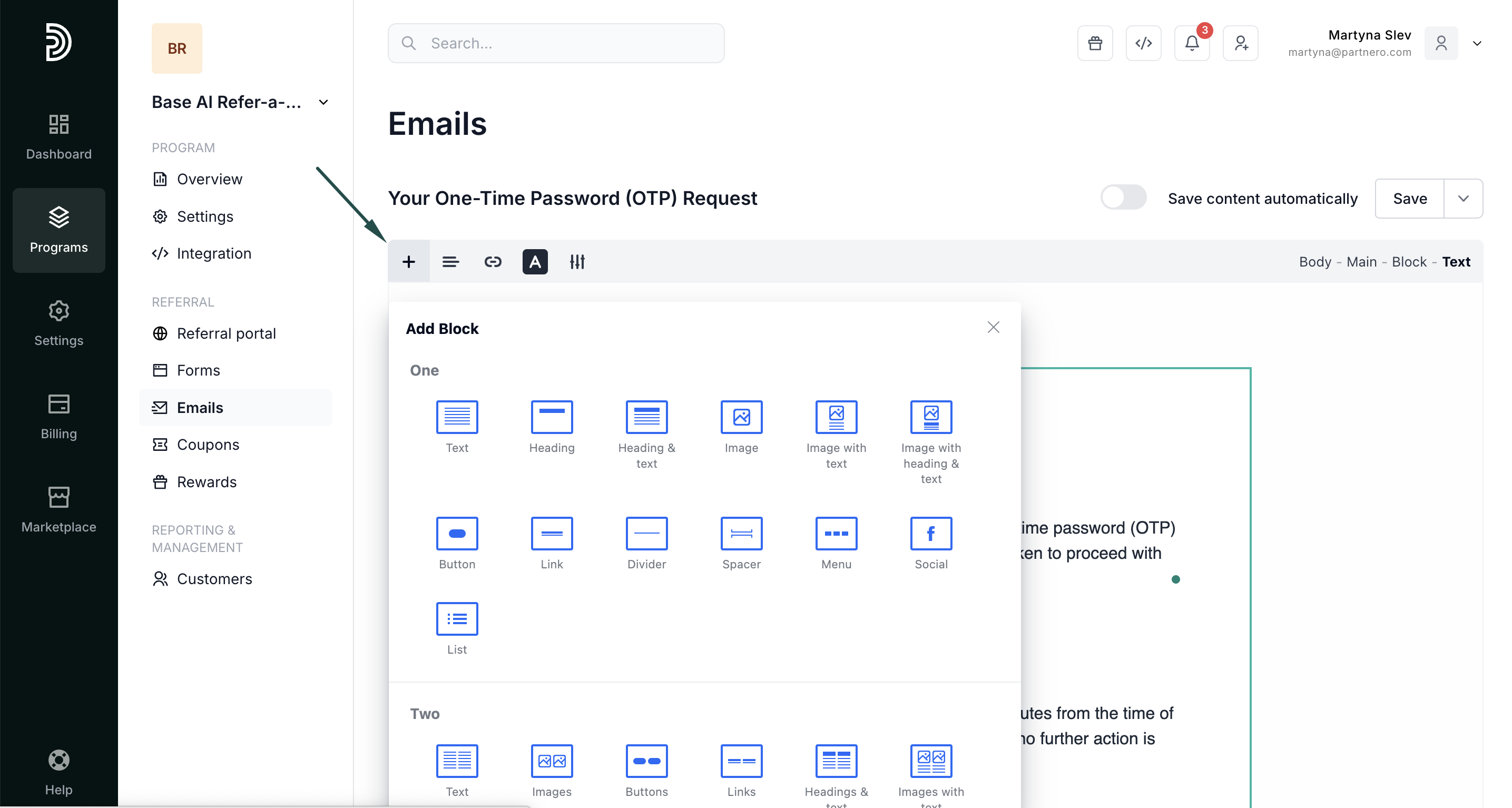
- To add additional blocks, click the + sign:
- Click Save once you're done.
Receive notifications when your customers unlock rewards
To be notified when a customer unlocks a reward:
- Click on Settings under Program.
- Switch to the Notifications tab.
- Toggle "Rewards unlocked notification" and enter your email address.
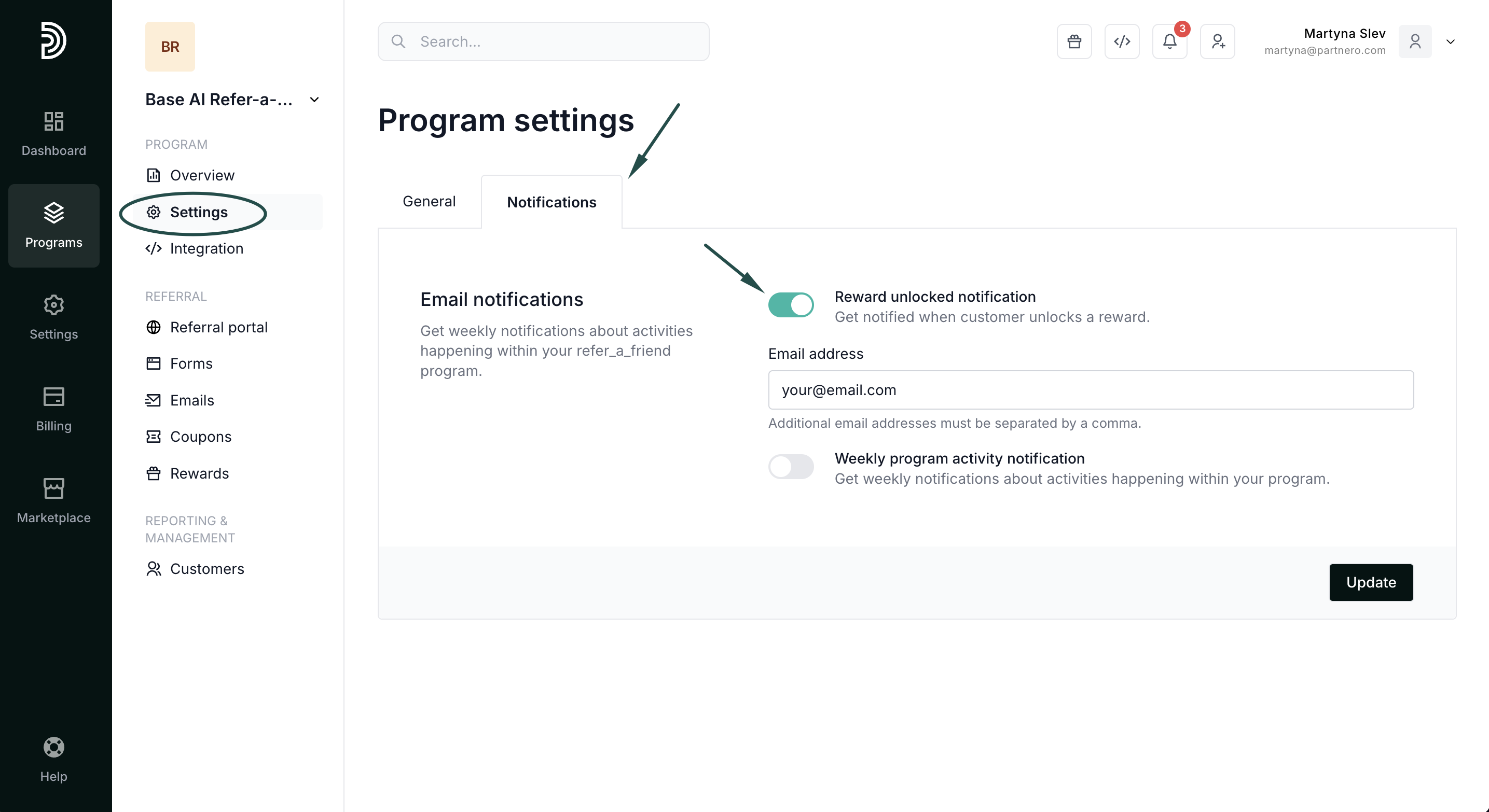
- Click Update.
