
Create partner registration popups
Partnero’s customizable registration pop-ups let you add a dynamic sign-up form to your website to collect new affiliate partners. You have complete control over its timing, placement, and design.
 Trigger Settings & Frequency
You can control when and how the pop-up appears to your website visitors. Set precise triggers, such as displaying the pop-up 5 seconds after visitors arrive or when they attempt to leave the page. Customize the frequency to avoid overwhelming users while ensuring visibility.
Page Visibility
You can choose exactly where your registration pop-up will appear. Whether you want it displayed site-wide or limited to specific pages, you can target the right audience in the right context.
Appearance & Content
Ensure the pop-up aligns seamlessly with your brand identity. Select from a variety of layouts and fully customize the design. Decide what information to collect from your potential partners, creating a sign-up flow that’s both visually appealing and effective.
How to customize the pop-up
To design and customize the pop-up appearance and behavior:
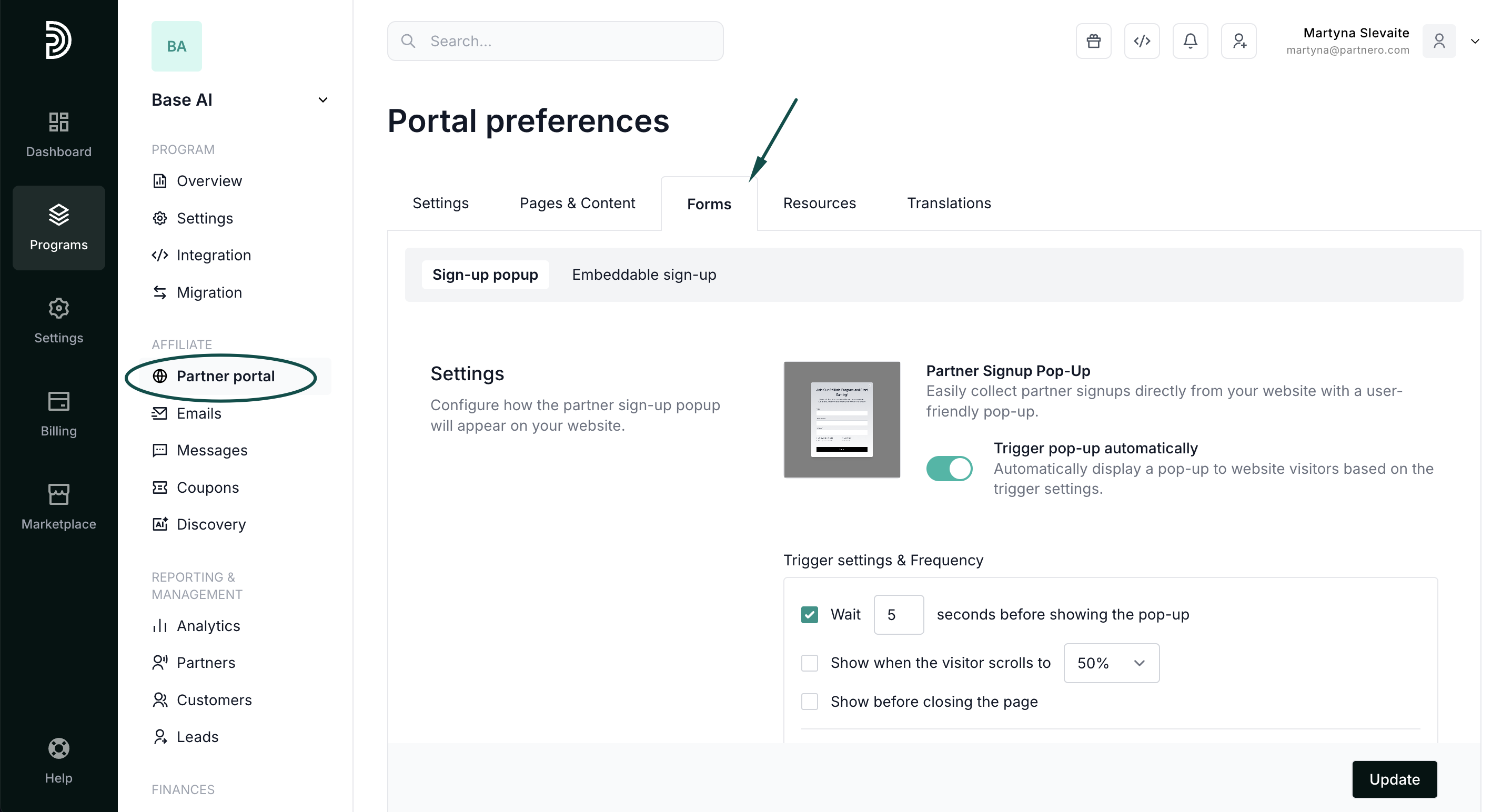
- Open your program and go to Partner portal under Affiliate.
- Switch to the Forms tab:
Trigger settings & Frequency
To customize the triggers and settings, toggle to "Trigger pop-up automatically": 
You will then be presented with a settings modal where you can select when and how the pop-up will appear. You have the following options: 
- Wait X seconds before showing the pop-up: the pop-up will appear on your website after a visitor has spent the specified number of seconds.
- Show when the visitor scrolls to X%: the pop-up will appear after the visitor scrolls the indicated percentage of a page.
- Show before closing the page: the pop-up will appear if a visitor moves their mouse towards the closing of the page (tab).
Additionally, you can indicate how often the pop-up should appear again to the same visitor, for example, after 1 month.
Visibility settings
 Here, you can define where your registration pop-up will appear. For example, you can show the pop-up on specific pages on your website, across the whole website, or exclude specific pages where you don't want it to appear.
Click Edit next to Visibility Settings to expand the modal: 
- Always show: the pop-up will appear on all pages of your website.
- Show on specific pages: the pop-up will appear only on the pages listed here.
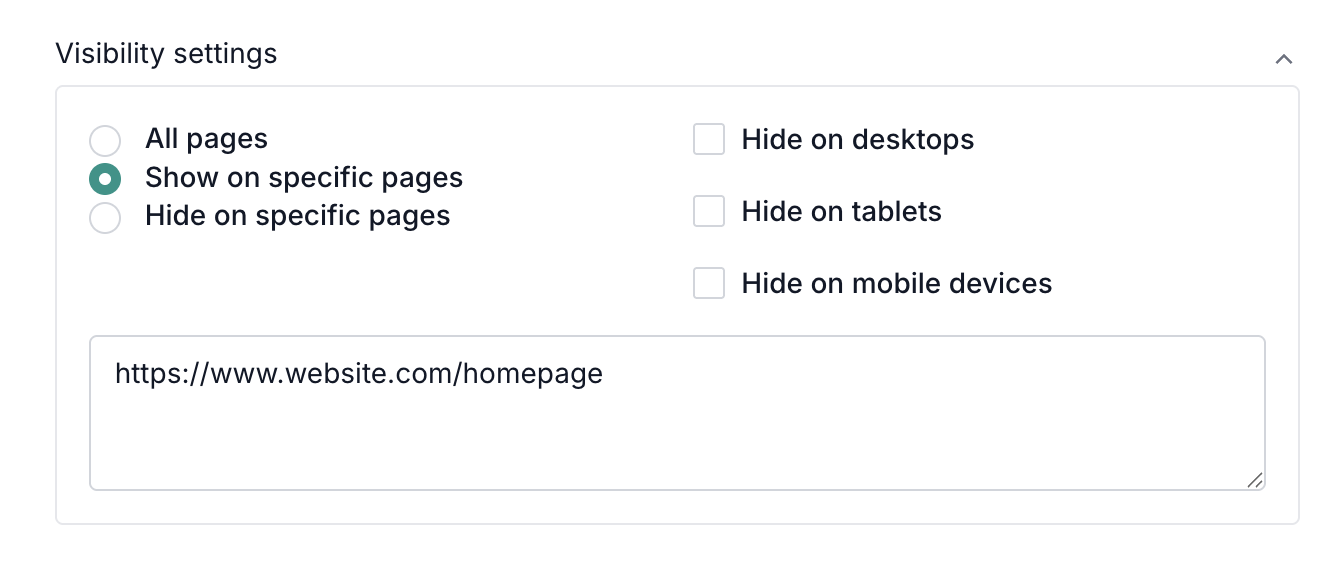
- Hide on specific pages: the pop-up will appear on all pages of your website except the pages listed here.
- Hide on desktop devices: the pop-up will not appear when viewing your website on a desktop device.
- Hide on mobile devices: the pop-up will not appear when viewing your website on mobile.
- Hide on tablet devices: the pop-up will not appear when viewing your website on tablets.
Appearance
Further down, you will find the appearance settings for the popup: 
Here, you can customize the popup layout, branding, and colors for the background, text, and buttons.
Content
Lastly, you'll find the popup content settings.  Here you can:
- Edit the title and description for the popup form.
- Customize what data you're collecting by adding fields to the sign-up form:
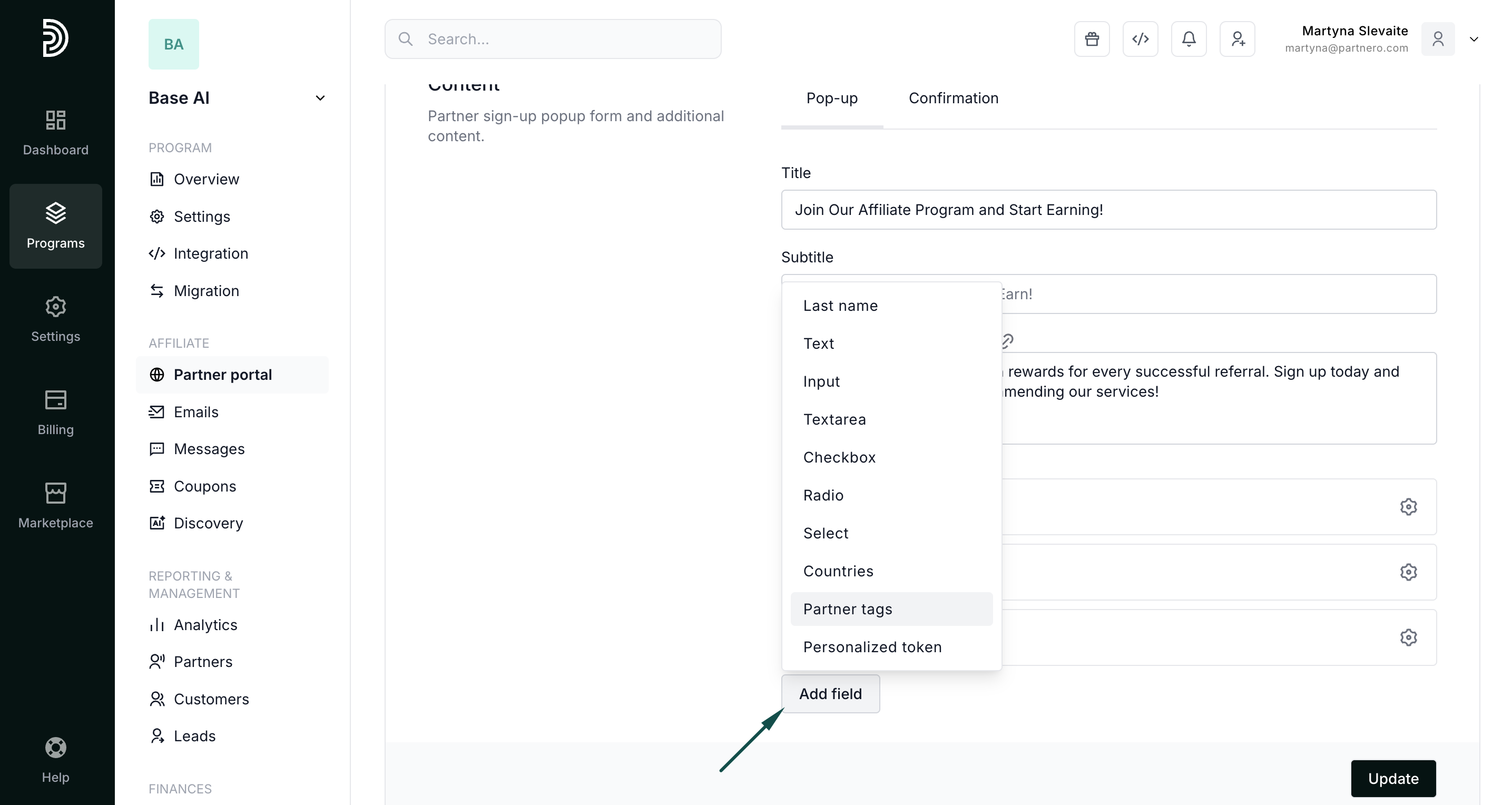
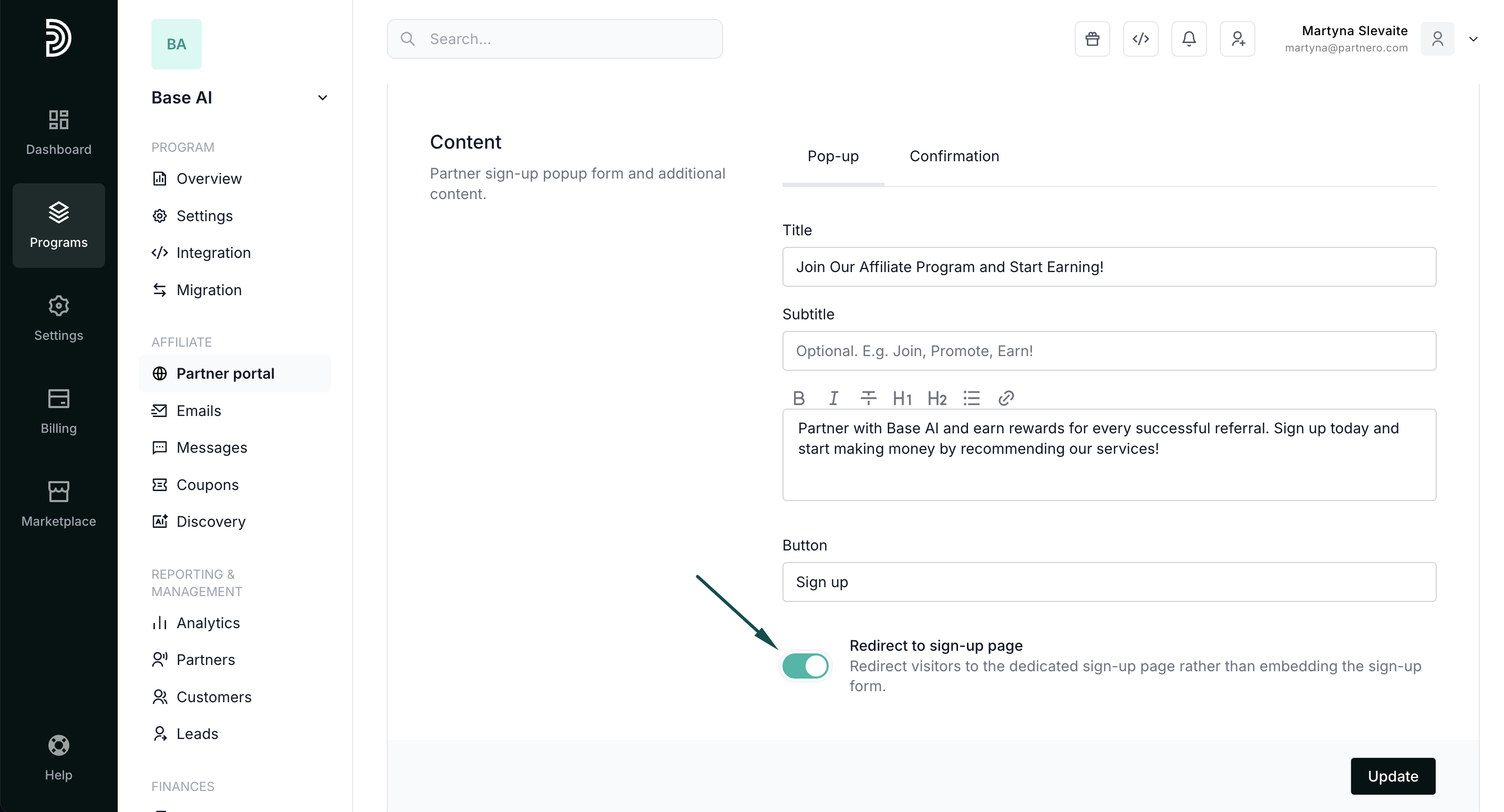
- Edit the CTA text.
- Select to redirect visitors to a signup page. If you enable this option, the signup form will be removed from the popup form, and users will be redirected to the standard partner portal signup page upon clicking the CTA.
- Opt to collect marketing permissions and add your program terms of use:


How to enable the popup
Once you're happy with the settings, make sure "Trigger pop-up automatically" is enabled: 
Website integration
⚠️ Important: Partnero JS snippet must be inserted on your website for the popup to work.
With most Partnero integration methods, the script will already be present on your website, so you won't need to do anything else.
If your website doesn't have the PartneroJS snippet:
- Open your program and go to Integration under Program.
- Scroll down to Program details to locate the PartneroJS snippet:
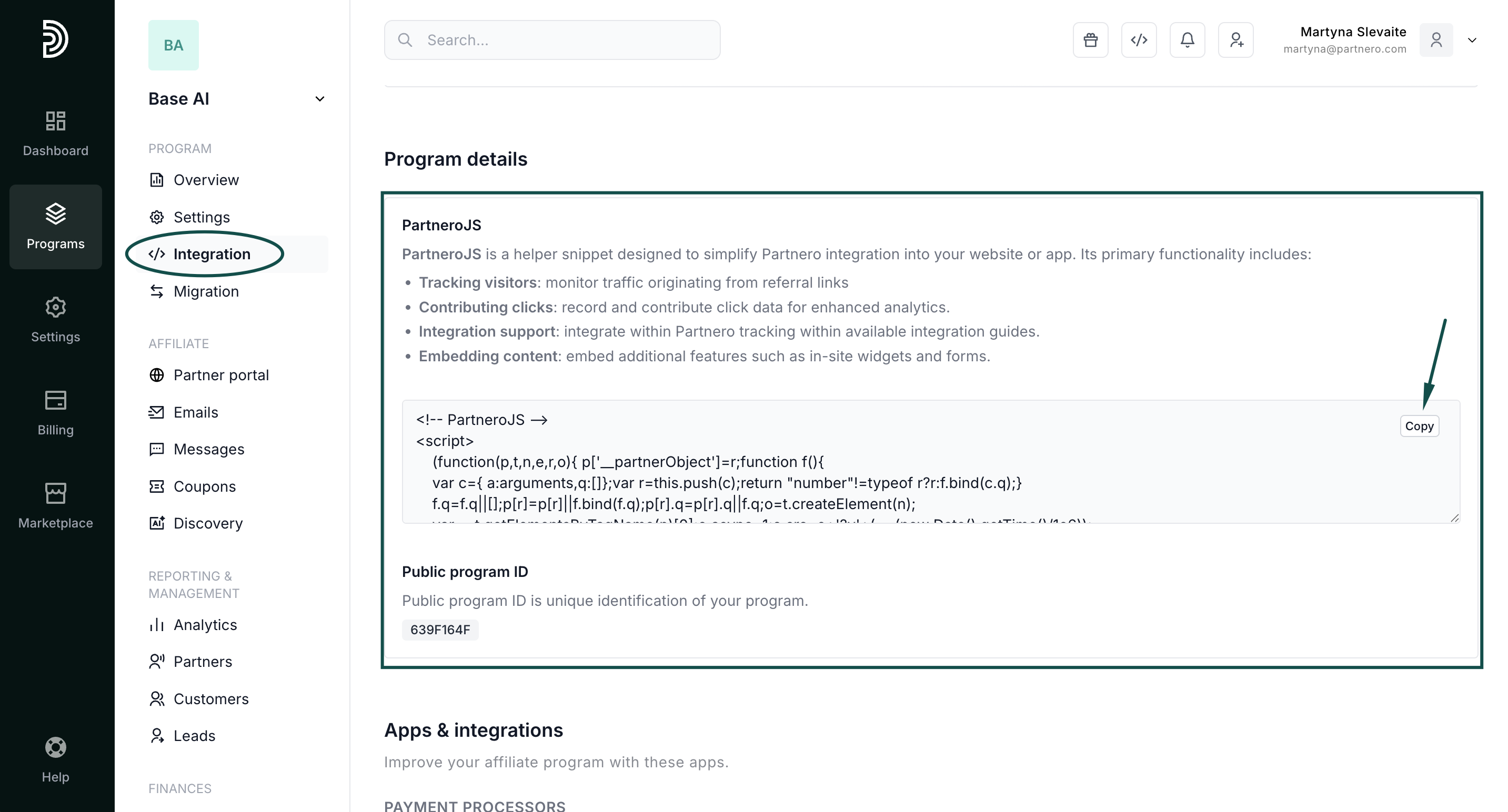
- Copy the provided Partnero JS snippet and paste it before the closing of the </head> tag in the HTML code of your website.
That's it; the popup will now appear based on your indicated behavior settings.