
Integrate Chargebee
This guide walks you through integrating Partnero with Chargebee, so you can track website visitors, capture sign-ups, and monitor sales on Chargebee Hosted Pages.
These instructions can also be found on your Partnero account, under Integration > Guides tab > Chargebee: 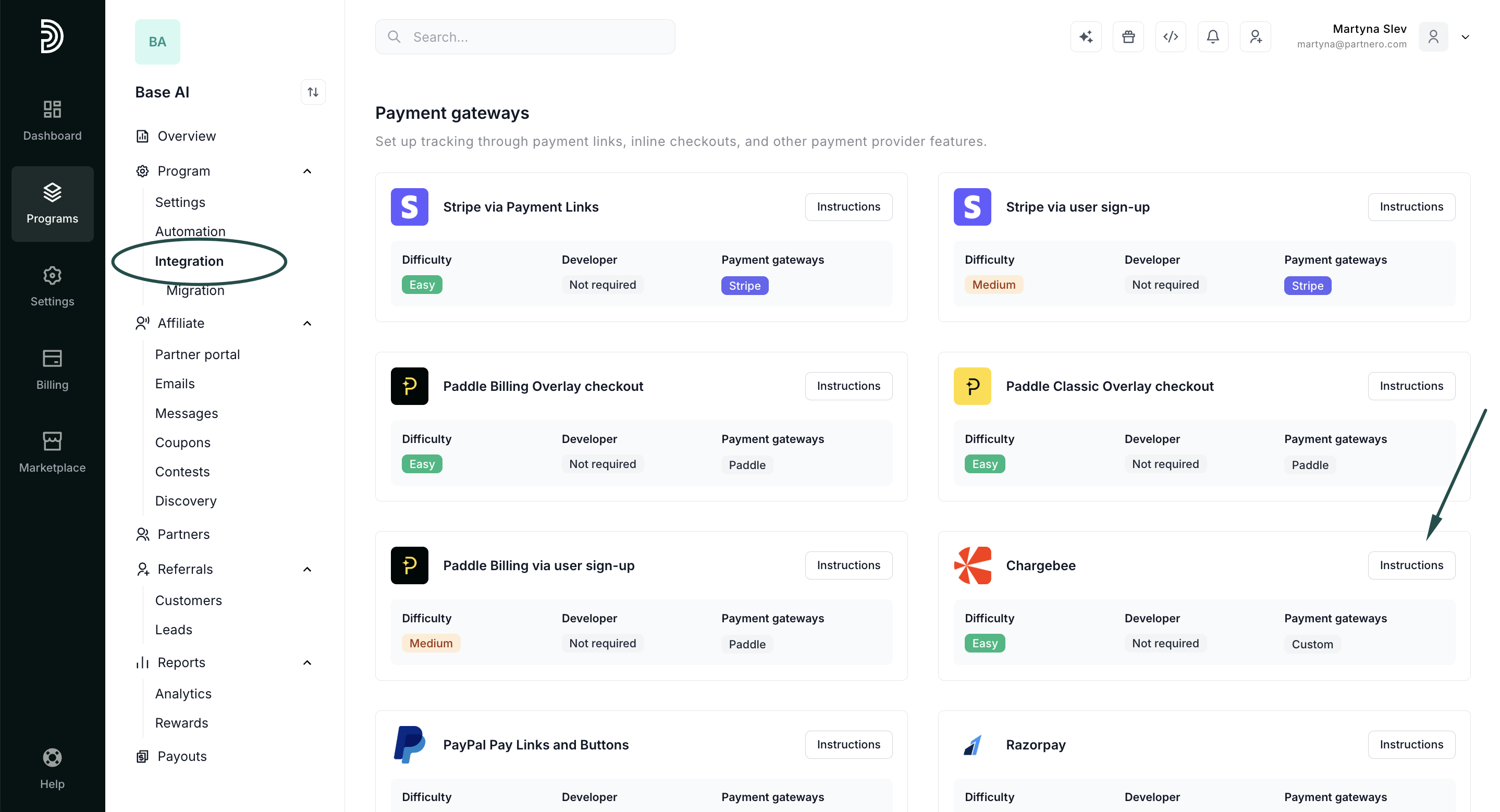
Step 1: Start tracking website visitors
To track visitors on your website, you need to install the PartneroJS snippet as custom code.
To install the PartneroJS snippet:
- Go to Integration > Guides tab.
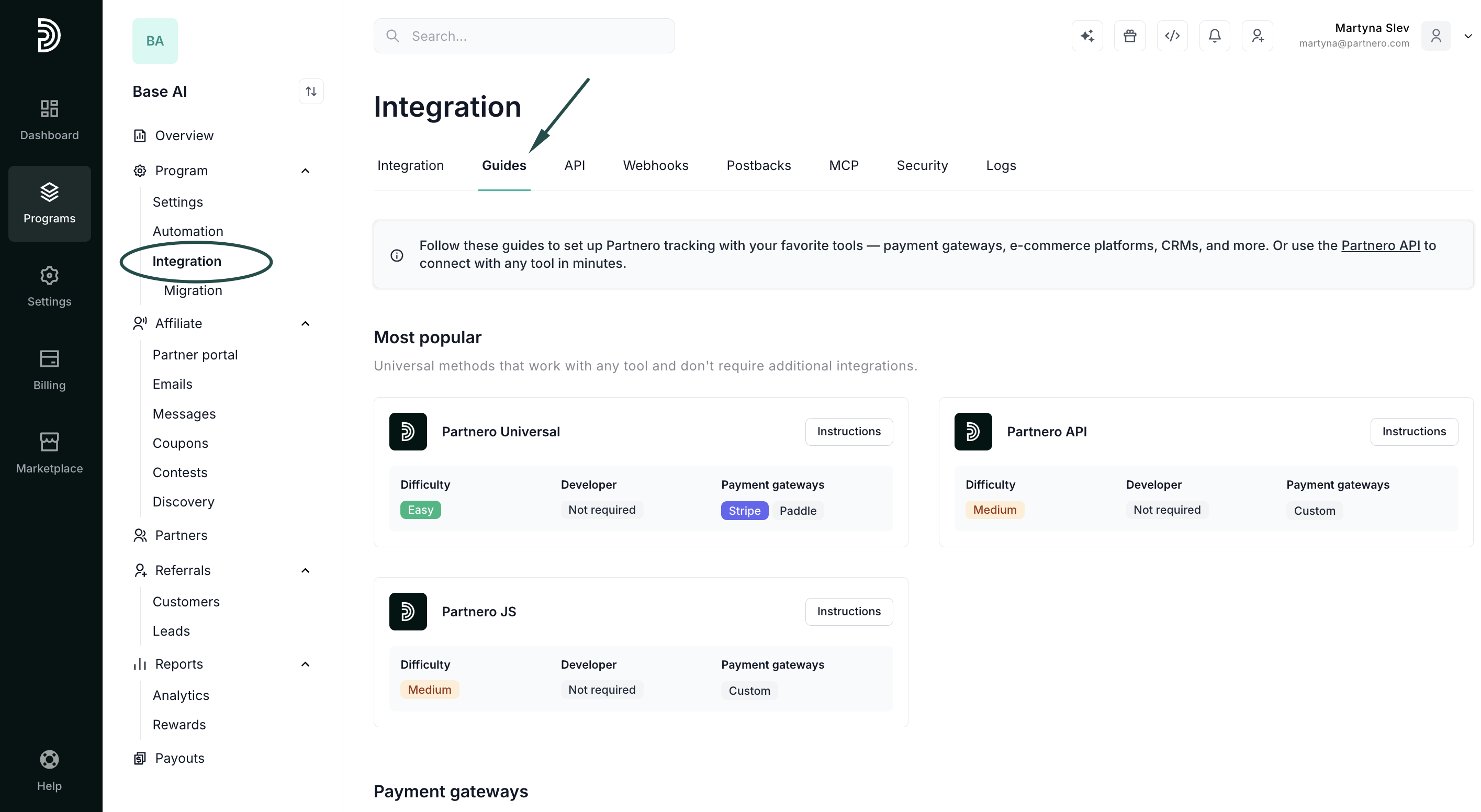
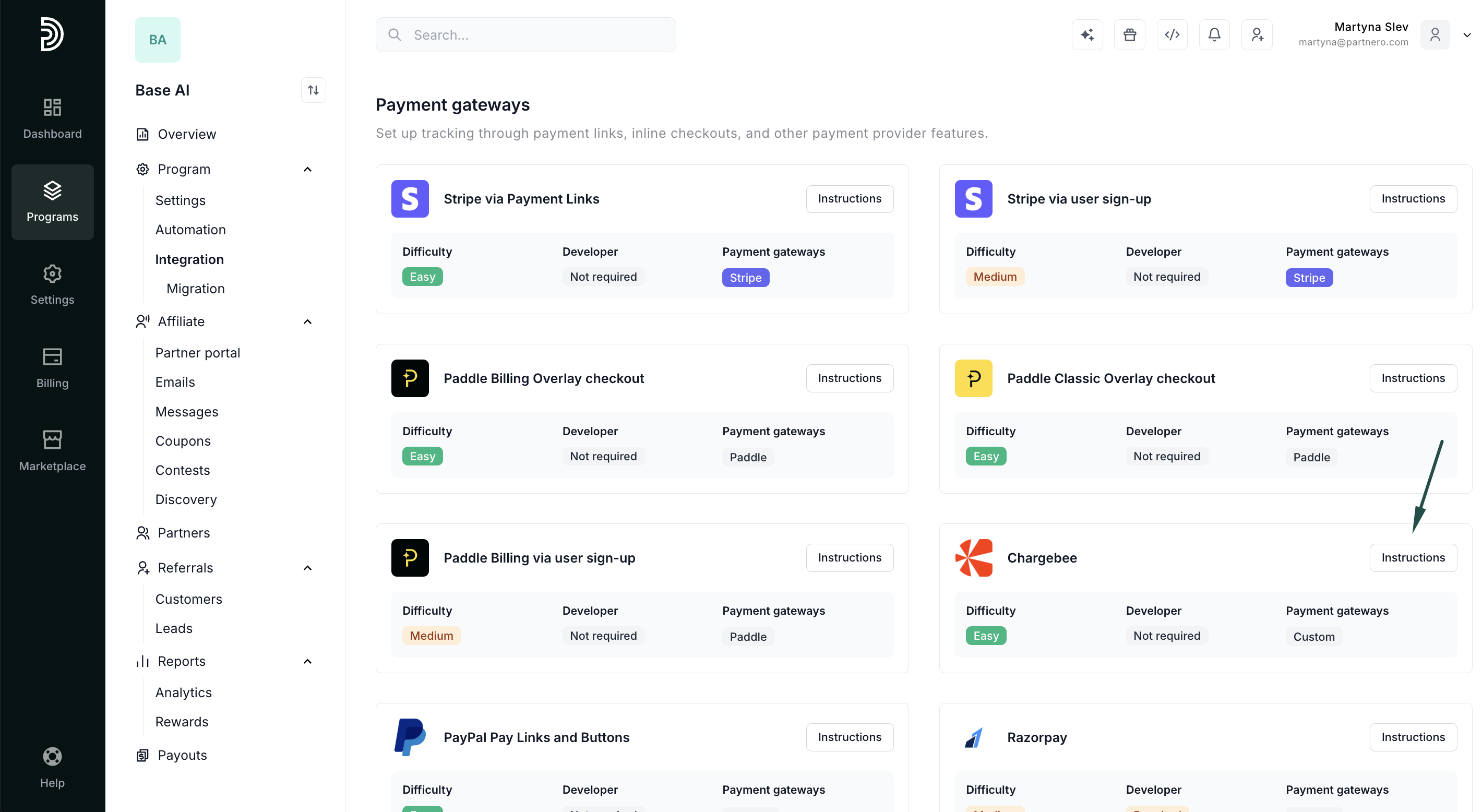
- Scroll down to Payment gateways and click Instructions next to Chargebee.
- Copy the PartneroJS snippet:
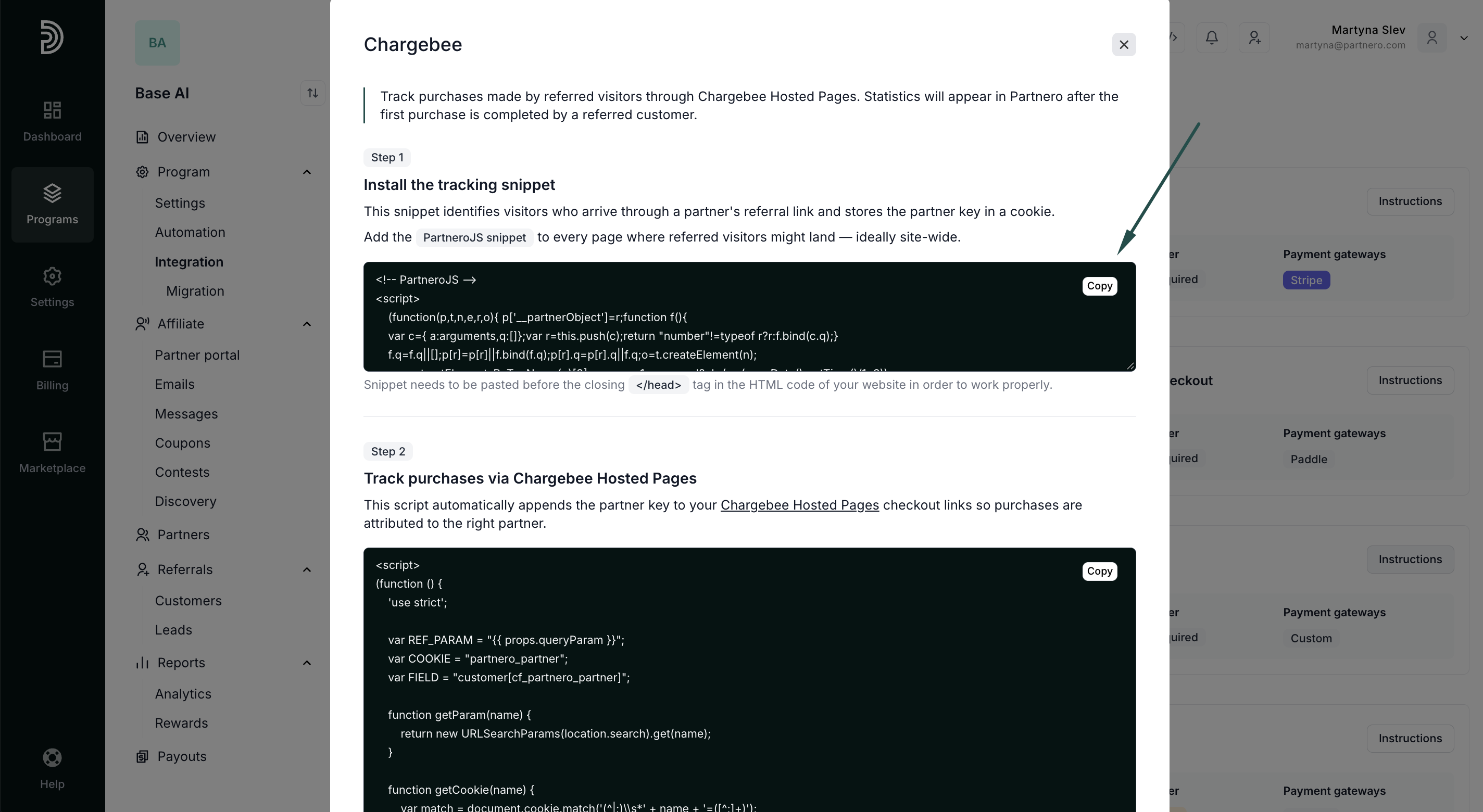
- Paste the PartneroJS snippet into your website's header, before the closing of the
<head>section.
Step 2: Track referred purchases on Chargebee Hosted Pages
Next, you'll need to identify purchases made by referred customers via Chargebee Hosted Pages checkout.
- Open the Chargebee integration guide on Partnero. Copy the tracking script:
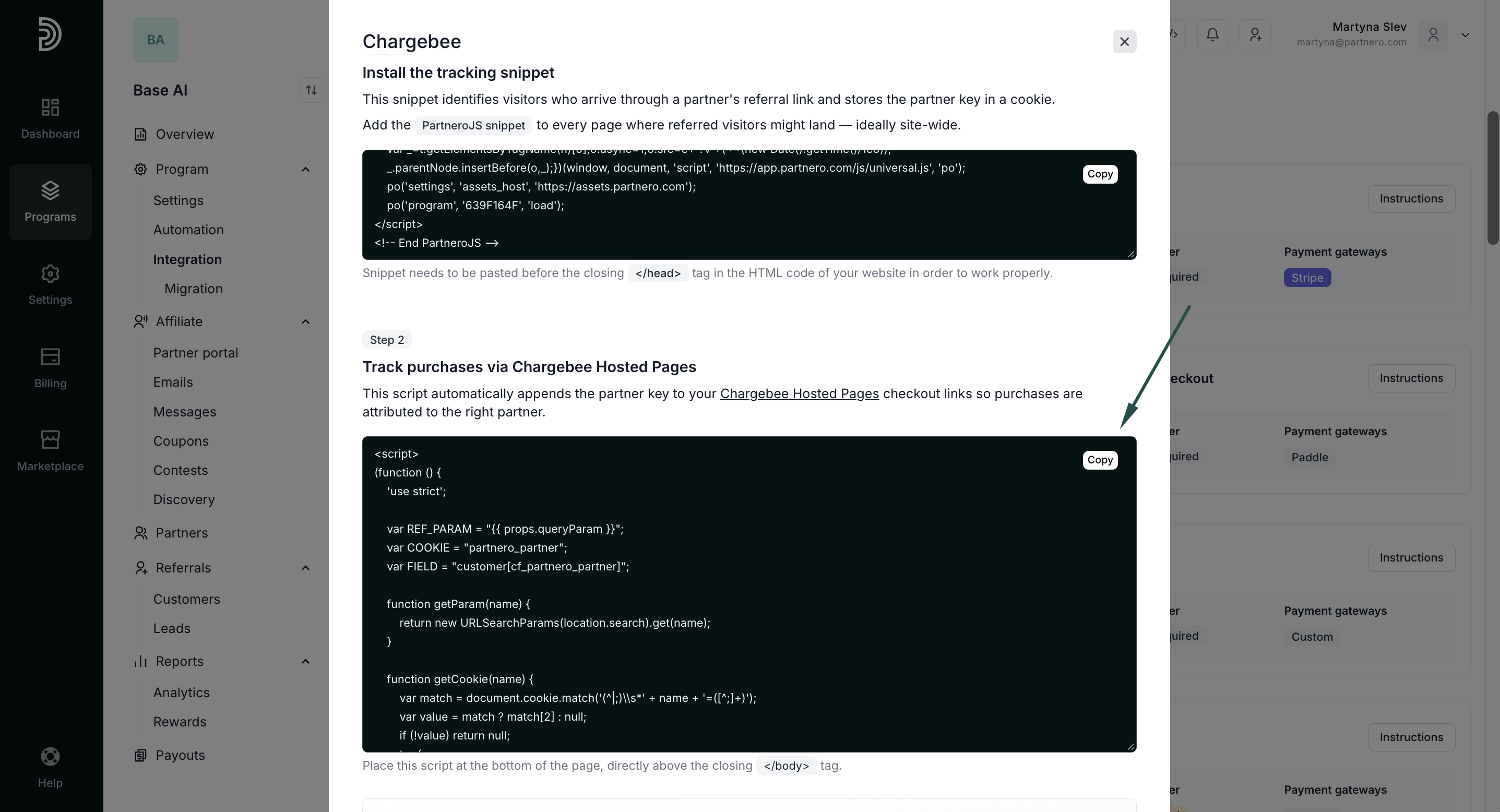
- Paste the script on every page containing Chargebee hosted checkout links. It's important to place this script at the bottom of the page, directly above the closing </body> tag for optimal functionality.
⚠️ Please note that statistics will be displayed in Partnero after the referred customer completes the first purchase.
Step 3: Authorize Chargebee to attribute recurring sales
The last step is to authorize your Chargebee account to send data about subsequent or recurring purchases made by referred customers.
⚠️ Important: This step is an addition to the integration method listed above. Purchase tracking relies on the assumption that the customer has already been created on Partnero via one of the methods listed above.
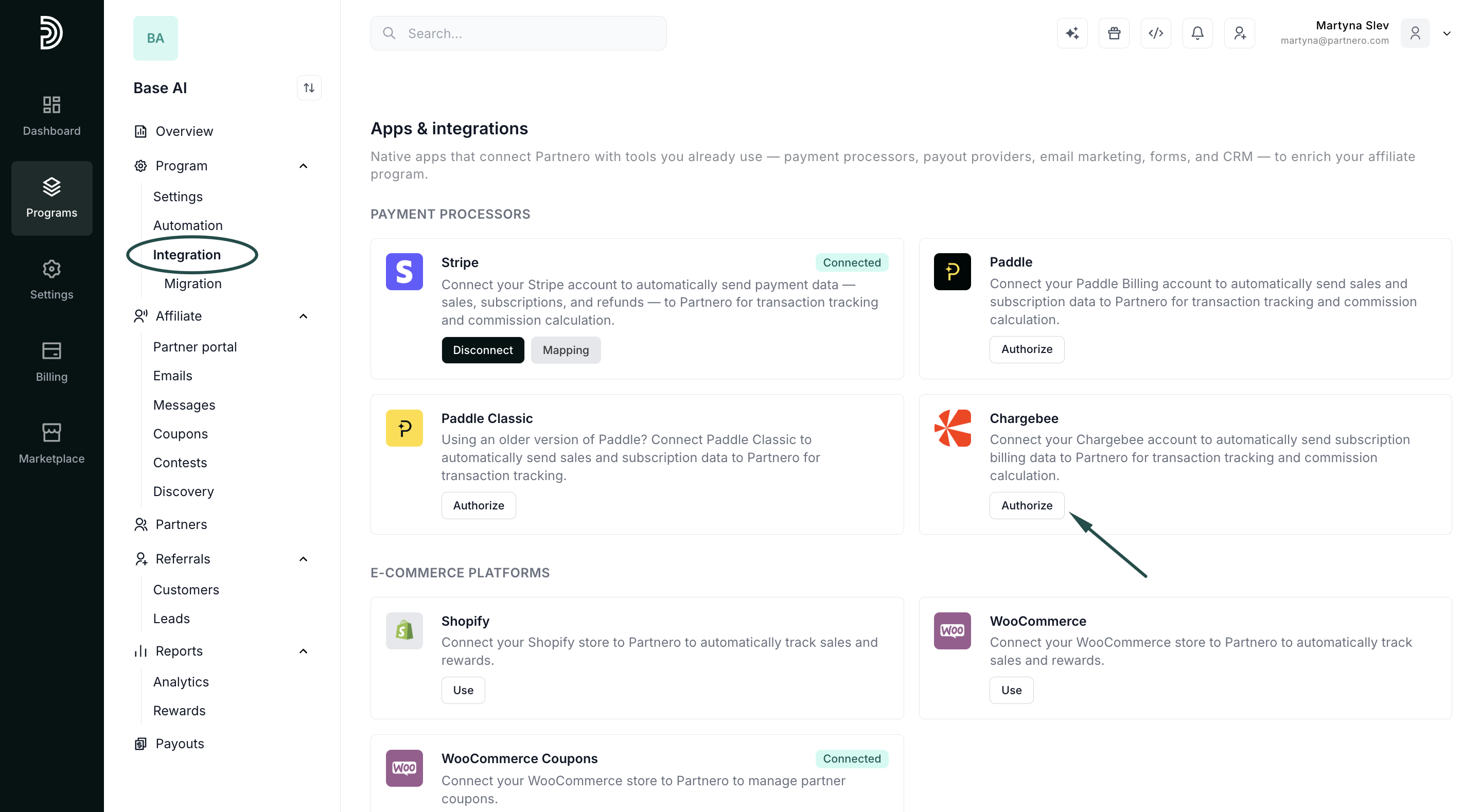
- Go to Integration under Program.
- Scroll down to Apps & integrations and click Authorize next to Chargebee:
- Follow the instructions:
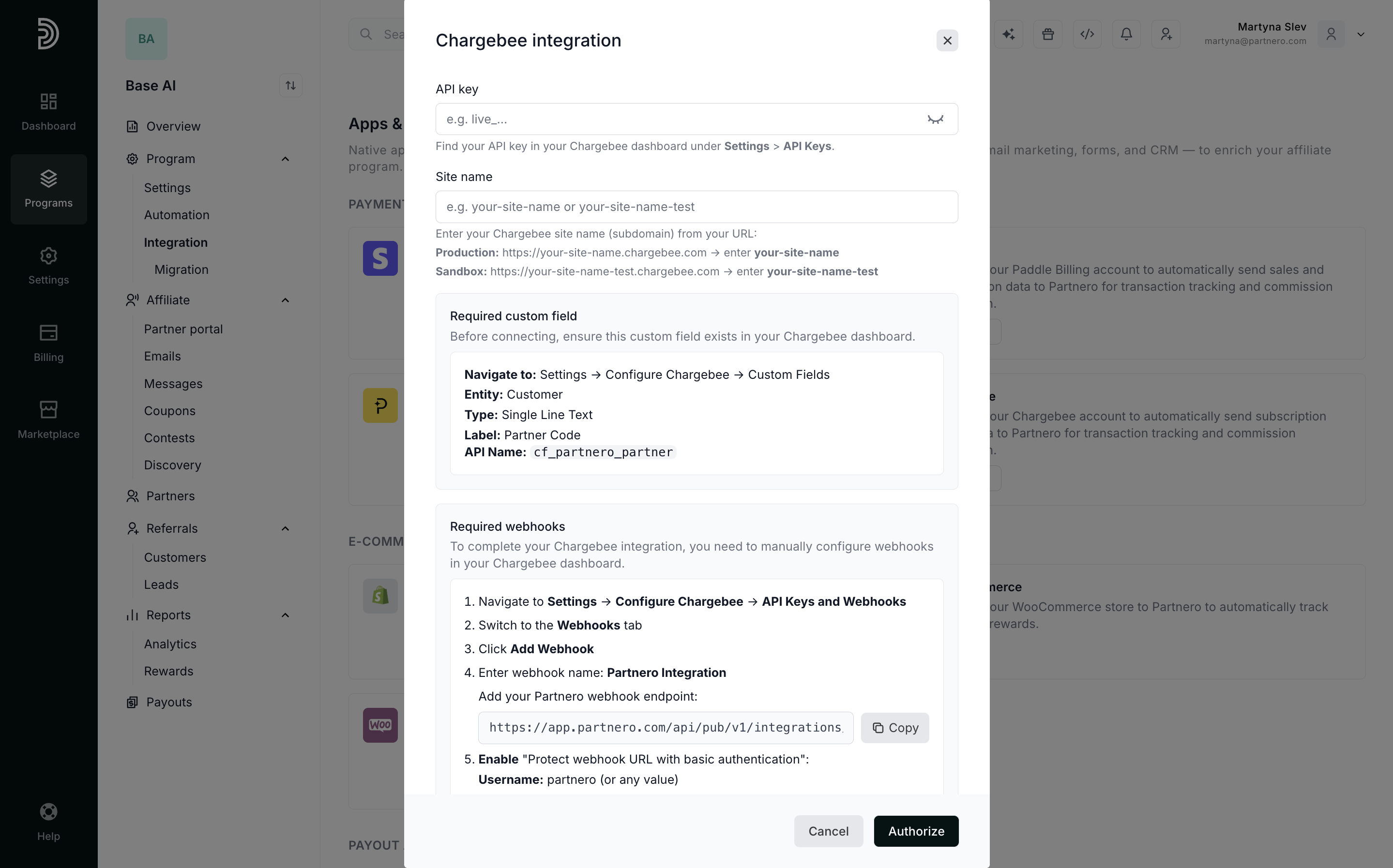
- Enter your API key. Find it in your Chargebee dashboard under Settings > API Keys.
- Enter your site name. This is the subdomain from your Chargebee URL (for example,
your-site-namefromyour-site-name.chargebee.com). - Create a custom field in Chargebee. Before connecting, add a custom field under Settings > Configure Chargebee > Custom Fields, using the exact values shown in the app.
- Create a webhook in Chargebee. Under Settings > Configure Chargebee > API Keys and Webhooks, add a new webhook using the endpoint and credentials provided in the app, and select the events listed there
⚠️ The custom field and webhook must be set up manually in your Chargebee dashboard. Copy each value directly from the in-app instructions to avoid mismatches.
That's it, your Chargebee integration is set up. We recommend testing it by making a purchase through an affiliate link to confirm everything's tracking correctly.