
How to use sub‑accounts (as a partner)
This article shows you how to create, manage, and use sub‑accounts within the Partner Portal, so you can grant colleagues access.
Important: the sub-accounts feature has to be enabled by the program owner to be visible on your partner portal.
Create new sub-accounts
To create a new sub-account:
- Log in to the partner portal.
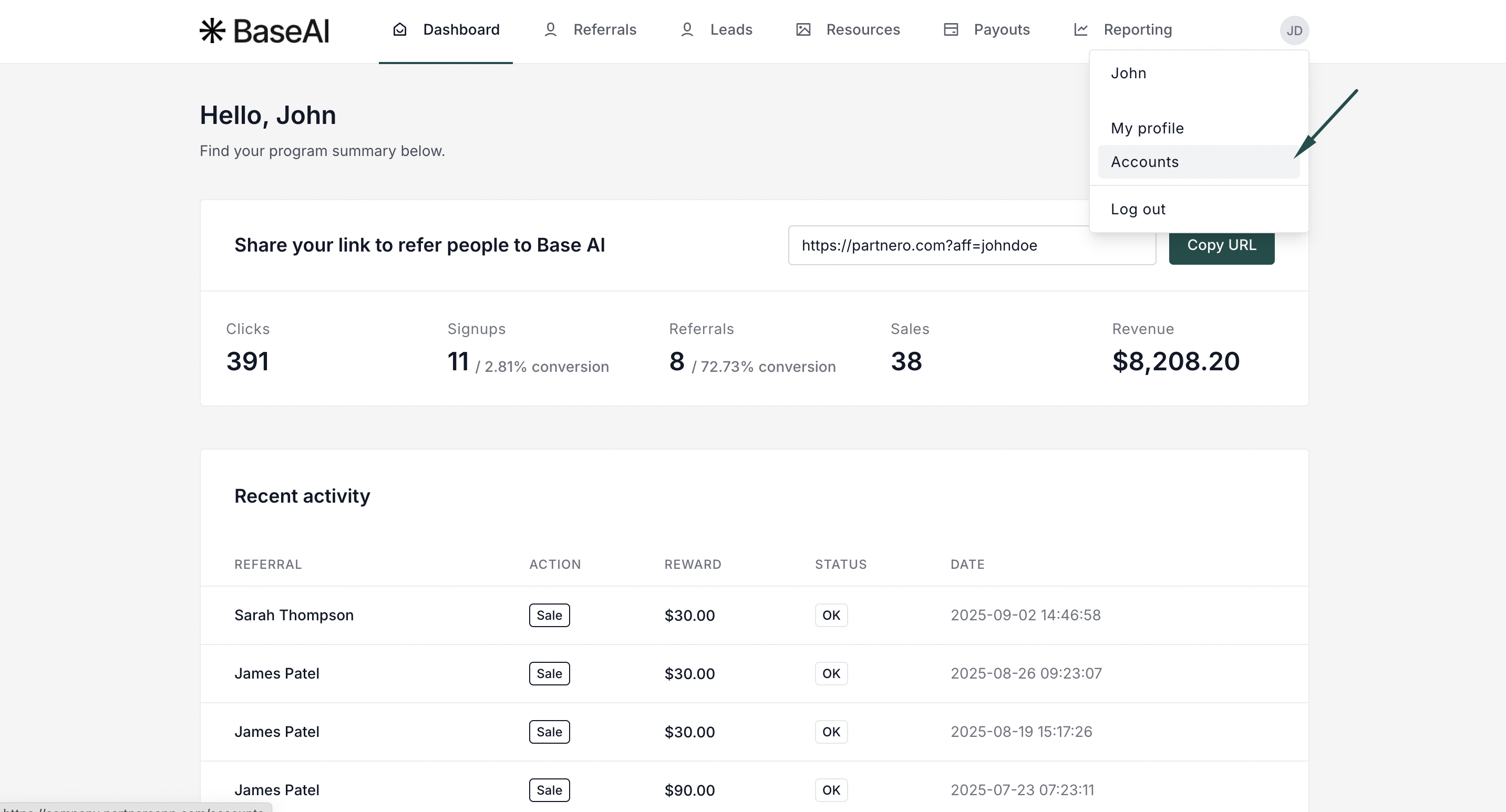
- Click on your profile, then select Accounts.
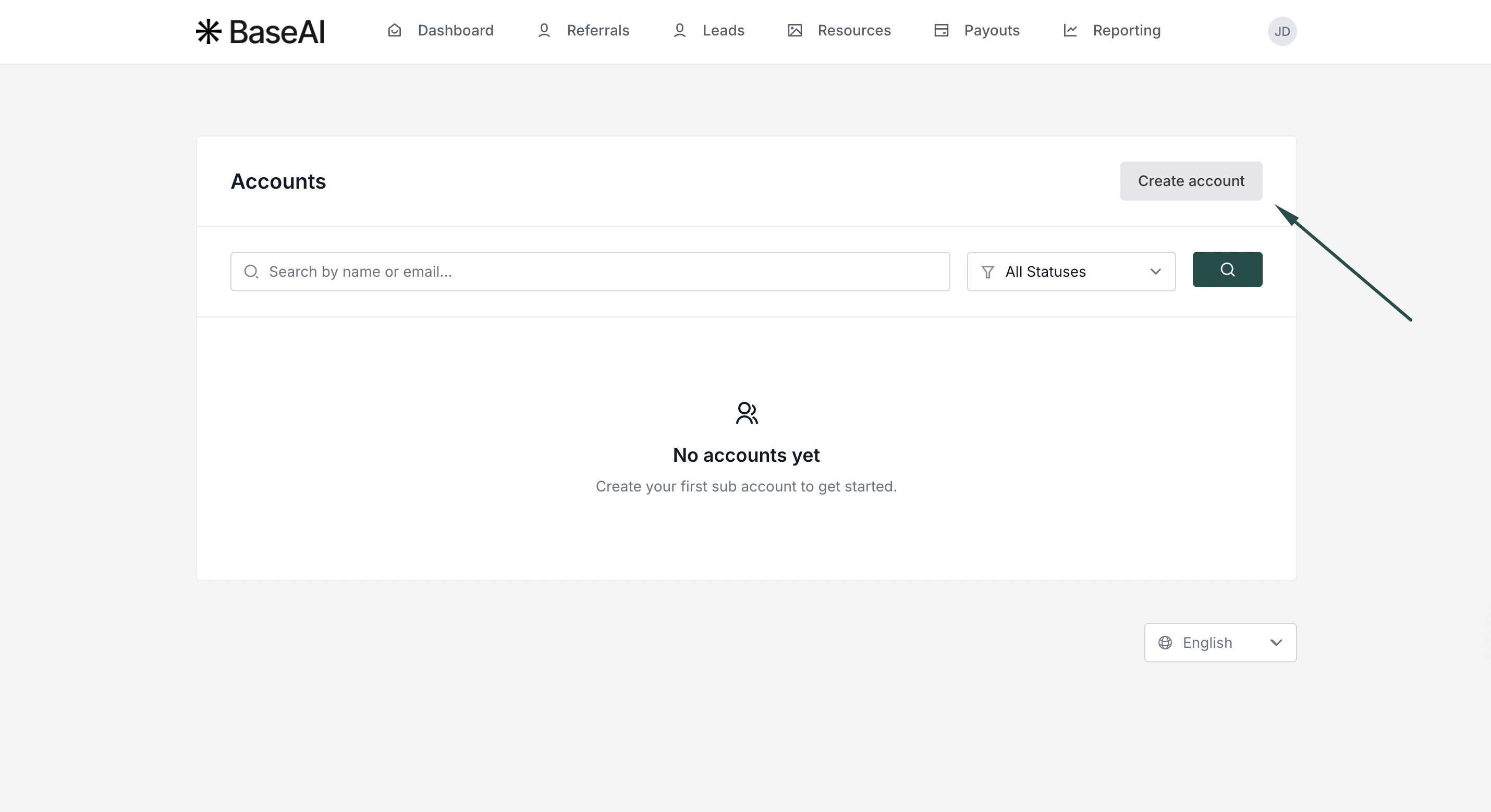
- Click Create Account.
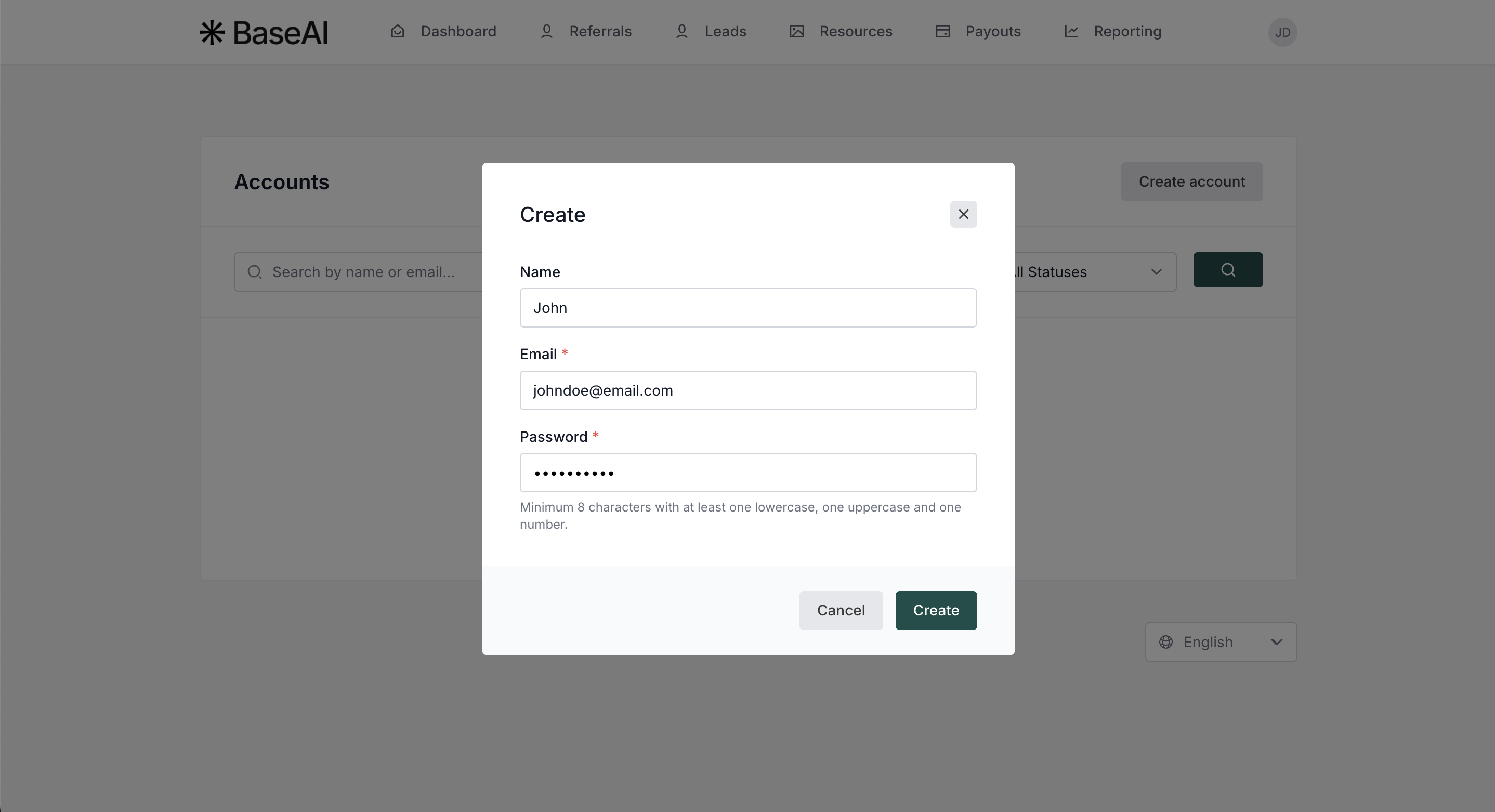
- Enter the name (optional), email address, and password. Click Create.
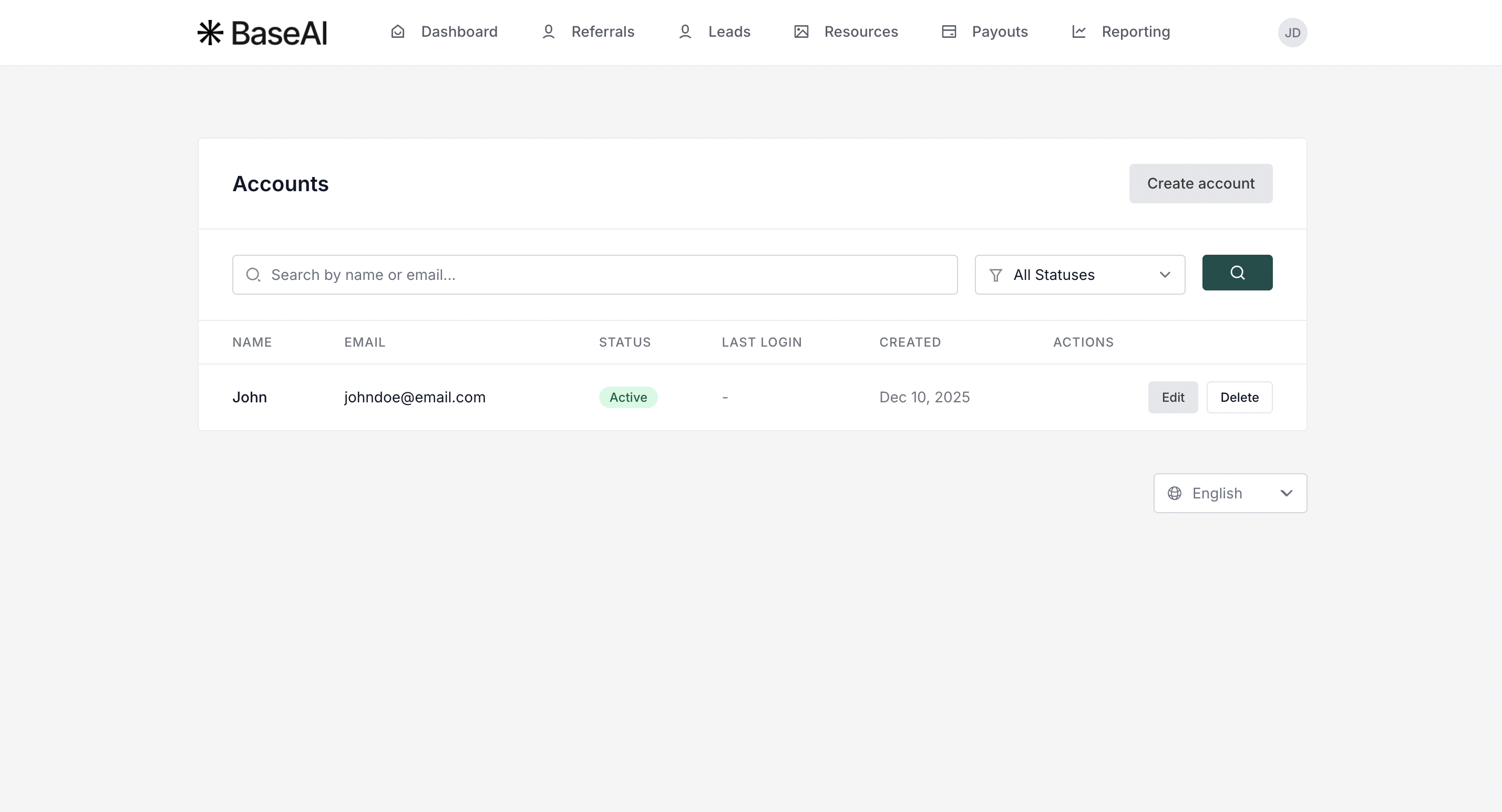
- You'll see the newly created sub-account. You can edit the details, suspend, or delete the sub-account here.
You can now share the login details with the new team member.
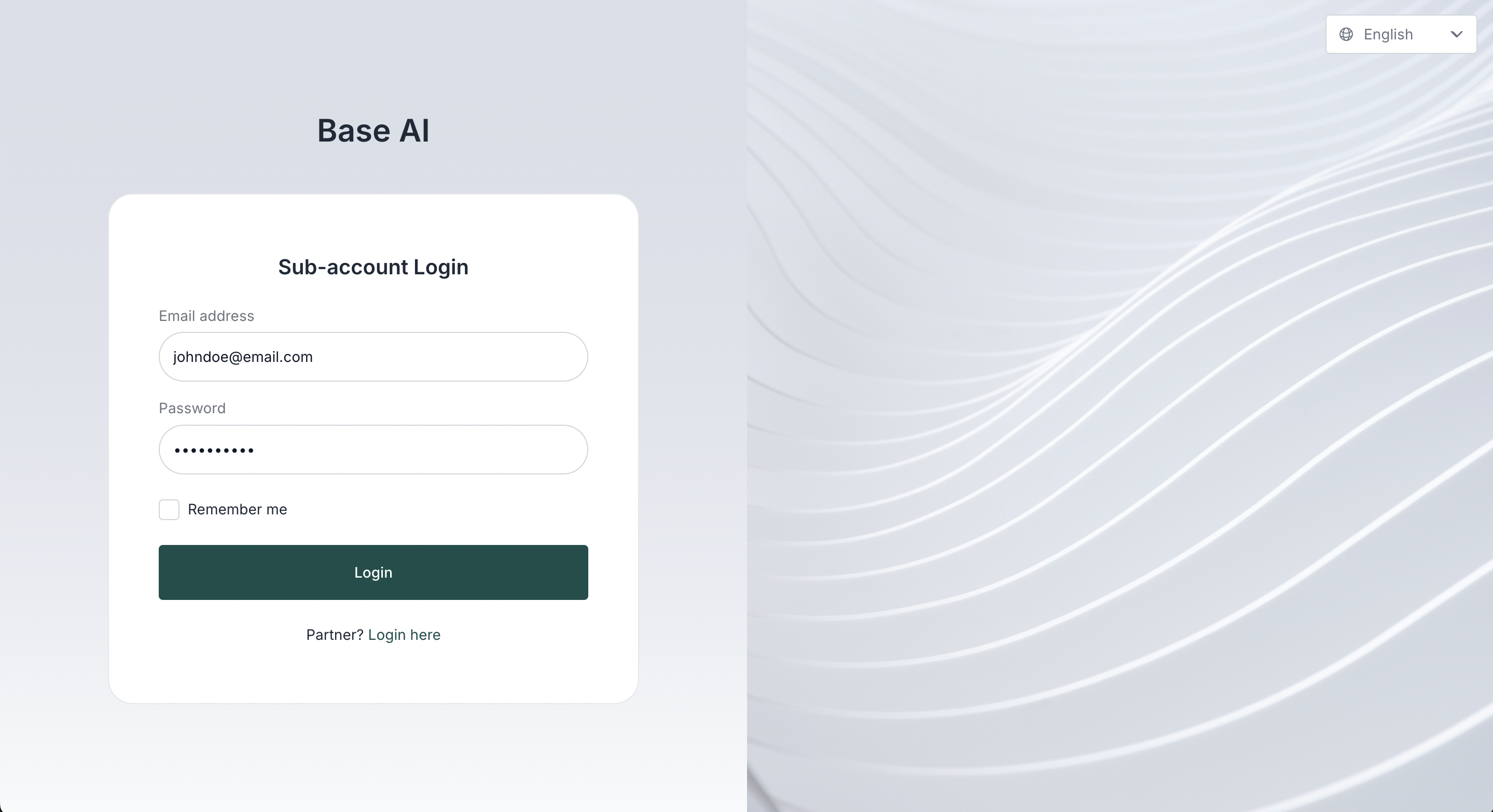
Sub-account user login
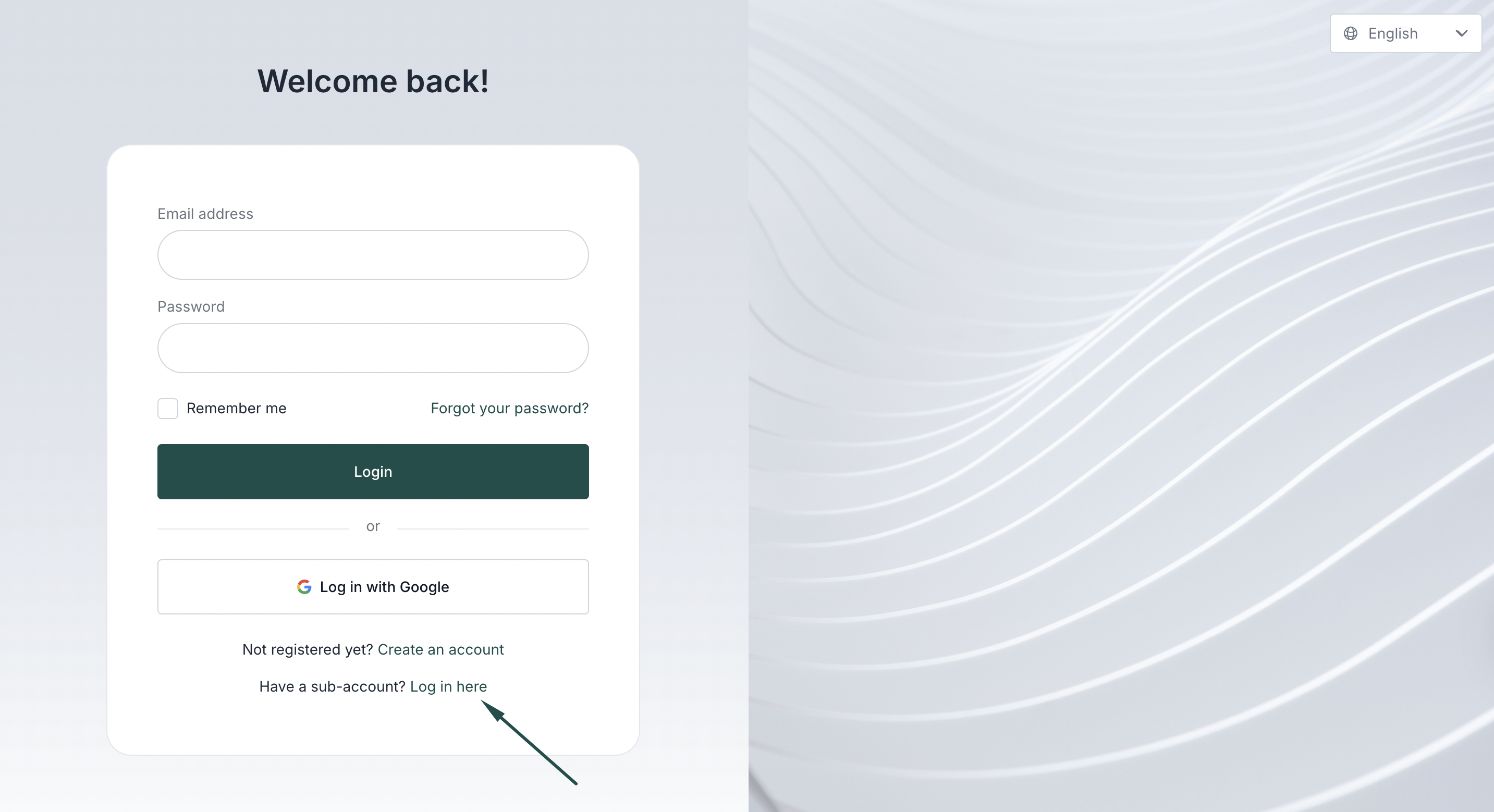
Sub-account users will have a separate login page that is accessible through the main partner portal login:
 Sub-account user permissions
Sub-account users will not be able to:
- Add new sub-accounts to the partner portal
- Delete the partner account.