
Integrate Tally
Sync Tally form submissions to create partners or customers automatically. Partnero offers two integration methods:
- Direct form link
- From linked from website
We'll go through both methods below. These instructions with auto-generated code snippets can be found on your Partnero account, under Integration > Tally: 
Method 1: Direct form link
Choose this when partners share a direct link to your Tally form with their referral key in the URL, for example:
https://tally.so/r/YOUR_FORM_ID?aff=PARTNER_KEY
Tally automatically captures URL parameters into hidden fields, no scripts needed.
Step 1: Add a hidden field to your Tally form
- Open your form in the Tally editor.
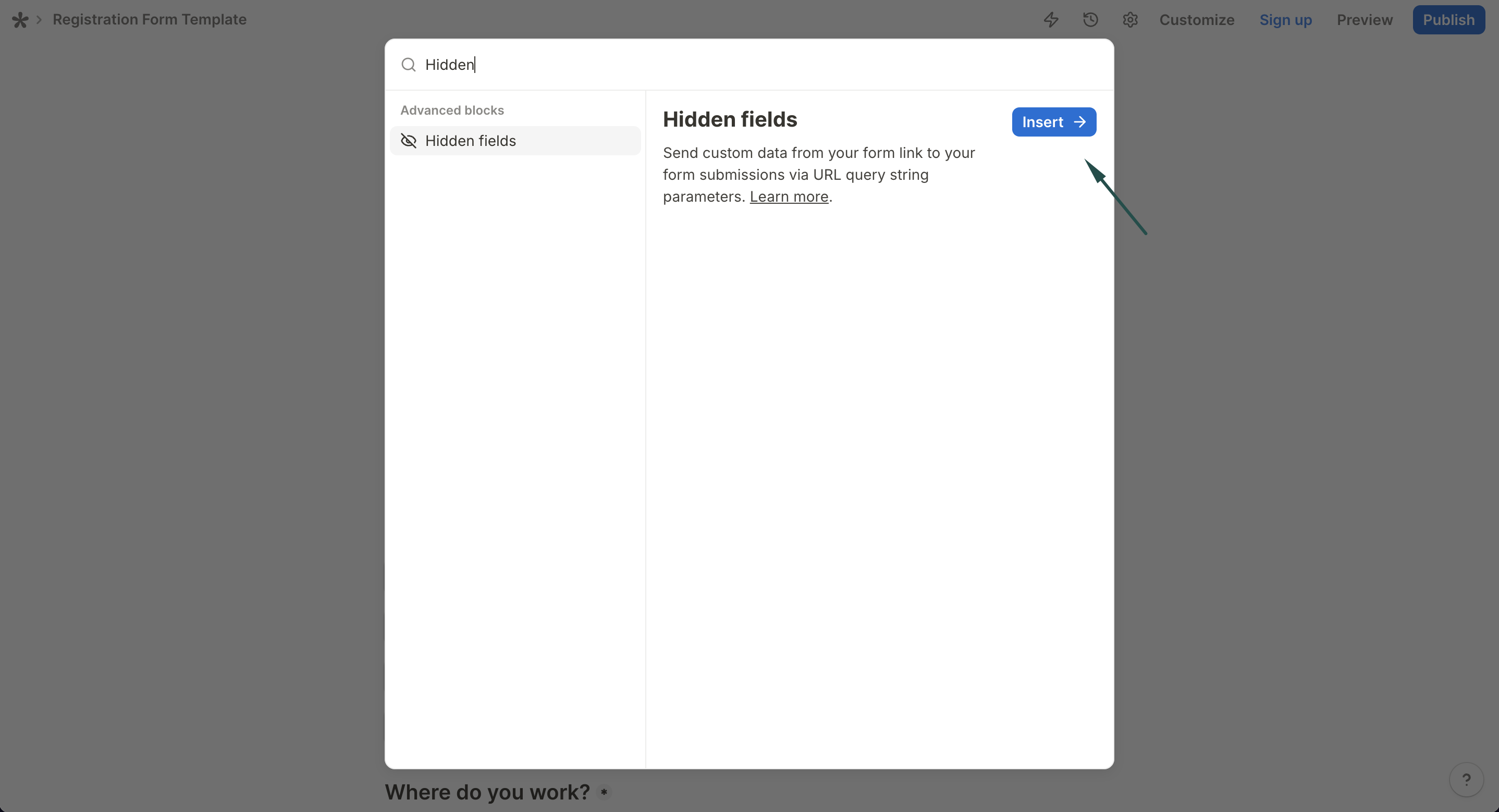
- Add a Hidden fields block to your form:
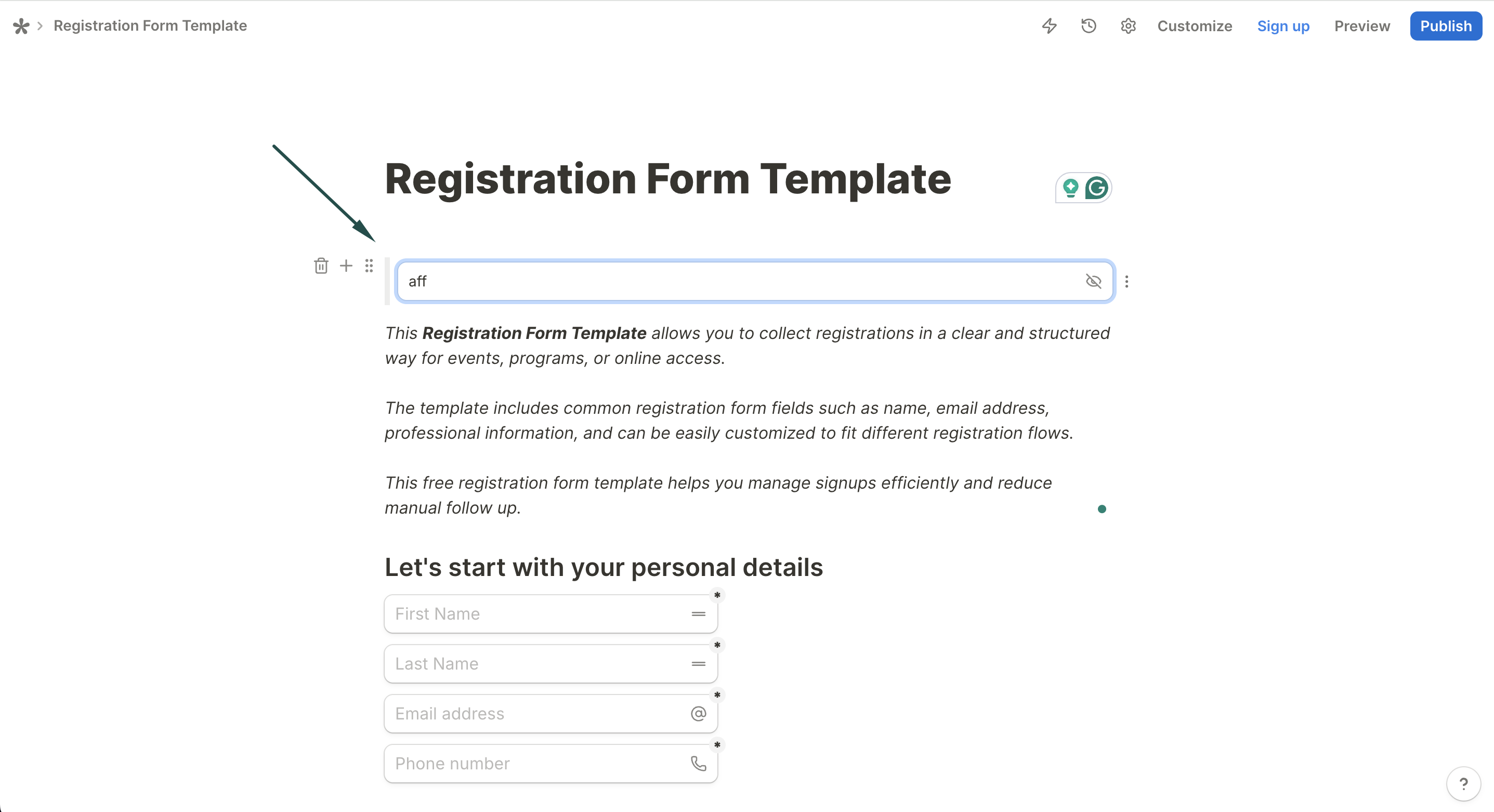
- Create a hidden field named aff:
- Publish your form.
Step 2: Connect Tally in Partnero
- Go to Integrations in your Partnero dashboard.
- Find Tally under Forms and click Connect:

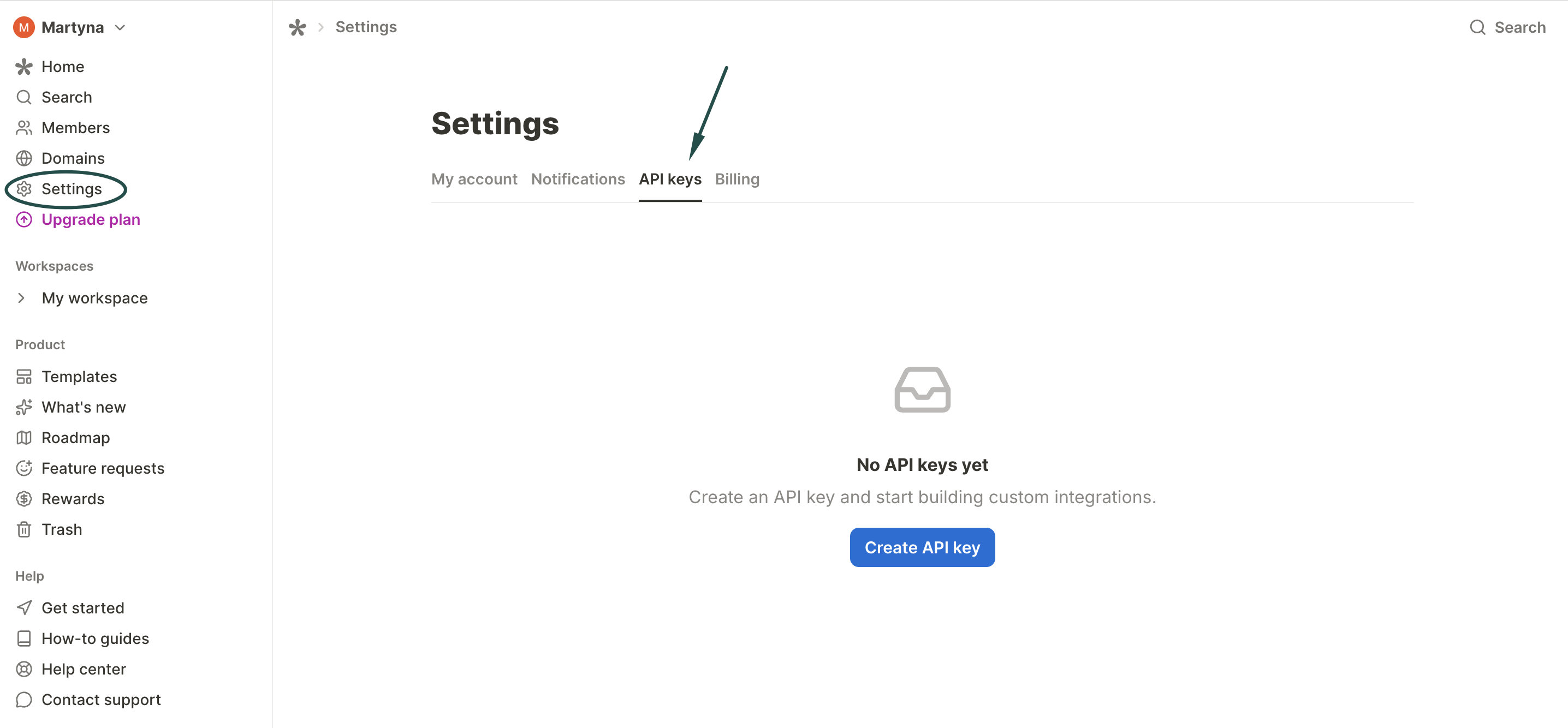
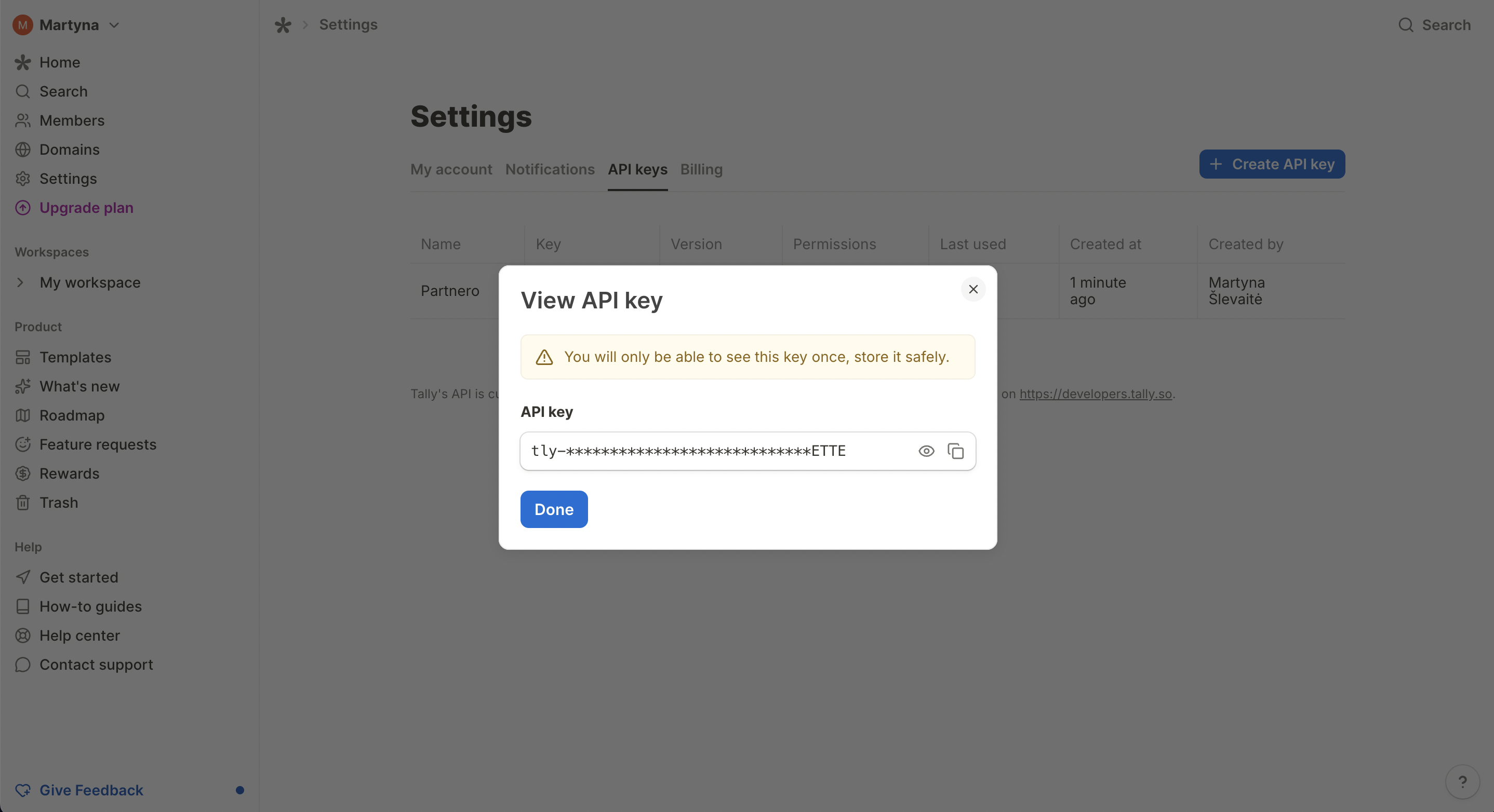
- In Tally account settings, create a new API key and add it to Partnero. Click Connect.
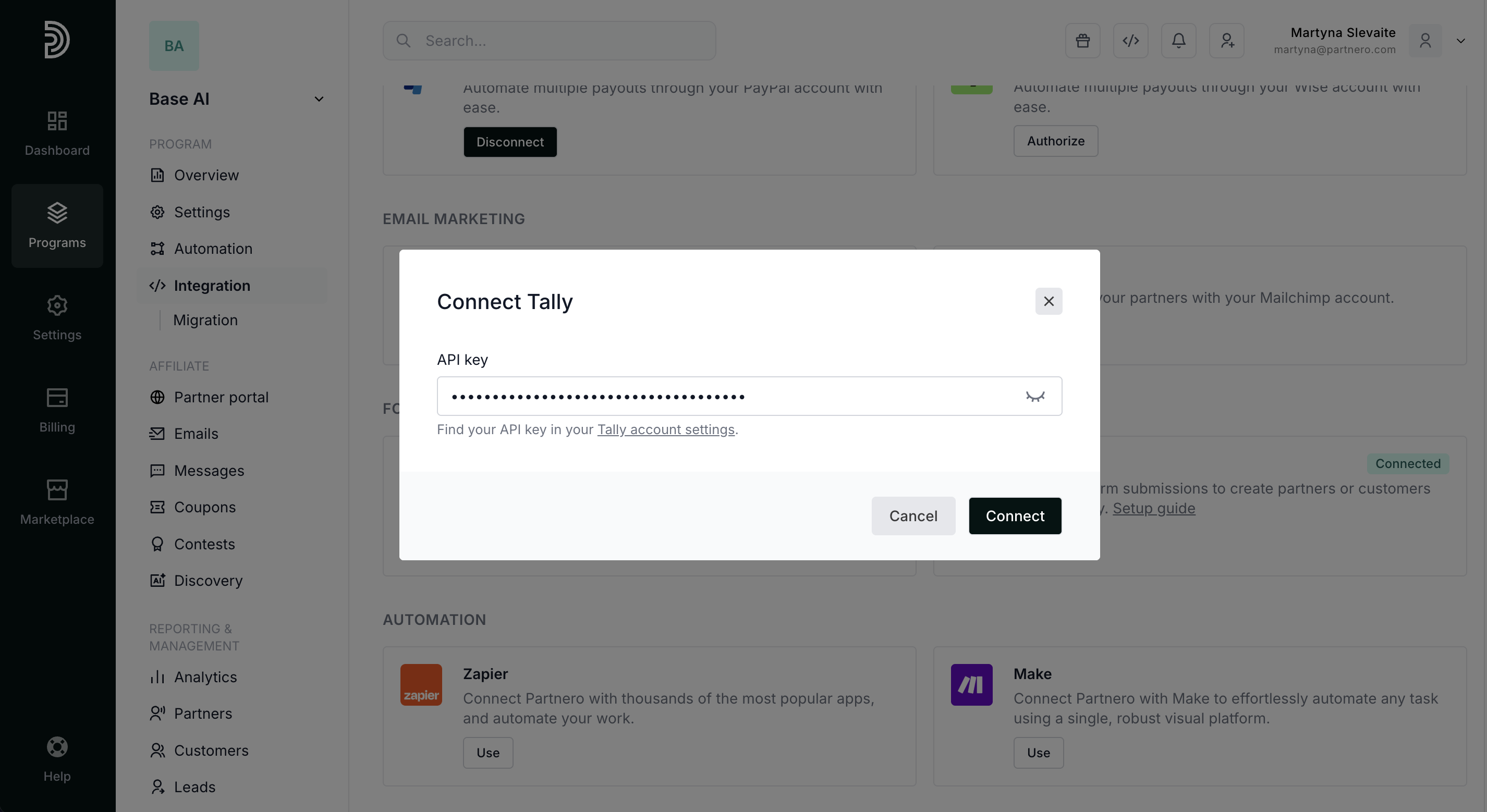
- Select your form, choose an action (create partner or customer), and map the fields.
- Make sure to map the hidden field to the Partner key:
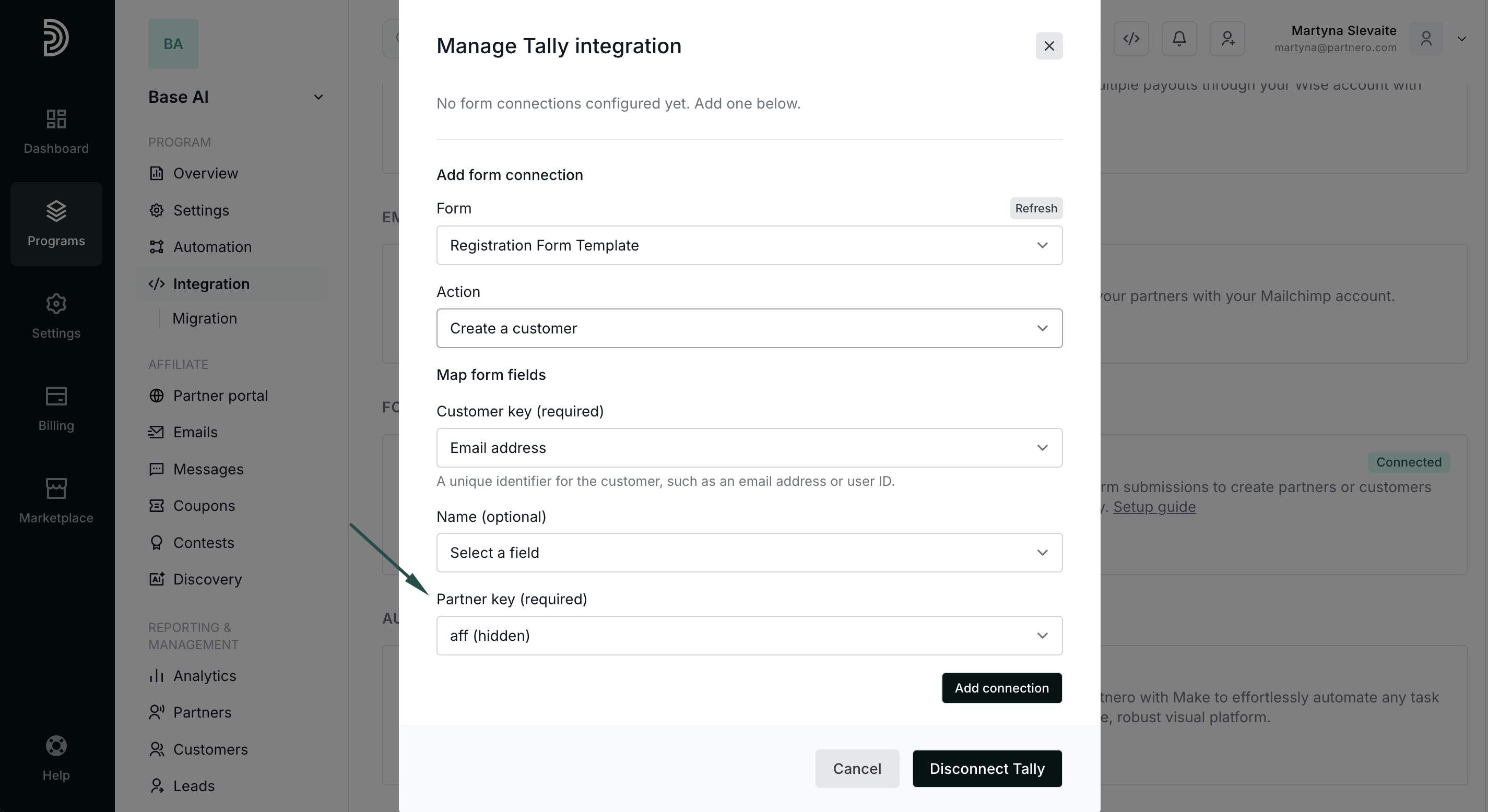
That's it! When someone opens the form link with a partner key in the URL, Tally captures it in the hidden field and sends it to Partnero via webhook.
Sales tracking
To complete the integration, you need to share details of successful sales with Partnero. You can do this in a few ways:
- Use Stripe or Paddle Billing integrations
- Implementing tracking through the Partnero API
- Implementing tracking through the Partnero JS
- Use Zapier or Make to connect everything.
Method 2: Form linked on website
Choose this when your website has Partnero tracking installed and contains a link to a Tally form. A small script will read the referral key from the tracking cookie and append it to your Tally form links automatically.
Step 1: Install the tracking script on your website
Add the PartneroJS snippet to your website to track visitors and store the referral key in a cookie. The PartneroJS snippet can be found under Integration → Program details: 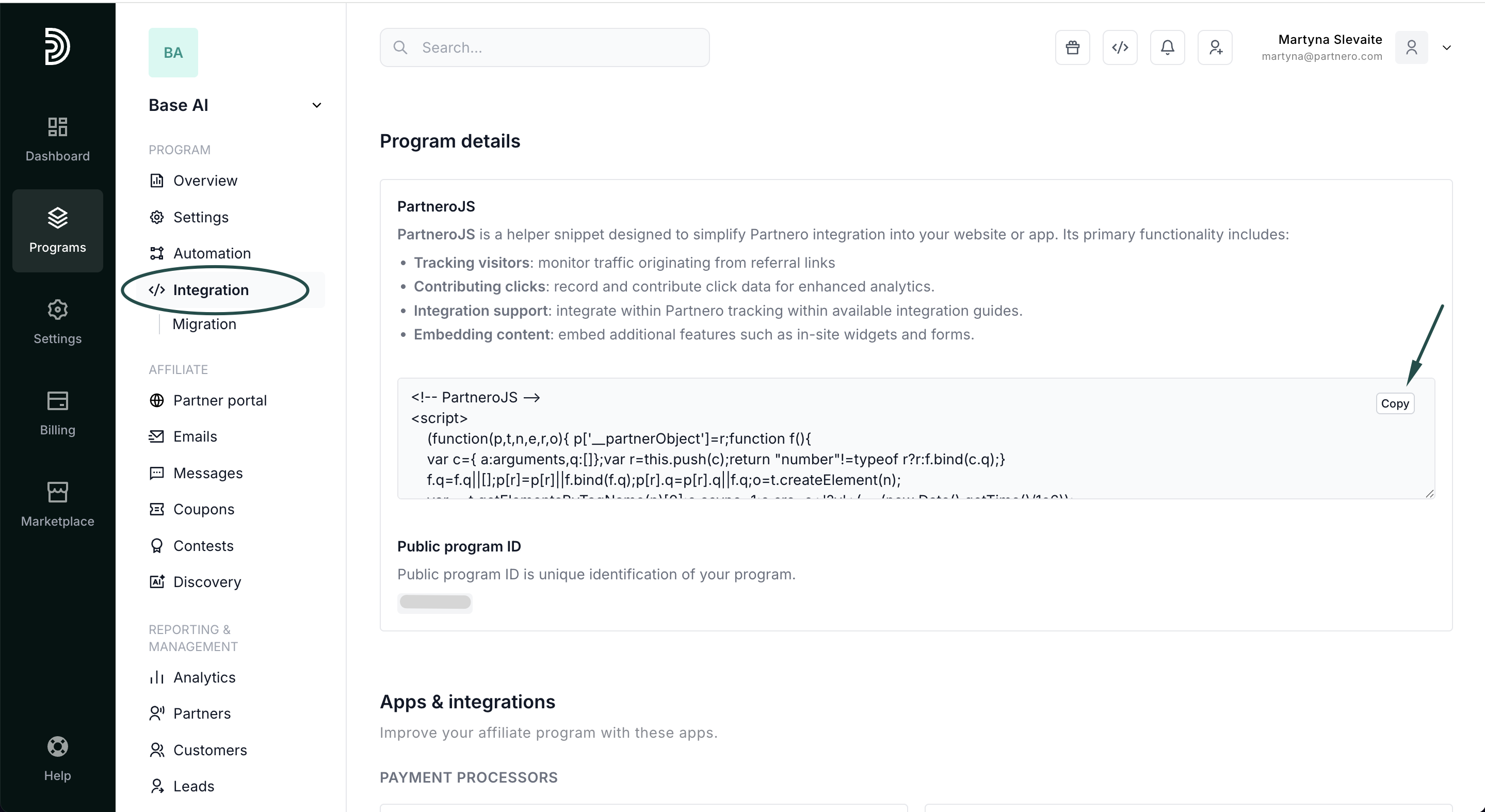
Step 2: Add a hidden field to your Tally form
- Open your form in the Tally editor.
- Add a Hidden fields block to your form.
- Create a hidden field named aff.
- Publish your form.
Step 3: Add the link script to your website
Open the Tally setup guide on your Partnero account. Switch to the Form linked on website tab and scroll to Step 3: 
If you use a custom domain for your Tally forms (e.g., forms.yourcompany.com), add it to the Tally form domain field. Otherwise, leave the default.
Copy the provided script. Add it to the pages that contain Tally forms.
Step 4: Connect Tally in Partnero
- Go to Integrations in your Partnero dashboard.
- Find Tally under Forms and click Connect.
- Enter your Tally API key (from Tally account settings).
- Select your form, choose an action (create partner or customer), and map the fields.
- Make sure to map the hidden field to the Partner key.
When a referred visitor clicks a Tally link on your website, the script appends the partner key to the URL. Tally captures it in the hidden field and sends it to Partnero via webhook.
Sales tracking
To complete the integration, you need to share details of successful sales with Partnero. You can do this in a few ways:
- Use Stripe or Paddle Billing integrations
- Implementing tracking through the Partnero API
- Implementing tracking through the Partnero JS
- Use Zapier or Make to connect everything.