
Connect AI Assistants to Partnero with the MCP Server
Partnero's MCP (Model Context Protocol) server lets you manage your affiliate or referral program directly from AI assistants like Claude Desktop, Cursor, VS Code, and the Claude Code CLI.
Instead of clicking through the dashboard, you can ask things like:
- “Show me my top 10 partners this month”
- “Create a customer for and link them to partner partner_abc”
The assistant will execute these actions through your Partnero account.
This guide explains what MCP is, how to connect it, and what you can do with it.
What is MCP?
The Model Context Protocol is an open standard that enables AI assistants to securely interact with external tools and data sources.
The Partnero MCP server exposes your program’s data and actions (partners, customers, transactions, leads, rewards) so the assistant can use them on your behalf.
All requests are authenticated with your Partnero API key, so the assistant only accesses data your account is allowed to see.
What your AI assistant can do
Once connected, your assistant can manage:
Partner management
- list, search, get partners
- create, update partners
- archive / restore partners
Customer management
- list, search, create customers
- update customers
- view transactions and stats
- archive / restore customers
Transactions
- list and retrieve transactions
- create transactions (triggers commissions)
- archive / restore transactions
Leads
- list and manage leads
- convert or reject leads
Rewards & program
- view rewards
- program overview and settings
How to connect Partnero MCP to your AI assistant
Step 1: Get your API key
- Log in to your Partnero dashboard
- Go to Integration → MCP (or Settings → API)
- Generate and copy your API key:
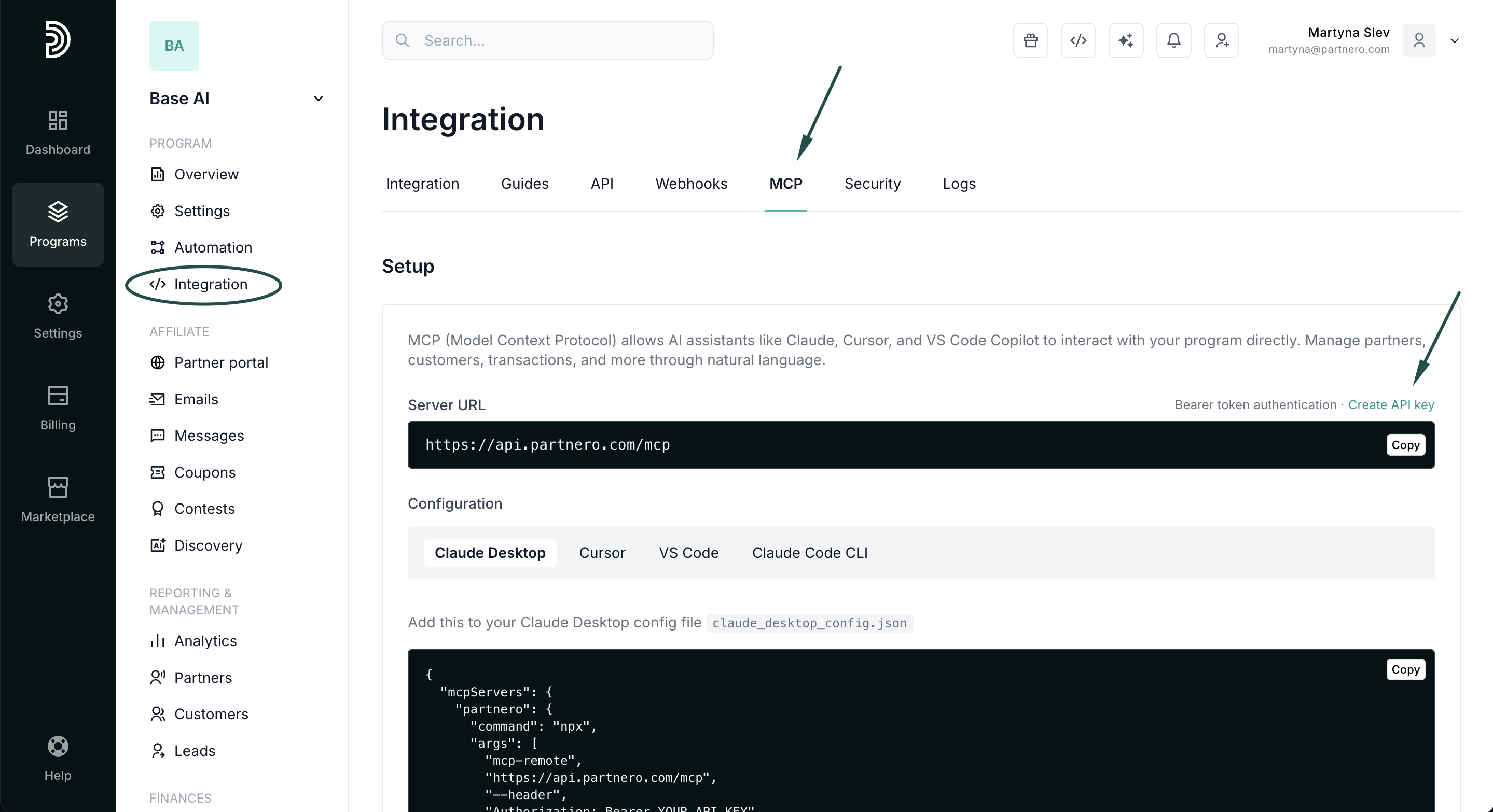
⚠️ Keep your API key secure, as it provides full access to your program
Step 2: Connect Partnero MCP to your AI assistant
You can find ready-to-use setup instructions and configuration snippets for each supported AI tool directly in your Partnero dashboard.
- Go to Integrations → MCP
- Choose the AI tool you want to connect (Claude Desktop, Cursor, VS Code, or Claude Code CLI)
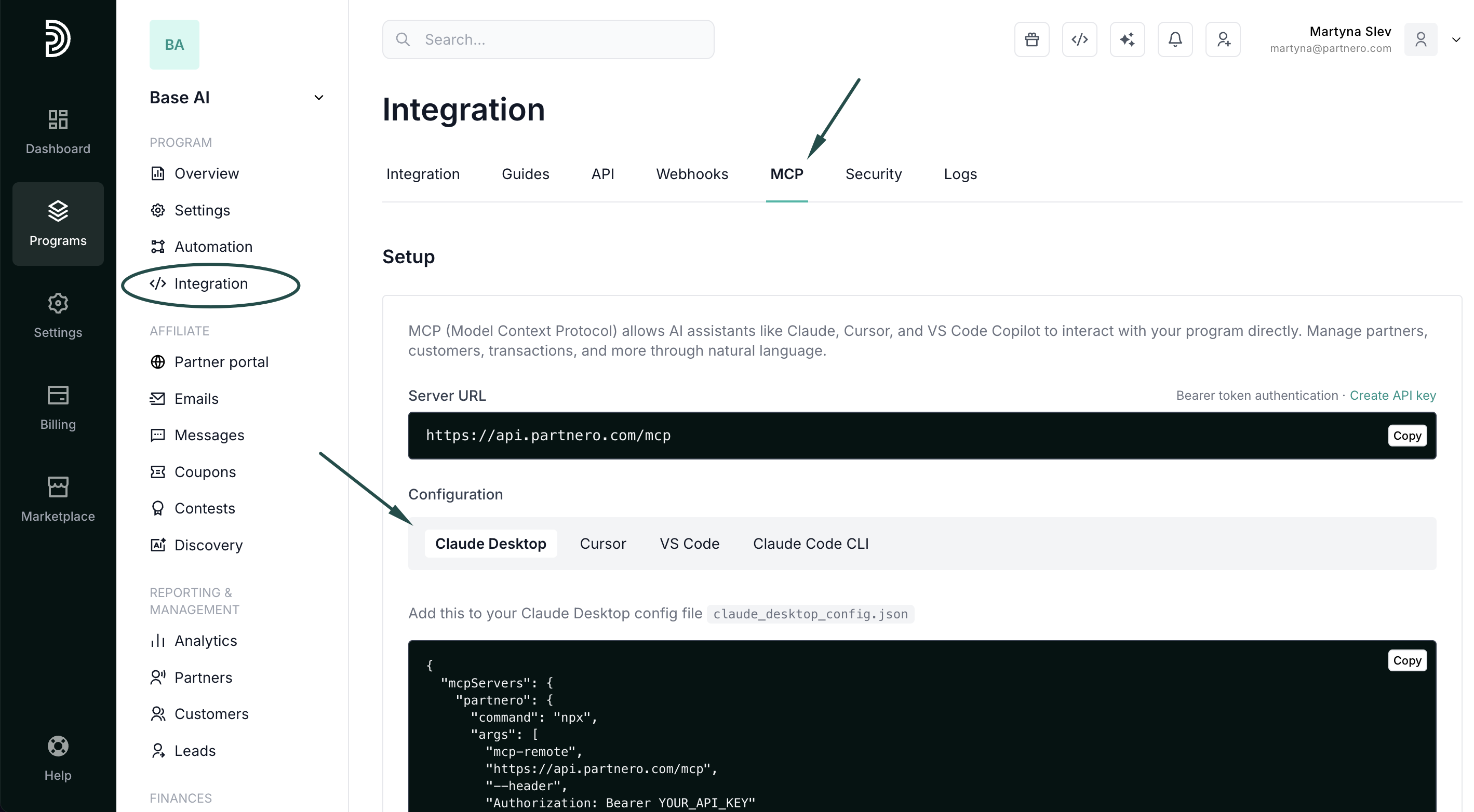
- Copy the configuration instructions shown for that tool:
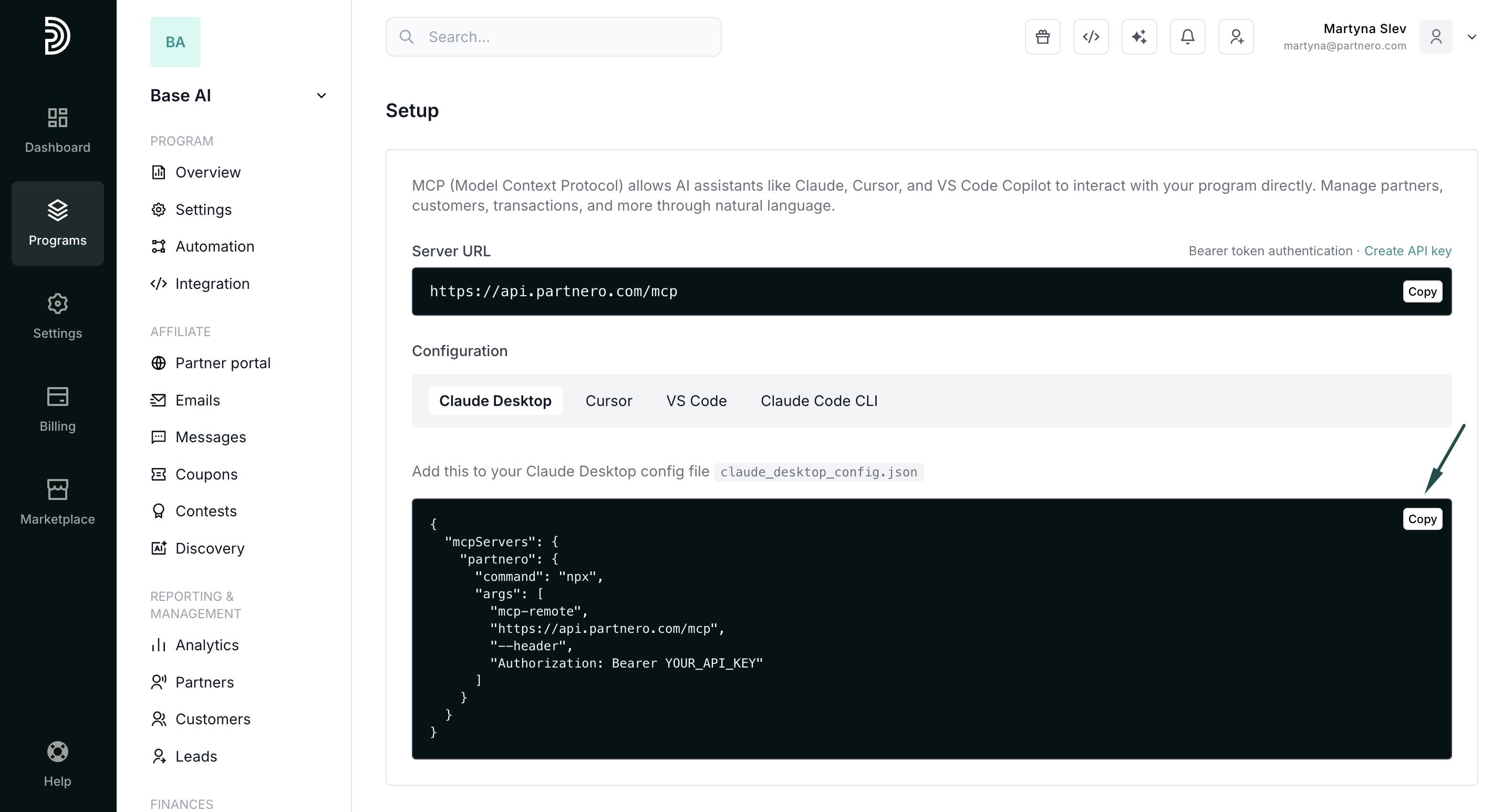
- In the code snippet, find the placeholder Authorization: Bearer YOUR_API_KEY and replace
YOUR_API_KEYwith your actual API key generated from your Partnero dashboard. - Paste them into your AI tool’s MCP or integration settings
- Restart your AI tool if needed.
Example prompts
You can ask:
- Show me my top 10 partners by performance
- How many customers were referred this month?
- Create a new partner with email jane@example.com
- Get transaction history for customer cust_123
- What’s the total pending commission amount?
- Search for partners named John
- Create a customer for and link to partner partner_abc
- Give me an overview of my program
The assistant will choose the right tool and return results in natural language.
Rate limits
- Tool calls: 360 requests/minute
- SSE connections: 5 per IP/minute
If you hit limits, wait a minute or batch requests.
Troubleshooting
401 Unauthorized
- Check API key and Authorization header
Tool not appearing
- Restart your AI application
429 Too Many Requests
- Wait 60 seconds or reduce request frequency
Local server issues
- Ensure Node.js 18+ is installed
- Check
node --version