
Send program emails with Brevo
Various email notifications are sent to your partners, including partner portal password resets, approval notifications, payout notifications, and more.
By default, program emails are sent from the @partnero.email domain. To improve deliverability and ensure emails come from a familiar sender, you can connect your own domain. This allows you to customize the sender information using your Brevo account.
How to connect your Brevo account
To connect your Brevo account:
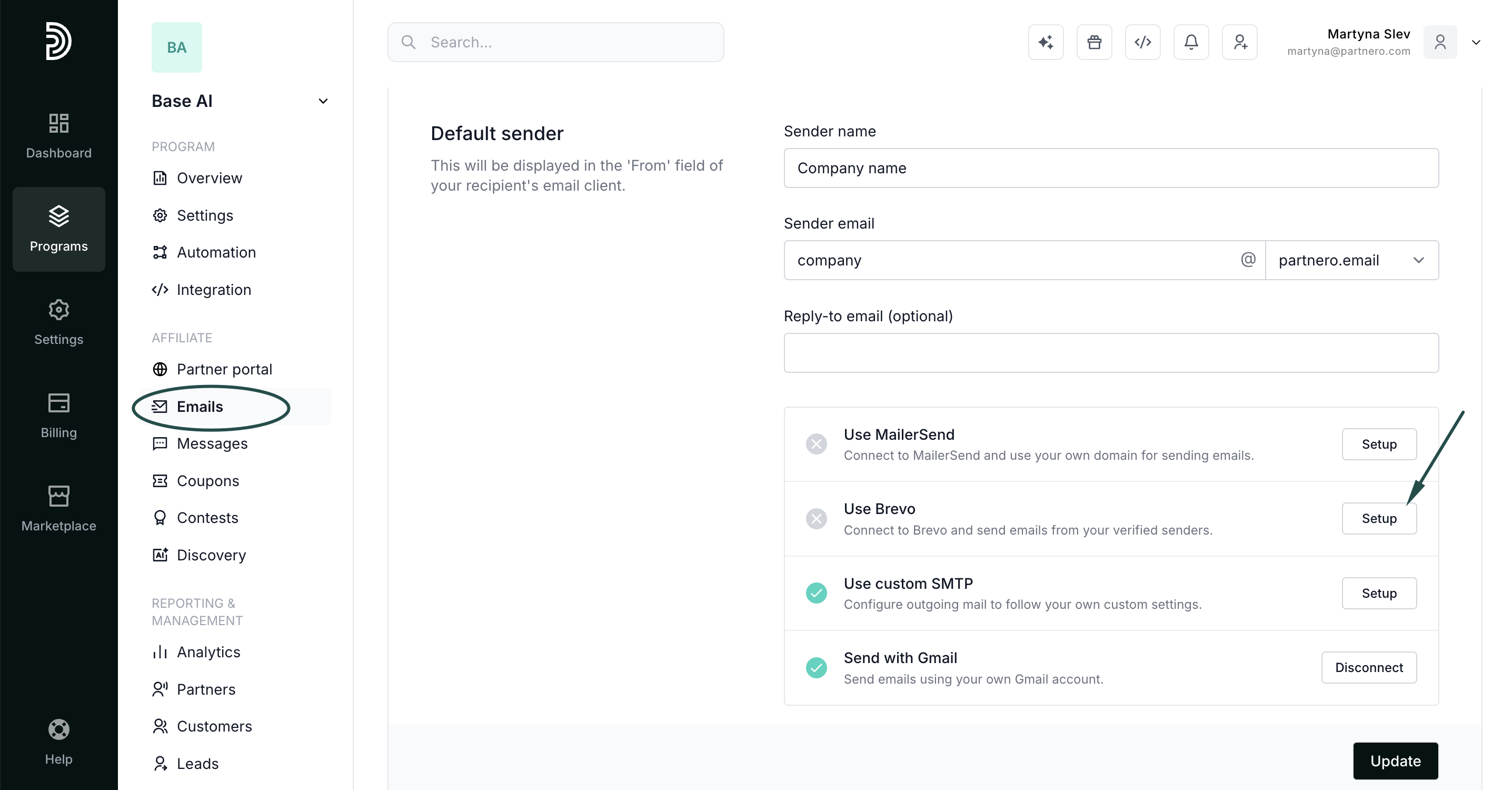
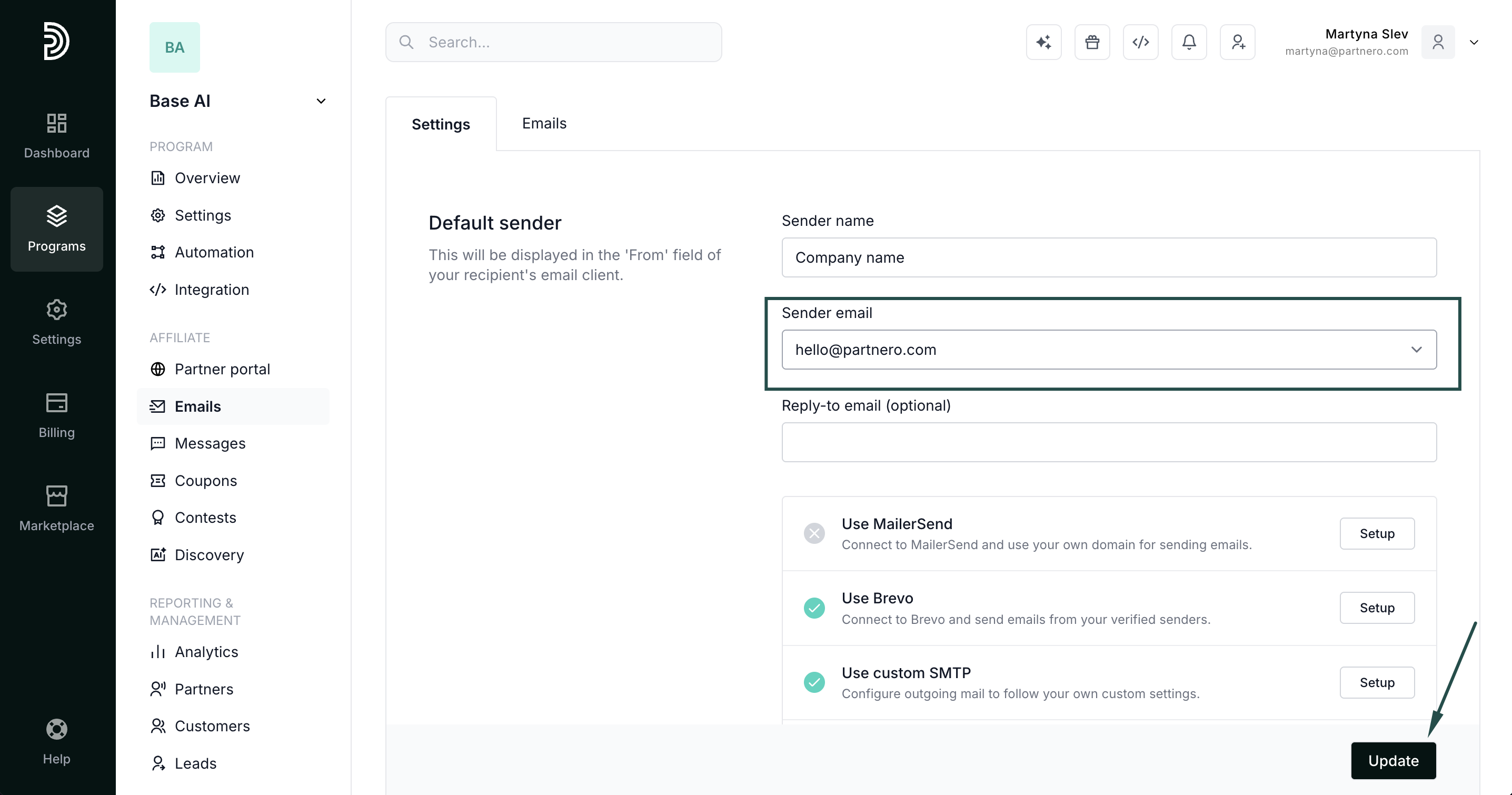
- In your program, go to Emails under Affiliate.
- In the Settings tab, click Setup next to Use Brevo:
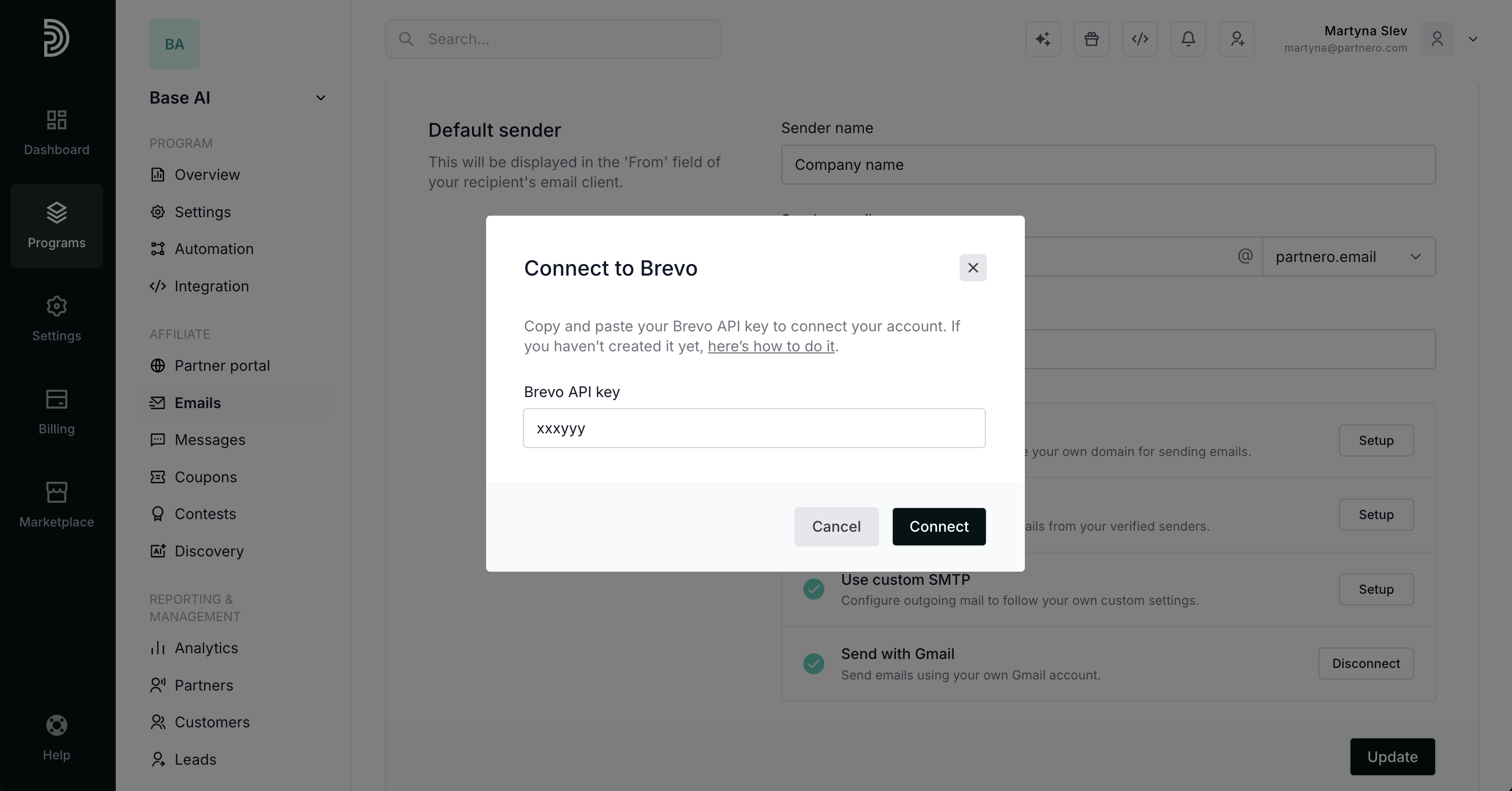
- Enter your Brevo API Key (here's how to create one) and click Connect.
 ⚠️ Important: If you have IP restrictions enabled in Brevo, you may need to whitelist Partnero's IP address before connecting. Here's how to manage IP authorization in Brevo.
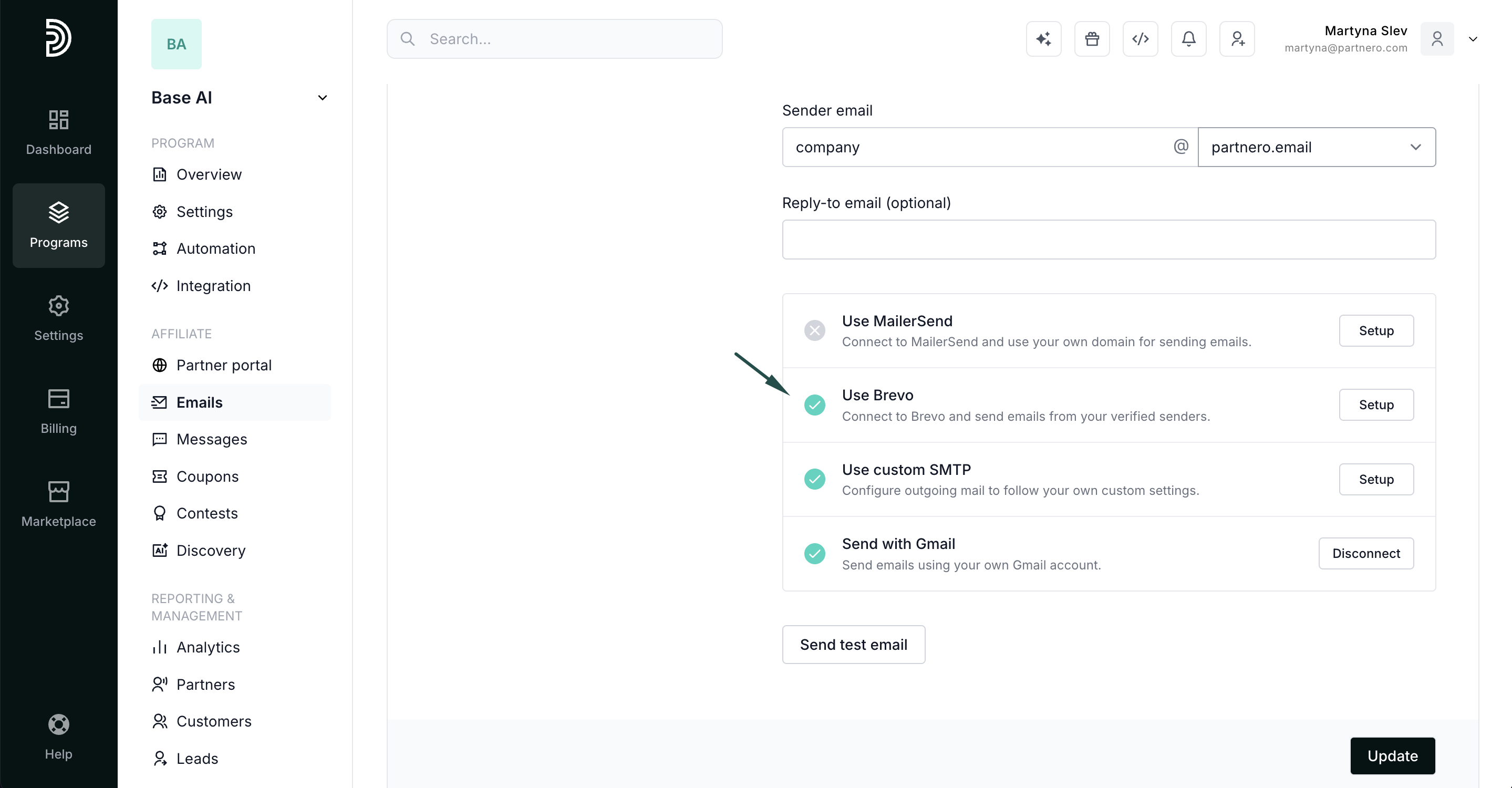
 - Once connected, Brevo will have a green checkmark - this means it's now available for use.
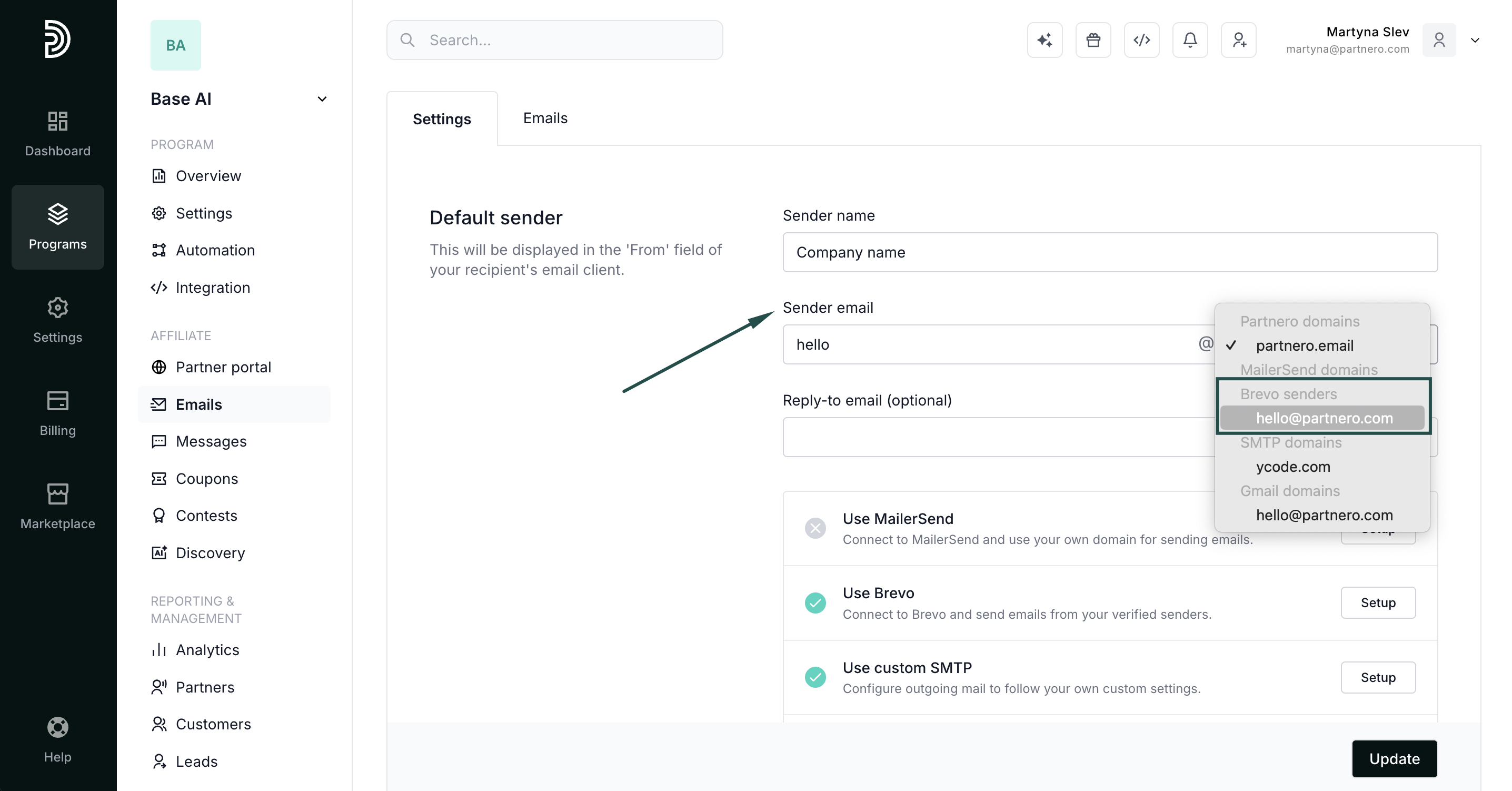
- The last step is to select the newly connected domain under Sender email > Brevo senders:
- Click Update to save your changes.
 ⚠️ Important: If you have IP restrictions enabled in Brevo, you may need to whitelist Partnero's IP address before connecting.
