
How to auto-apply promotion codes at checkout
What is auto-apply for promotion codes?
Auto-apply allows promotion codes to be automatically included in your partners' or customers' referral links. When a visitor clicks a referral link, the promotion code is passed to your website and can be automatically pre-filled in the coupon input field at checkout, creating a seamless discount experience for customers.
Auto-apply promotion codes is available for both Affiliate and Refer-a-Friend programs. The setup steps are the same for both.
Requirements
To use auto-apply promotion codes, you need:
- An active integration (Stripe, Paddle Billing, Shopify, or WooCommerce) or a custom API setup
- At least one coupon with promotion codes assigned to partners
- The Partnero tracking script installed on your website
How to enable auto-apply promotion codes
Follow the two-step process to enable auto-apply promotion codes for your program.
Step 1: Enable "Include promotion codes in referral links"
- Go to Program → Settings in your Partnero dashboard.
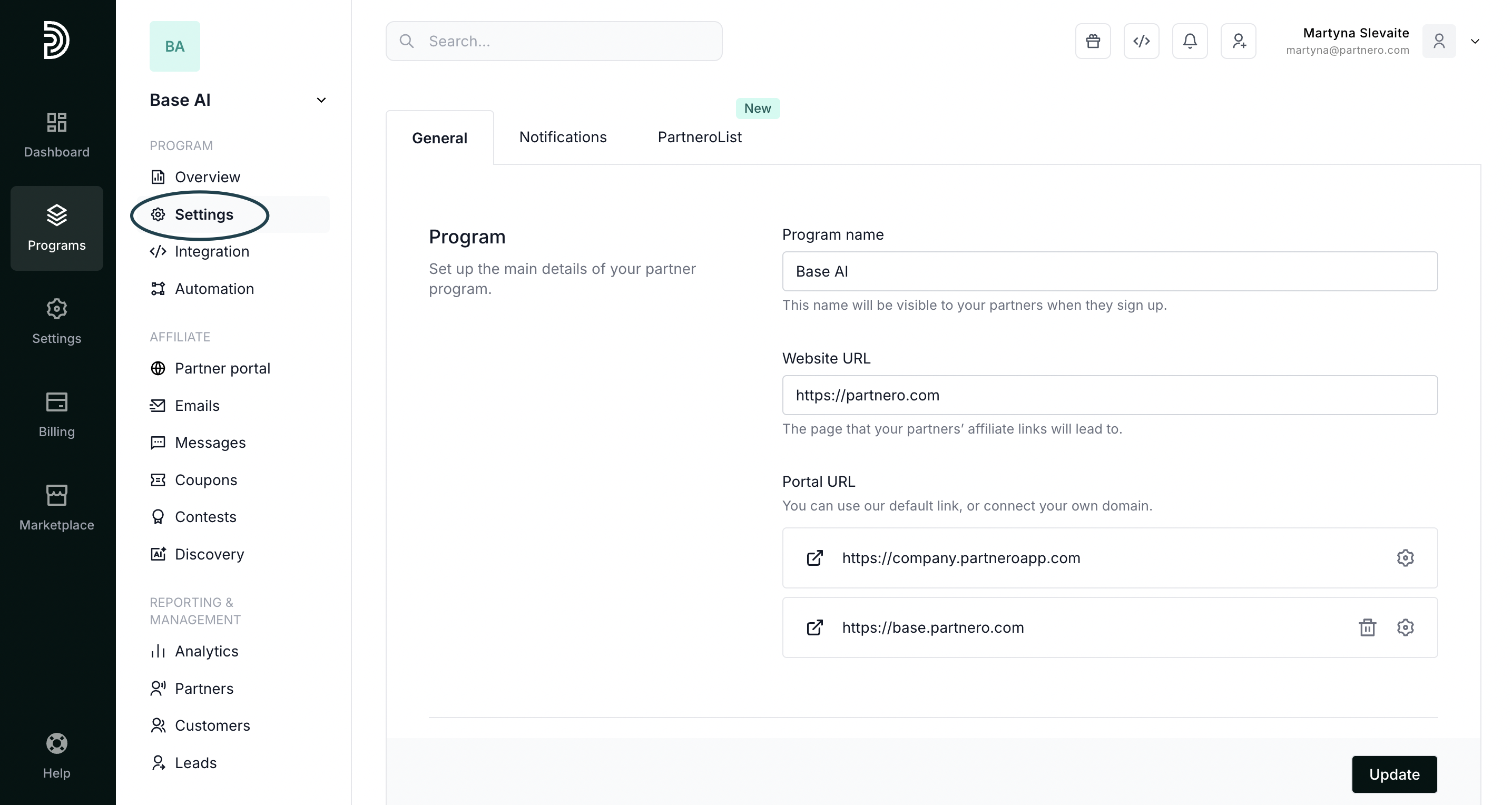
- Scroll down to the Coupon tracking section.
- Enable the toggle Include promotion codes in referral links:
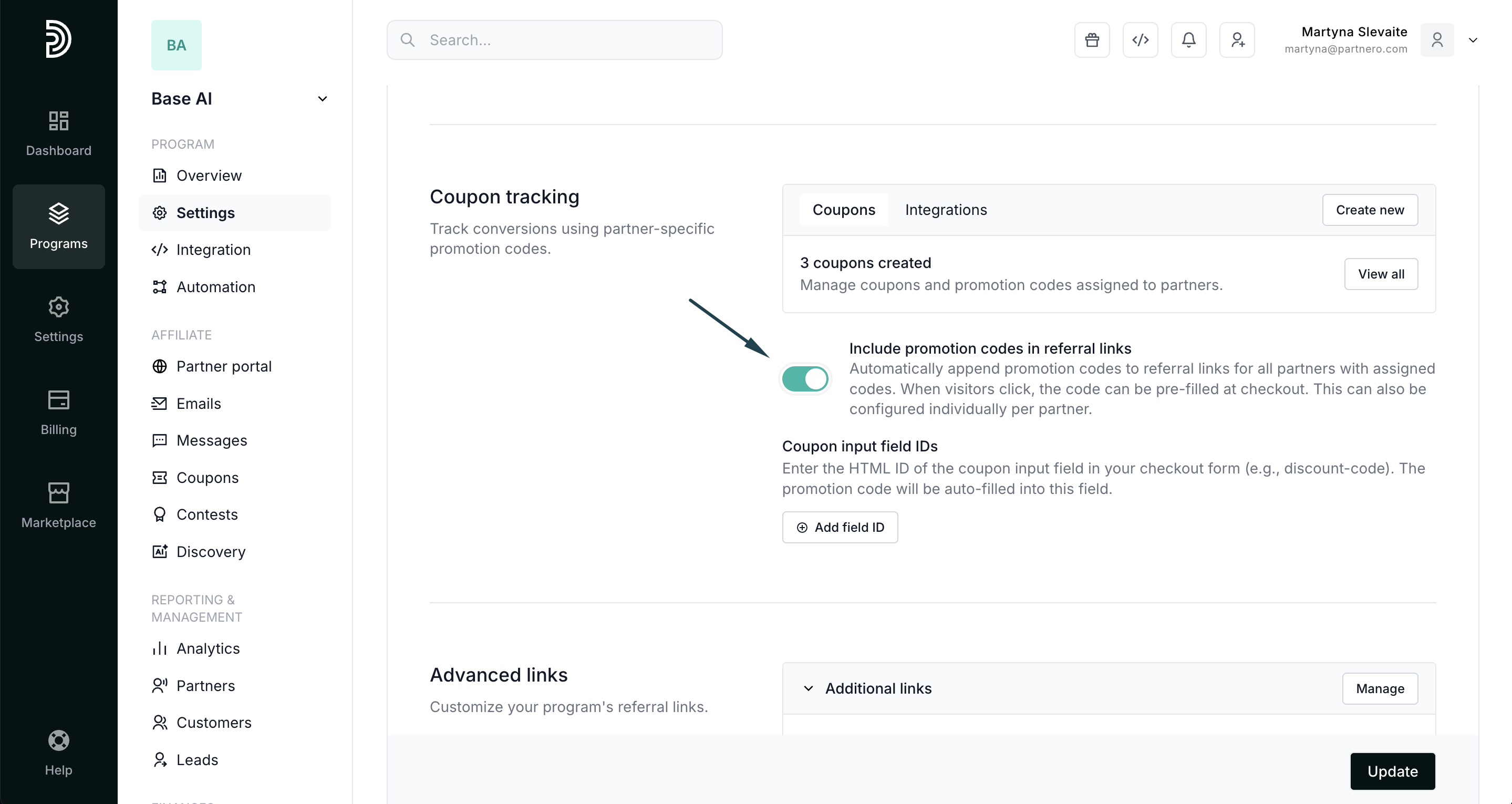
- Click Update to save changes.
When enabled, this setting automatically appends the partner's promotion code to all their referral links. For example:
- Original link: https://yoursite.com/?via=john
- With promotion code: https://yoursite.com/?via=john&coupon=JOHN20
Note: This can also be configured individually for each partner on their profile page.
Step 2: Configure coupon input field IDs
Coupon input field IDs tell Partnero where to auto-fill the promotion code on your checkout page.
- In the Coupon tracking section, find the Coupon input field IDs.
- Click Add field ID:
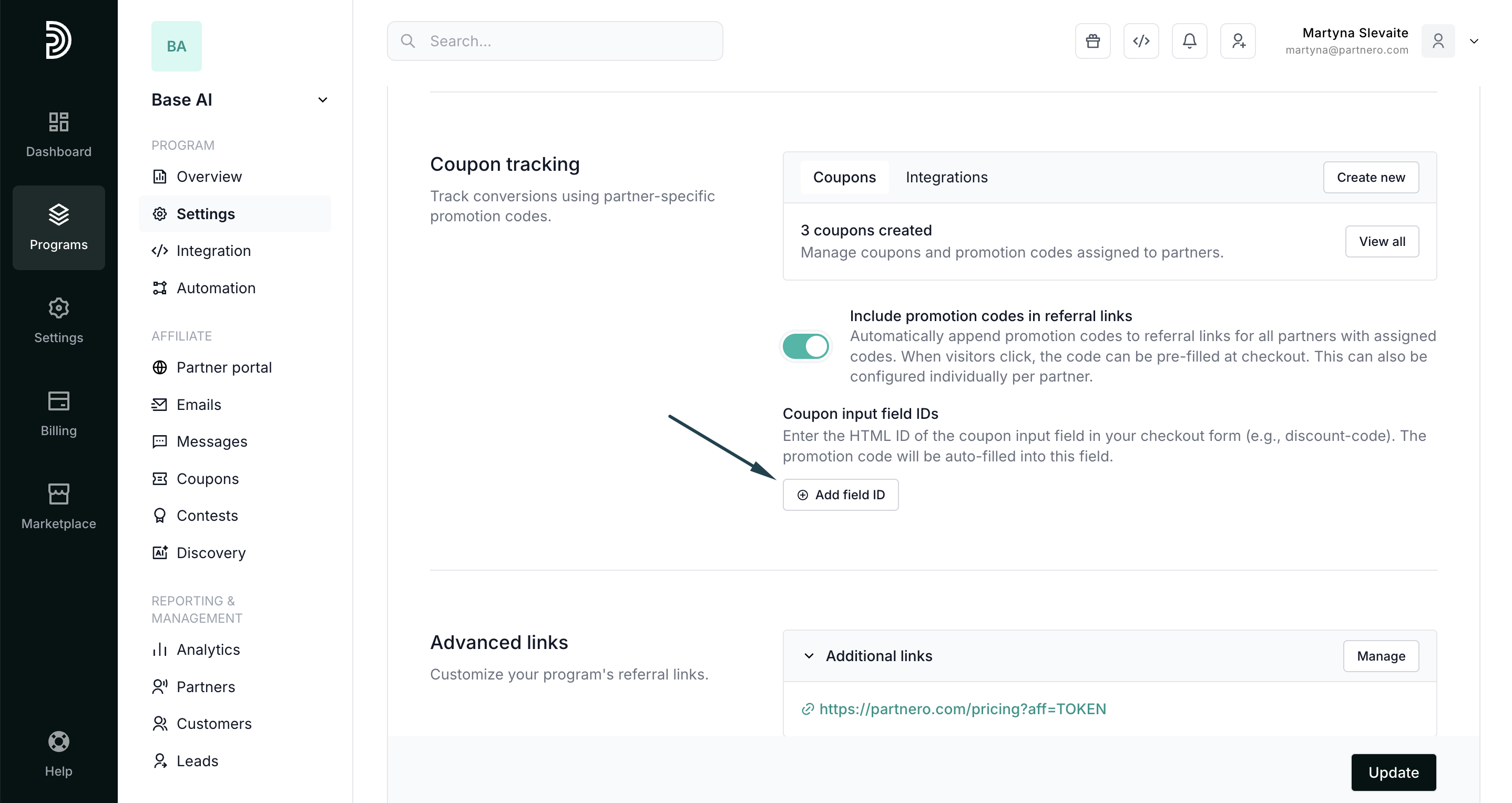
- Enter the HTML ID of your coupon input field (e.g., discount-code).
- Click Update.
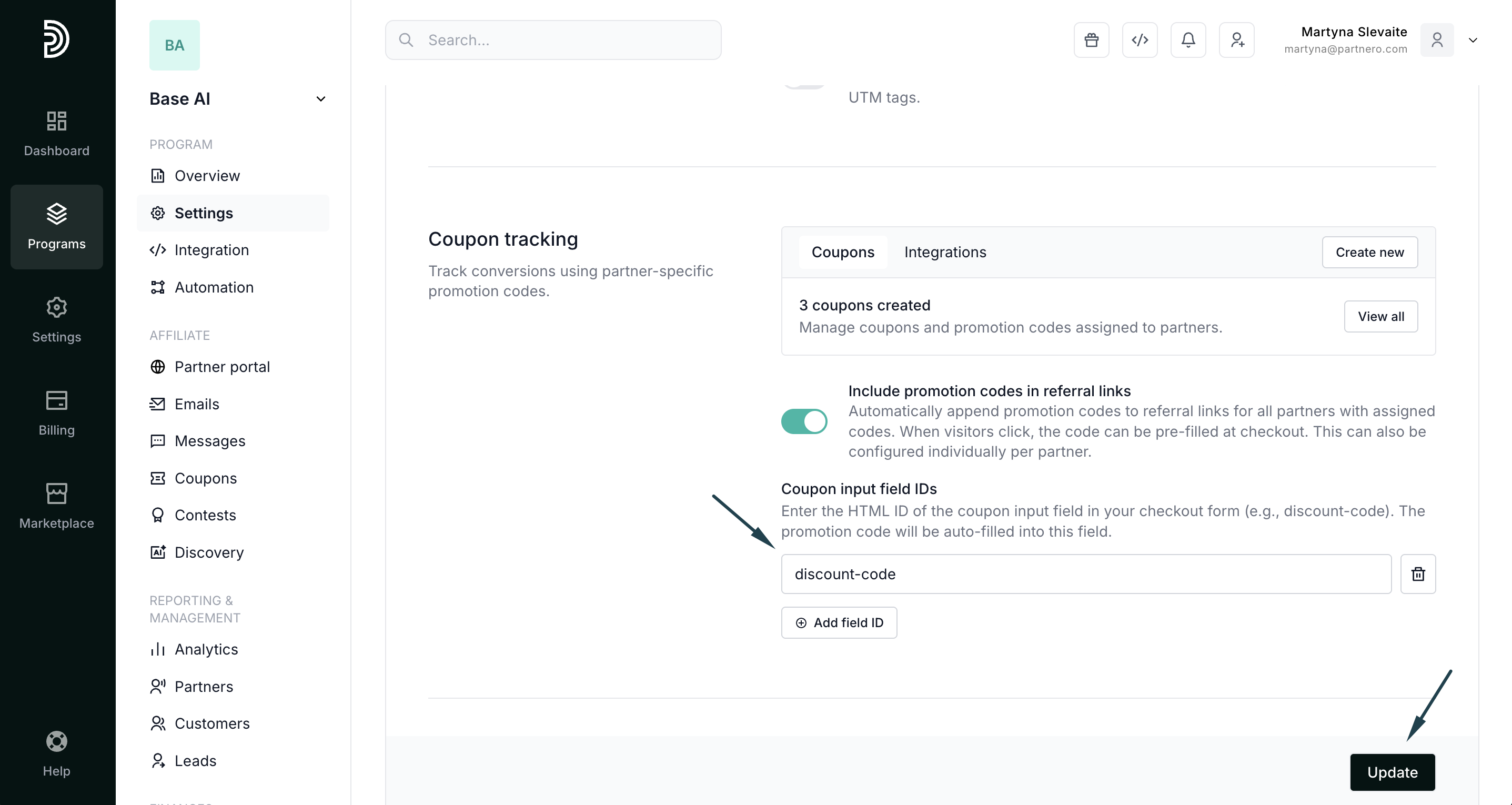
You can add multiple field IDs if your website has different checkout pages with different coupon field names.
Important: Make sure the field ID exactly matches your checkout form (IDs are case-sensitive).
Auto-apply with Stripe
Stripe offers several ways to accept payments. How auto-apply works depends on which Stripe product you're using:
Stripe Payment Links
Automatic coupon application is fully supported with Stripe Payment Links.
When a visitor clicks a partner's referral link that includes a promotion code (e.g., ?coupon=JOHN20), the coupon is automatically applied at the Stripe Payment Link checkout. No additional configuration is needed; it just works.
Custom checkout page
If you have a custom checkout page (not using Stripe's hosted solutions), configure the coupon input field ID as described in Step 2, and Partnero will auto-fill the code into your form.
How it works
- Partner shares their link: The partner's referral link includes their promotion code (e.g., ?coupon=JOHN20).
- The visitor clicks the link: When someone clicks the link, Partnero detects the promotion code.
- Code is saved: The promotion code is stored in a browser cookie, so it persists as the visitor browses your site.
- Auto-fill at checkout: When the visitor reaches your checkout page, Partnero automatically fills the promotion code into the coupon input field.
- Sale is tracked: After purchase, the transaction is attributed to the partner who owns that promotion code.
Example setup
Here's an example of a complete auto-apply configuration:
Your settings:
- "Include promotion codes in referral links" is enabled
- Coupon input field ID: promo-code
Partner John's referral link:
https://yoursite.com/pricing?via=john&coupon=JOHN20
Customer experience:
- Customer clicks John's referral link
- Customer browses your website
- Customer goes to checkout
- The code JOHN20 is automatically filled in the promo code field
- Customer sees their discount applied
- After the purchase, John receives credit for the sale
Troubleshooting
The coupon code is not auto-filling
- Make sure the field ID exactly matches your checkout form (IDs are case-sensitive)
- Verify the Partnero tracking script is installed on your checkout page
- Check that the URL contains the coupon parameter (e.g., ?coupon=CODE)
- Try enabling debug mode in your browser console to see Partnero messages
The coupon is not being tracked after purchase
- Confirm the promotion code is assigned to a partner in Partnero
- Check that your payment integration is connected and working
- Verify the same coupon exists in both Partnero and your payment provider (Stripe, Paddle, etc.)
Partners don't see the coupon in their referral links
- Make sure "Include promotion codes in referral links" is enabled
- Verify the partner has at least one promotion code assigned to them
- Check if automatic promotion codes are configured