
Control advanced link visibility with partner tags
What is tag-based link visibility?
Tag-based link visibility lets you control which partners see specific advanced links on their portal. Instead of showing every link to every partner, you can restrict individual links to partners with specific tags, for example, showing location-specific landing pages only to partners operating in that location.
By default, every advanced link you create is visible to all partners. When you assign one or more tags to a link, only partners who have at least one of the selected tags will see it. Partners without any matching tags will not see that link on their portal or in the referral link dropdown.
How to restrict a link to specific partners
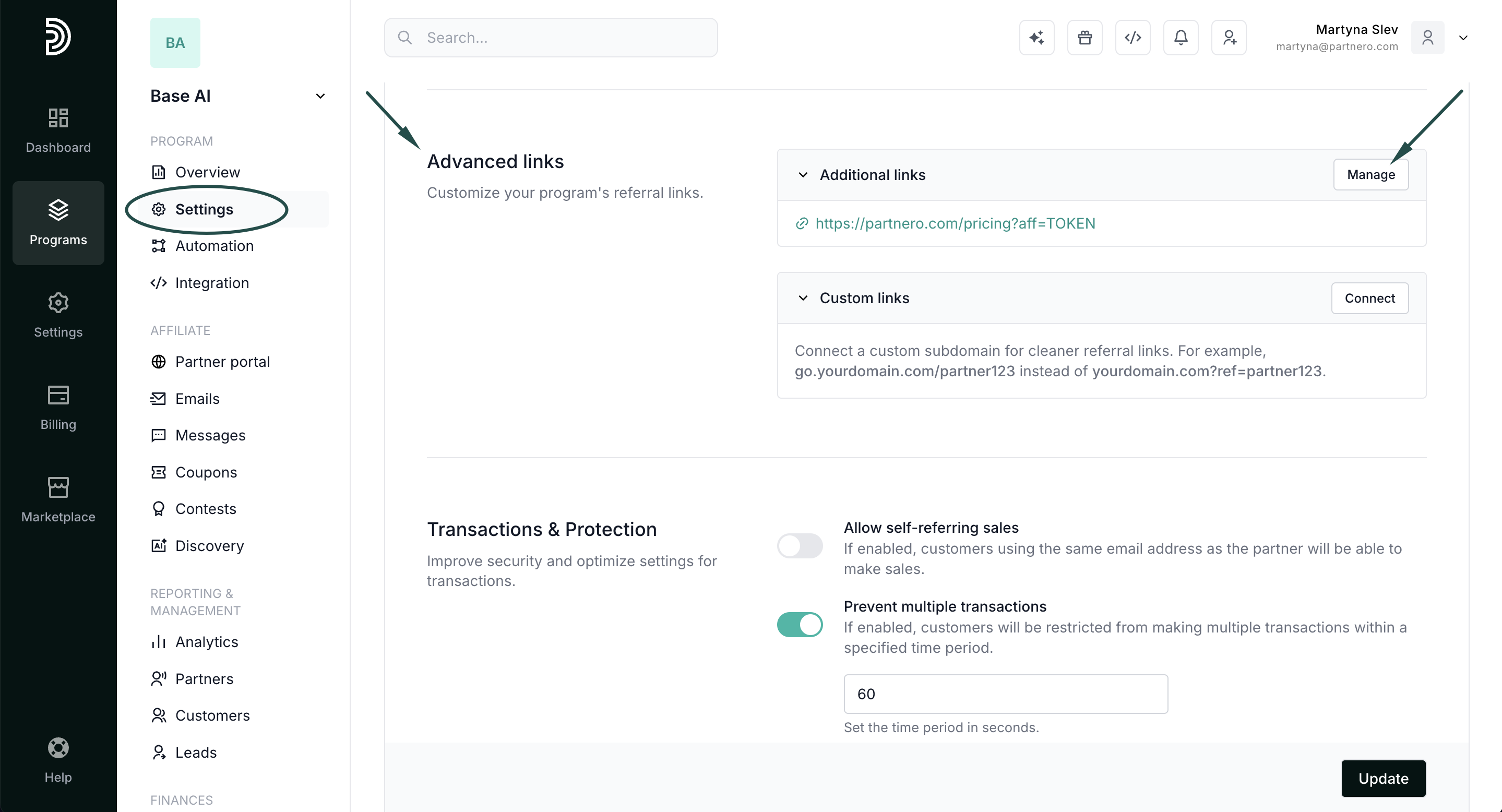
- In your affiliate program, go to Settings under Program. Scroll down to the Advanced links section and click Manage:
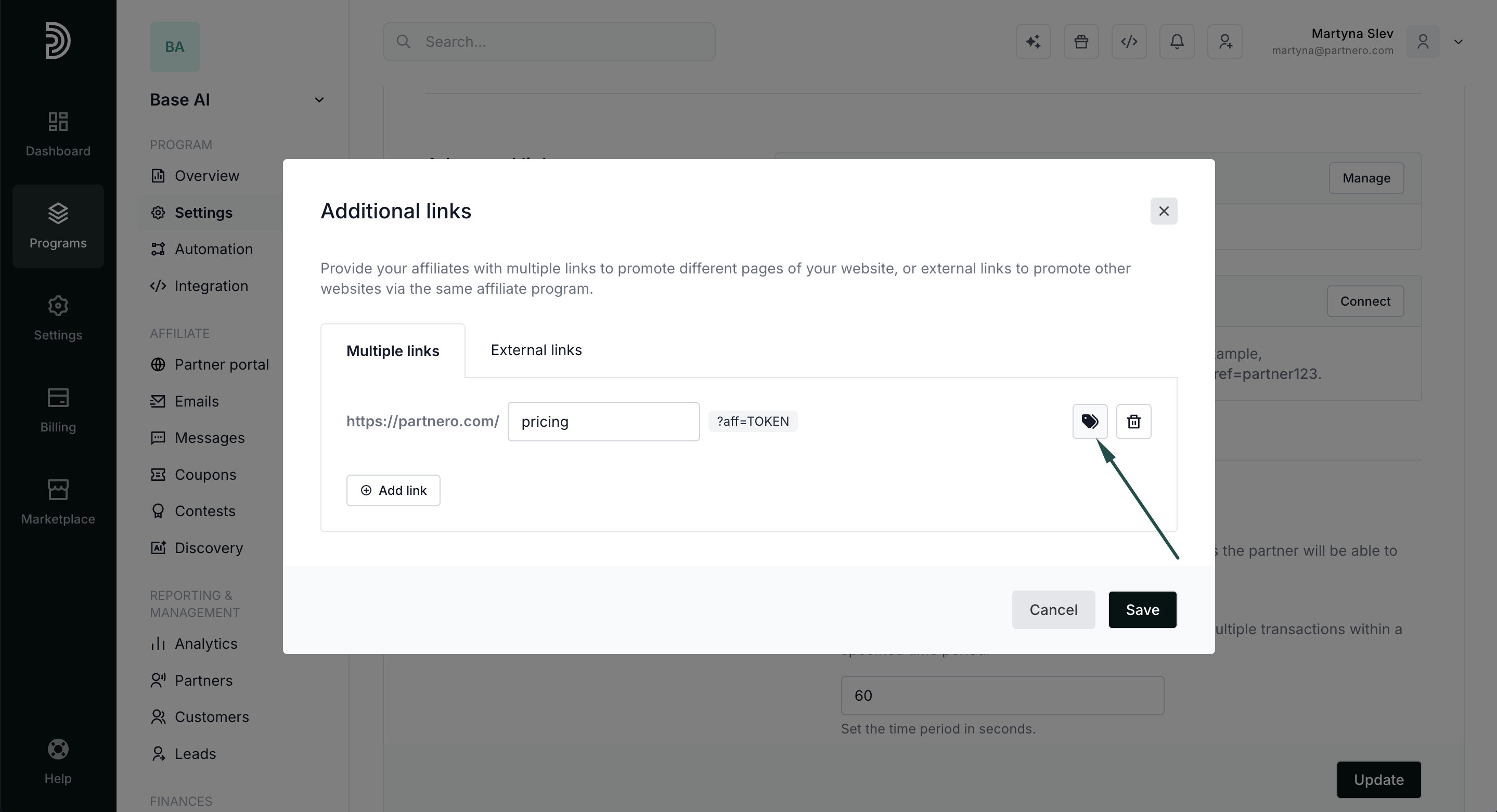
- In the modal, find the link you want to restrict. Click the tags icon next to the link:
- A tag selector will appear below the link. Select one or more partner tags. Only partners with at least one of the selected tags will see this link.
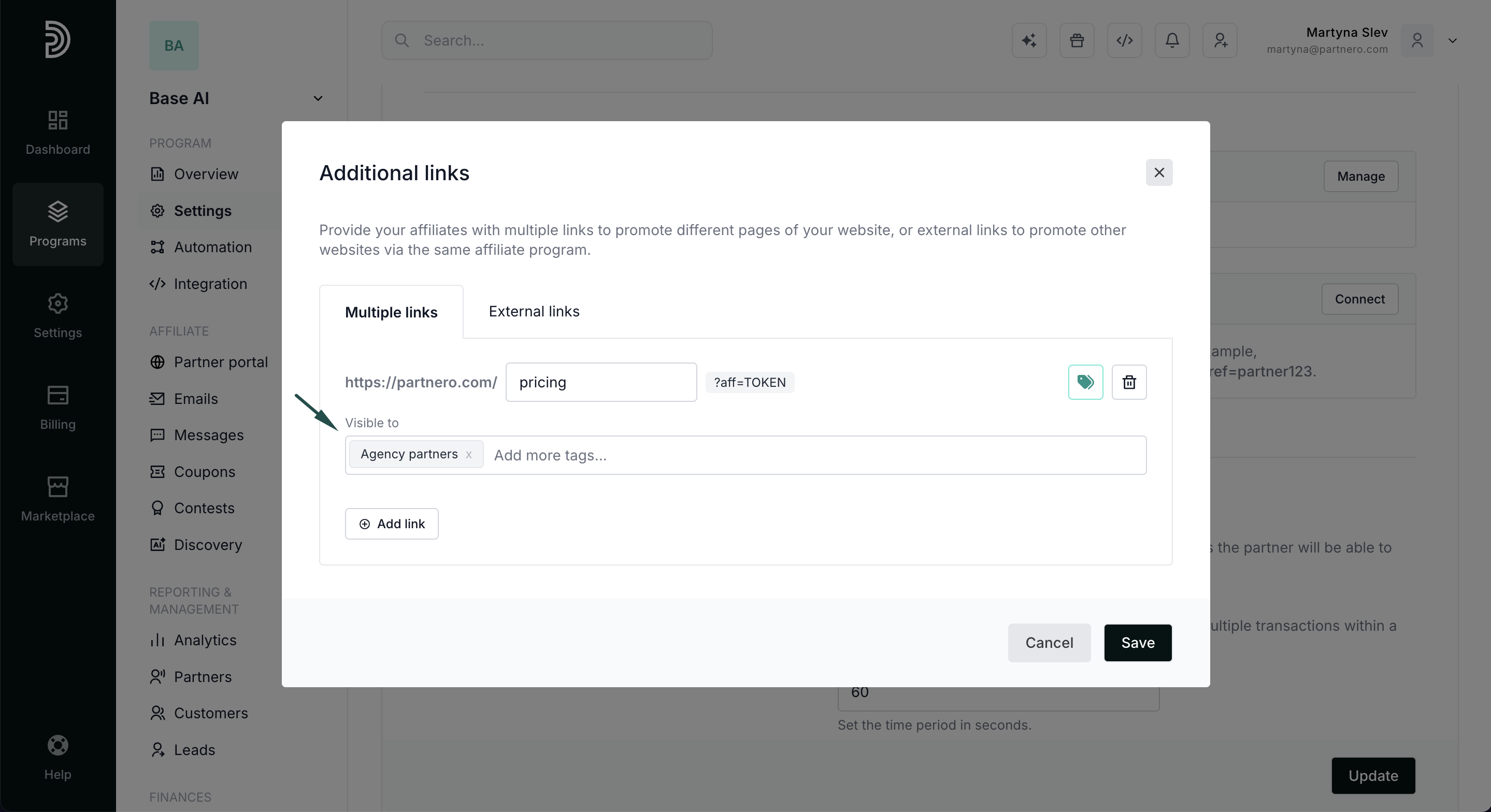
- Click Save.
To remove a restriction, click the x on any tag in the selector to remove it. If all tags are removed, the link becomes visible to all partners again.
How it works
- Links without tags are visible to all partners, as before.
- Links with tags are only visible to partners who have at least one matching tag (OR logic, not AND).
- The restriction applies in two places:
- The referral link dropdown on the partner portal, where partners create new links.
- The existing referral links list, which displays already-created links.
- When a partner doesn't match any tags on a link, both the link option and any previously generated referral links for that destination are hidden from their view.
Use cases
Location-specific landing pages: If you have different landing pages for different locations, e.g., US states, create an advanced link for each state page and tag it with the corresponding state tag (e.g., texas, california). Only partners tagged with that state will see the relevant link.
Tiered partner content: Restrict links to premium product pages to partners tagged as premium or gold-tier, while keeping general links available to everyone.
Campaign-specific links: Create links for a seasonal promotion and restrict them to partners tagged with active-campaign. Remove the tag when the campaign ends to automatically hide the links.
Product-line segmentation: If your partners specialize in different product lines, tag each product landing page link with the relevant product tag so partners only see links relevant to what they promote.
Good to know
- Partners are not notified when links are shown or hidden. The links simply appear or don't appear on their portal.
- Multiple tags: If you select multiple tags on a link, a partner only needs one of them to see it.
- Empty tag selection: If you open the tag selector but don't select any tags, the link remains visible to all partners.
- Tag management: You can manage partner tags under Partners > Tags. Learn more about partner tags and tag automation.