
Affiliate Discovery: Pipeline and outreach
The Pipeline is a board for tracking your affiliate outreach from first contact to close. Prospects saved from discovery results appear here automatically, but you can also add them manually.
To access the Pipeline, click the Pipeline tab at the top of the Affiliate Discovery page.
 Click here to read more about Affiliate discovery.
Pipeline stages
Move prospects through the following stages as your outreach progresses:
- Saved: added to the pipeline, not yet contacted
- Contacted: outreach sent
- Replied: prospect has responded
- Negotiating: in active discussion
- Won: joined your program
- Lost: did not convert
To move a prospect, open their card and update the stage, or drag the card to the appropriate column. 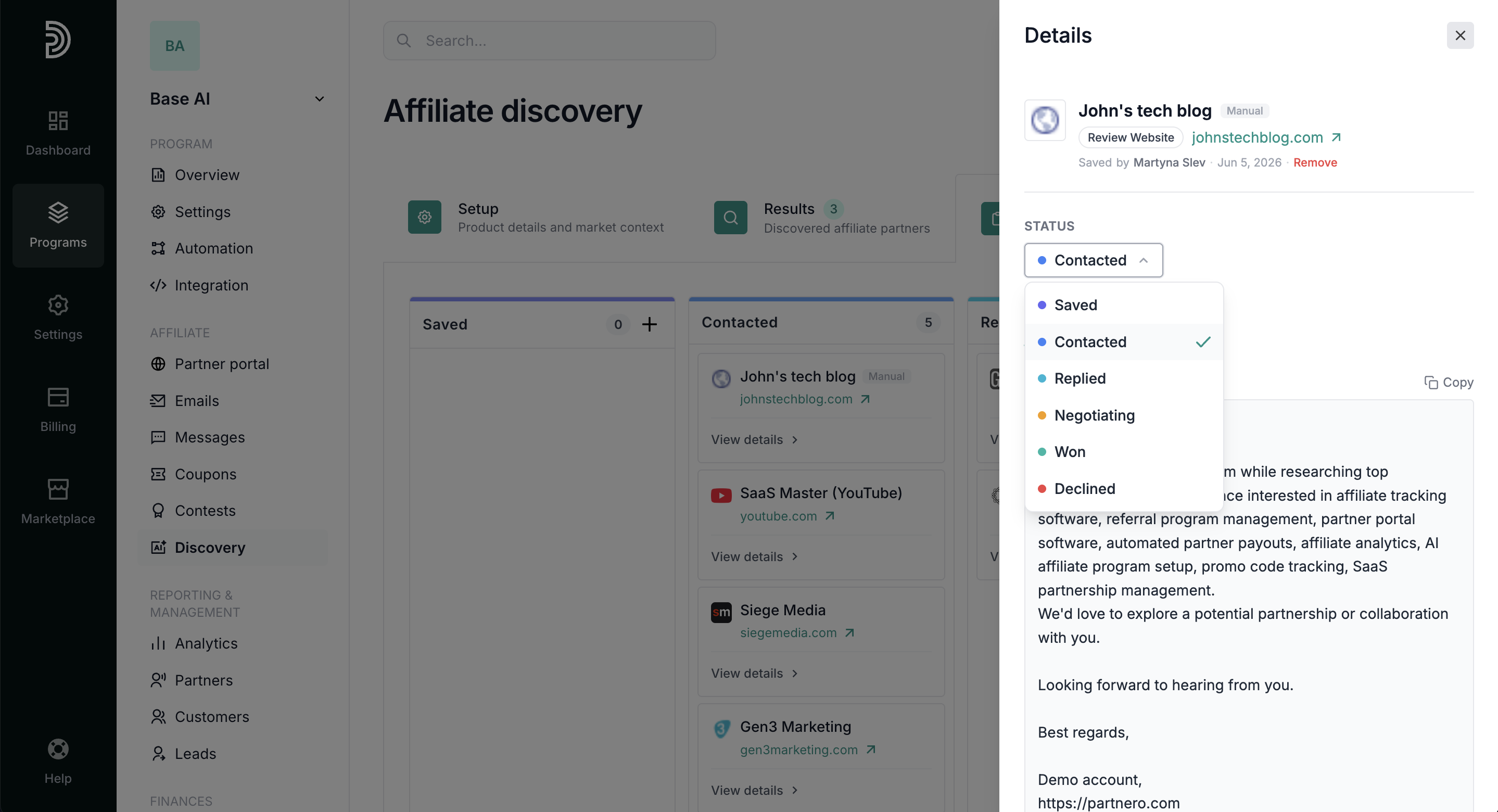
Add a prospect manually
You can add a prospect to the Pipeline without running a discovery search.
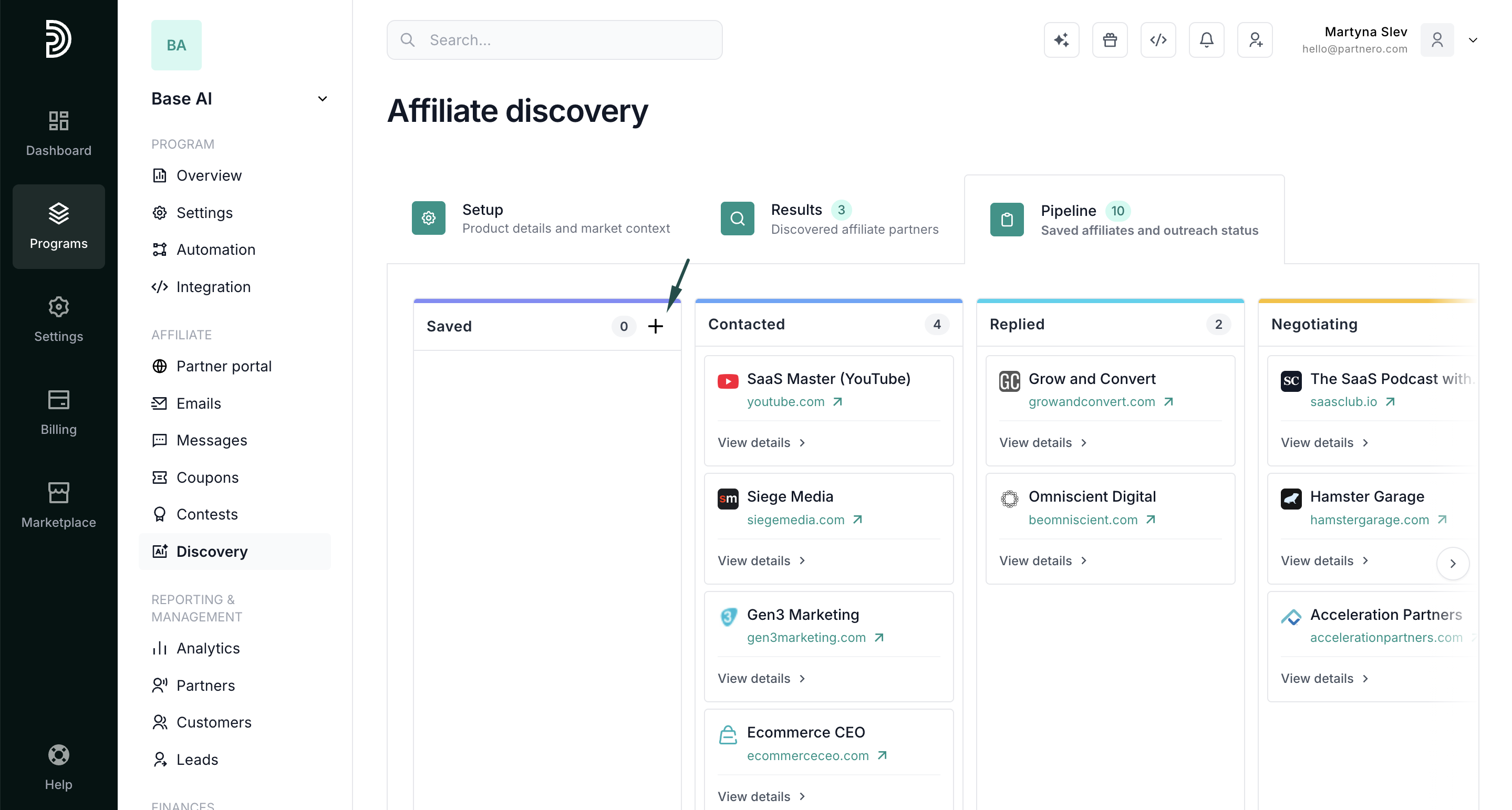
- In the Pipeline, click the + icon in the Saved column.
- Fill in the prospect's details:
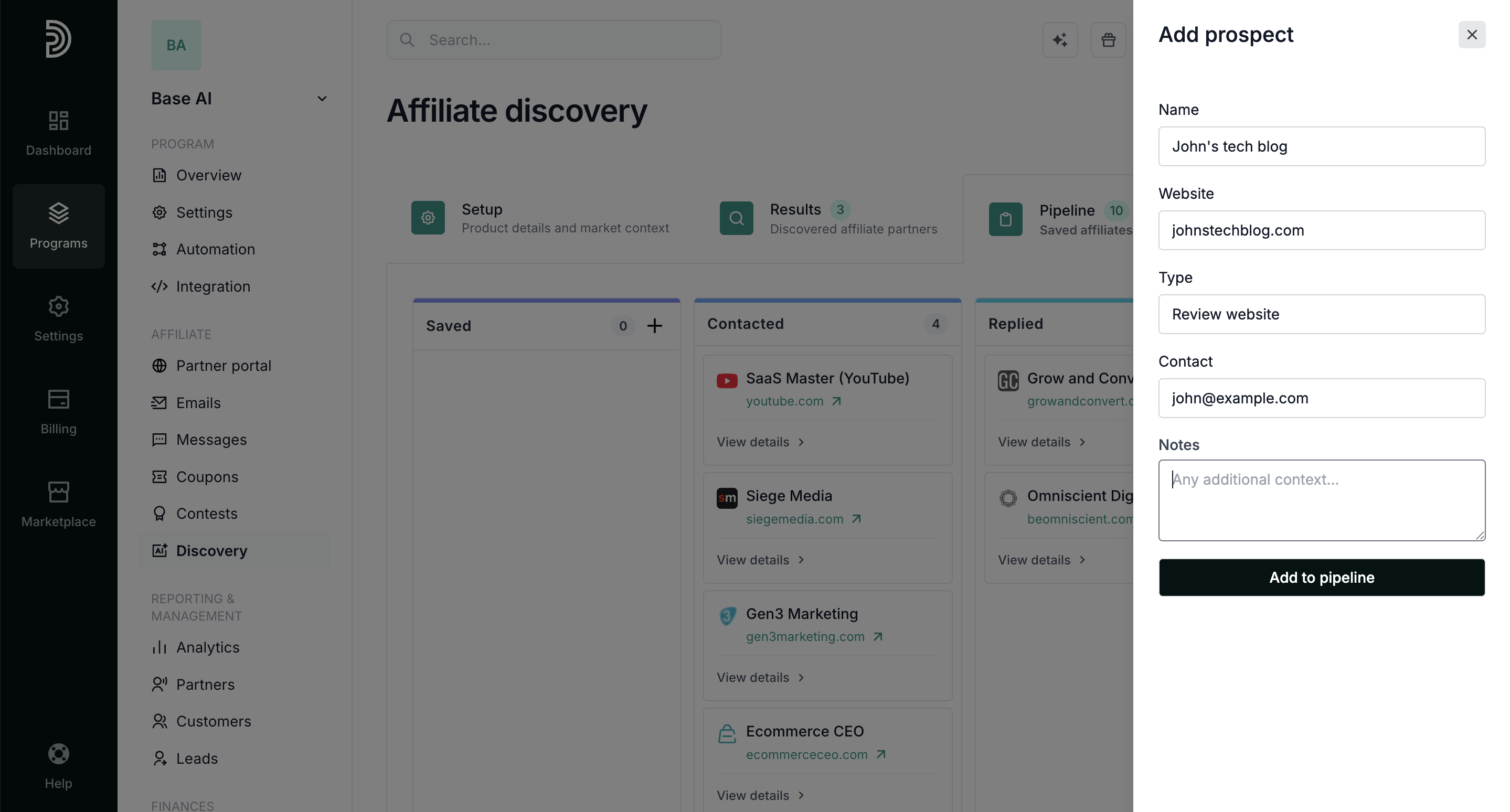
- Name: e.g. John's Tech Blog
- Website: website URL address
- Type: e.g. blog, agency, newsletter
- Contact: email or URL
- Notes: any additional context
- Click Add to pipeline.
The prospect will appear in the Saved column with a Manual label: 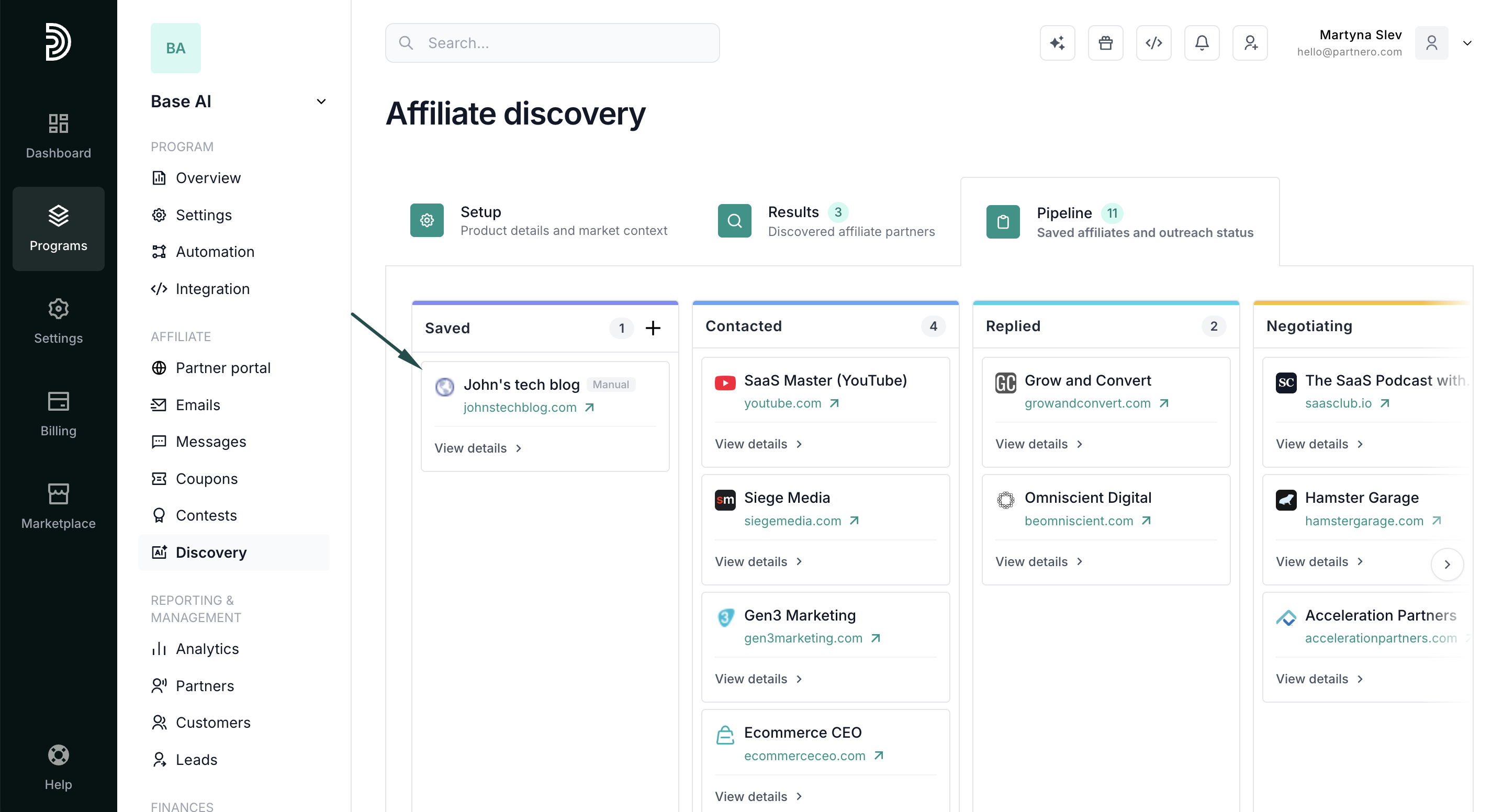
Add notes to a card
Each pipeline card has a notes section for tracking context, updates, and next steps. Notes are visible to everyone with access to the program, making it easy to keep the team aligned on outreach progress.
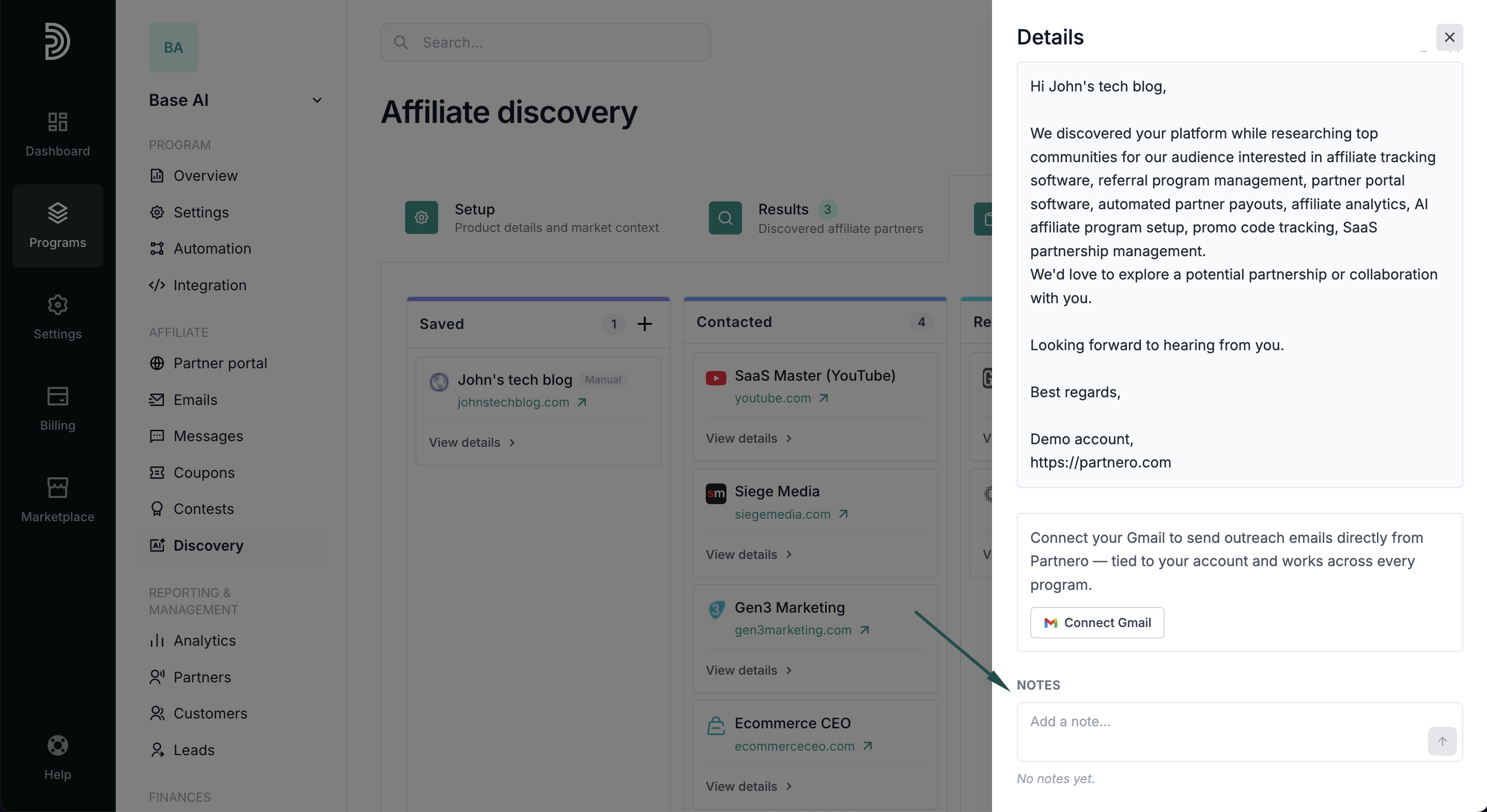
Each note shows the name of the person who added it and the date it was posted. 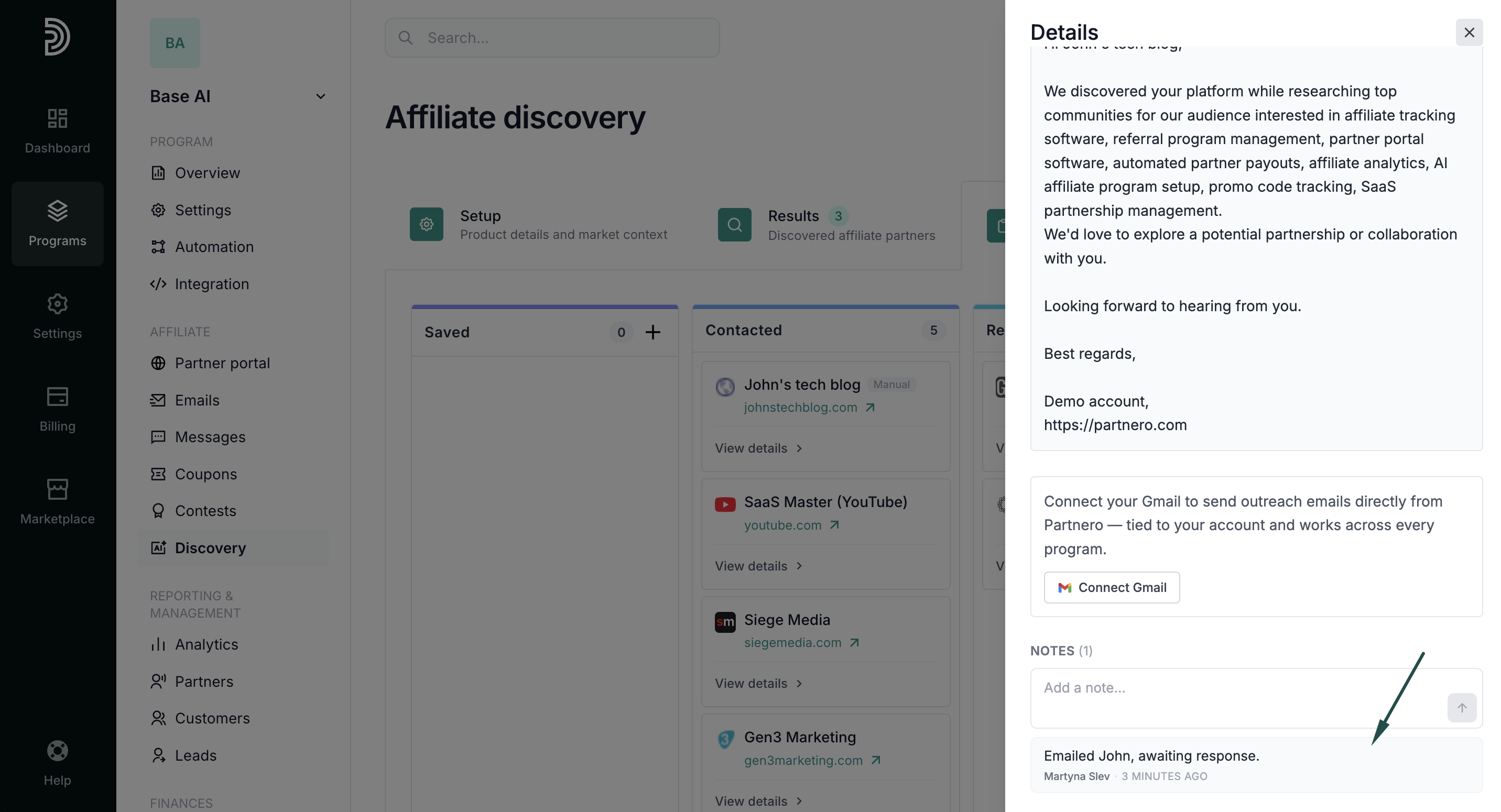
To add a note, open the card, enter your note, and click Save.
Send outreach emails
You can connect your Gmail account to send affiliate outreach emails directly from a pipeline card. Replies go to your connected Gmail inbox.
The Gmail connection is tied to your user account, so once connected, it works across all programs you have access to.
To connect Gmail:
- Open a pipeline card and click Connect Gmail.
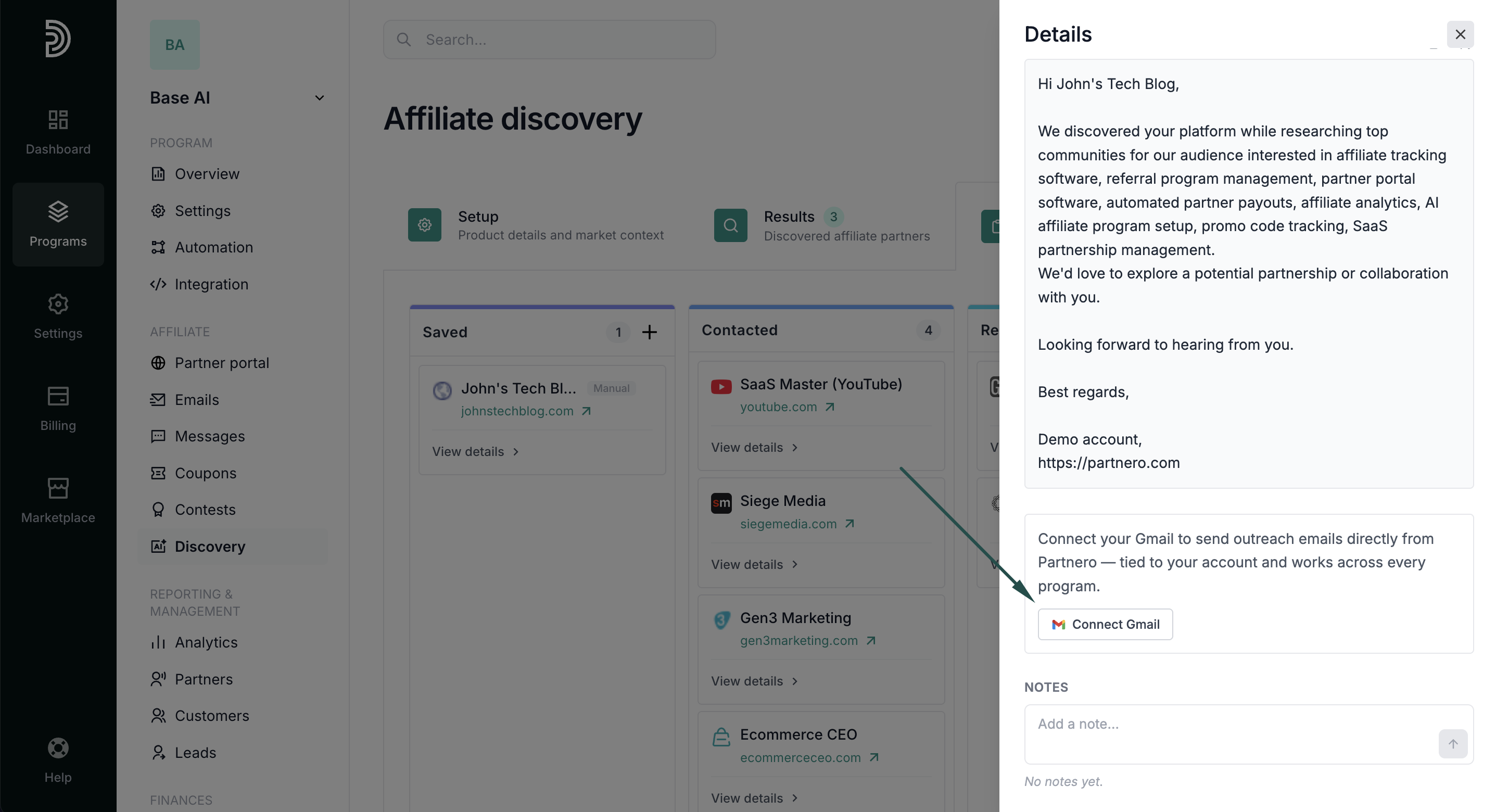
- Follow the prompts to authenticate with your Google account.
Once connected, an email composer will appear on the card with From, To, and Subject fields and a rich-text editor for the body with a generated email draft:
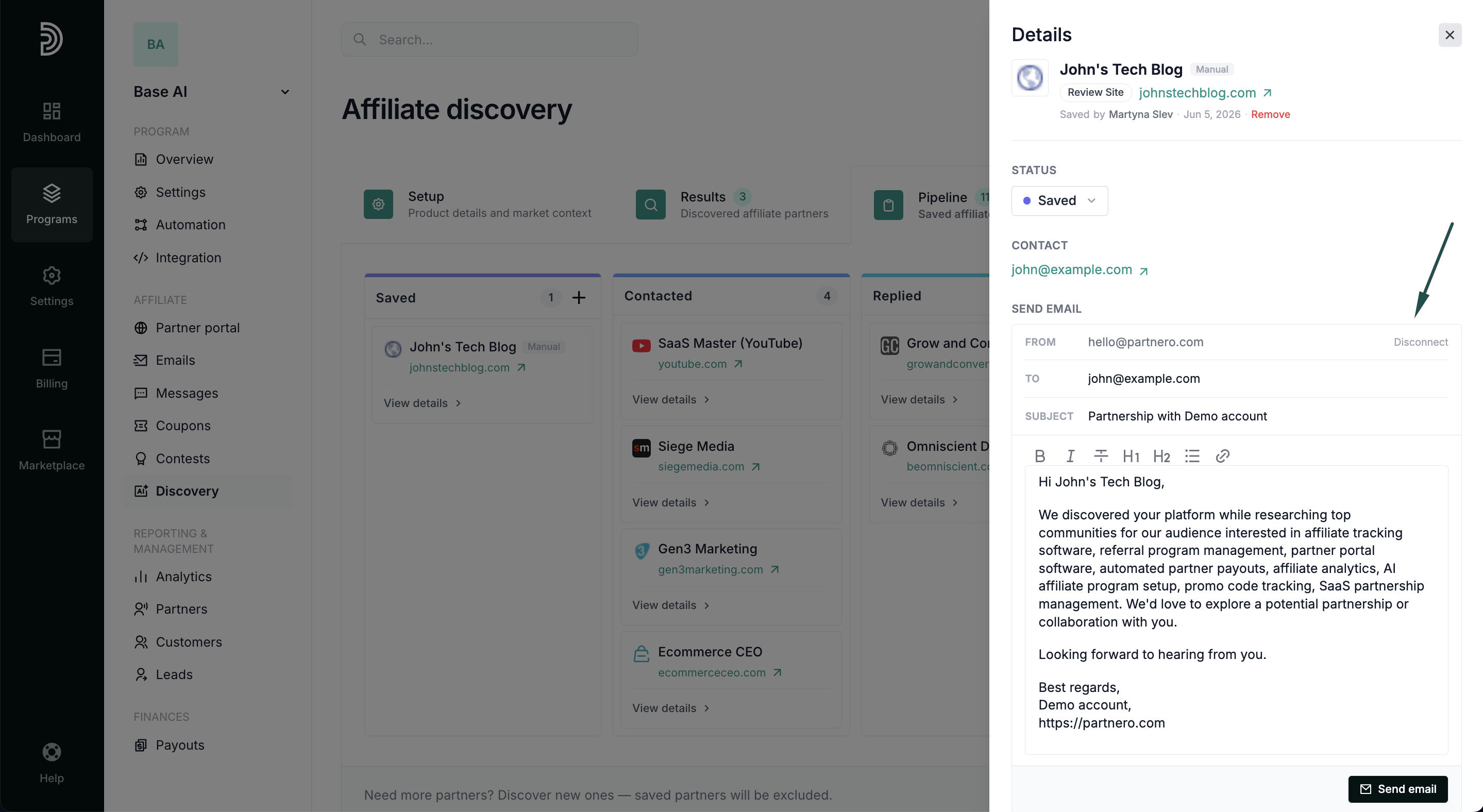
To send an outreach email:
- Open the pipeline card for the prospect you want to contact.
- You can edit the recipient, subject, and message.
- Click Send email.
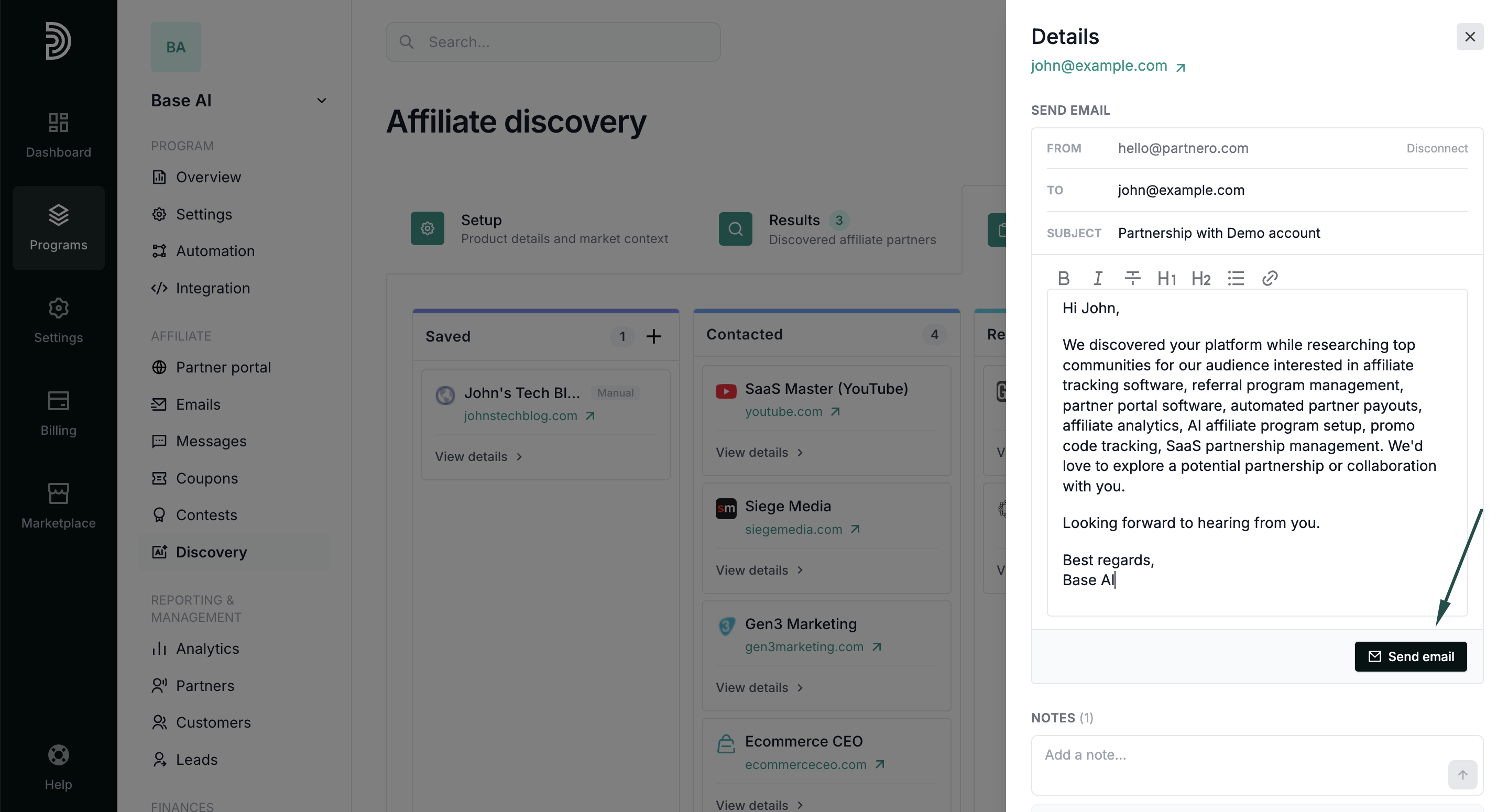
Sending an email automatically moves the card to Contacted and logs the outreach in the card's timeline.
Note: Email deliverability depends on your own domain's SPF, DKIM, and DMARC configuration. Partnero sends on your behalf via the Gmail API but does not manage your domain's email authentication settings.
A few things worth knowing
- Saved prospects persist across discovery resets. This means that clearing your discovery results and running a new search will not remove them from the Pipeline.
- Prospects already in your Pipeline are excluded from future discovery results, so you won't see duplicates.