
Automatically send emails based on partner activity
The Send email automation action lets you reach out to partners the moment something relevant happens, without having to track it or send the email yourself.
This is useful for the kind of partner communication that depends on timing: a welcome email the day someone joins, a nudge when a partner has not referred anyone in a while, a reward email when they cross a revenue milestone, or a re-engagement email after a stretch of inactivity. None of these need to be sent manually once the automation is set up.
You can pair Send email with any automation trigger your program supports, and create a custom email to be sent.
Set up the automation
To set up the automation:
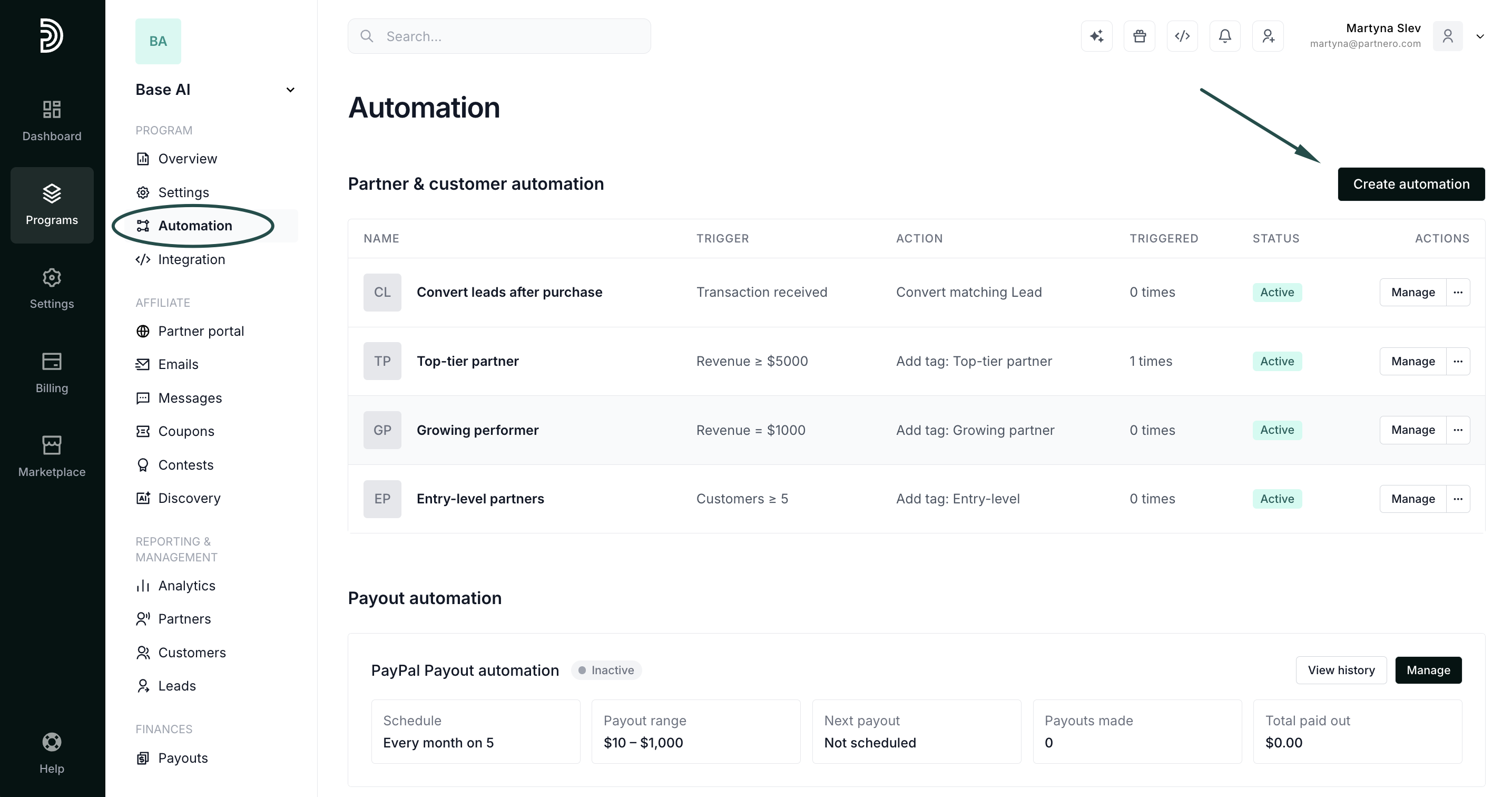
- Go to Automations in your program dashboard.
- Click Create automation:
- Choose the trigger you want to use (see the full list below).
- Fill in the trigger's settings (for example, which tag, which milestone, or how many days).
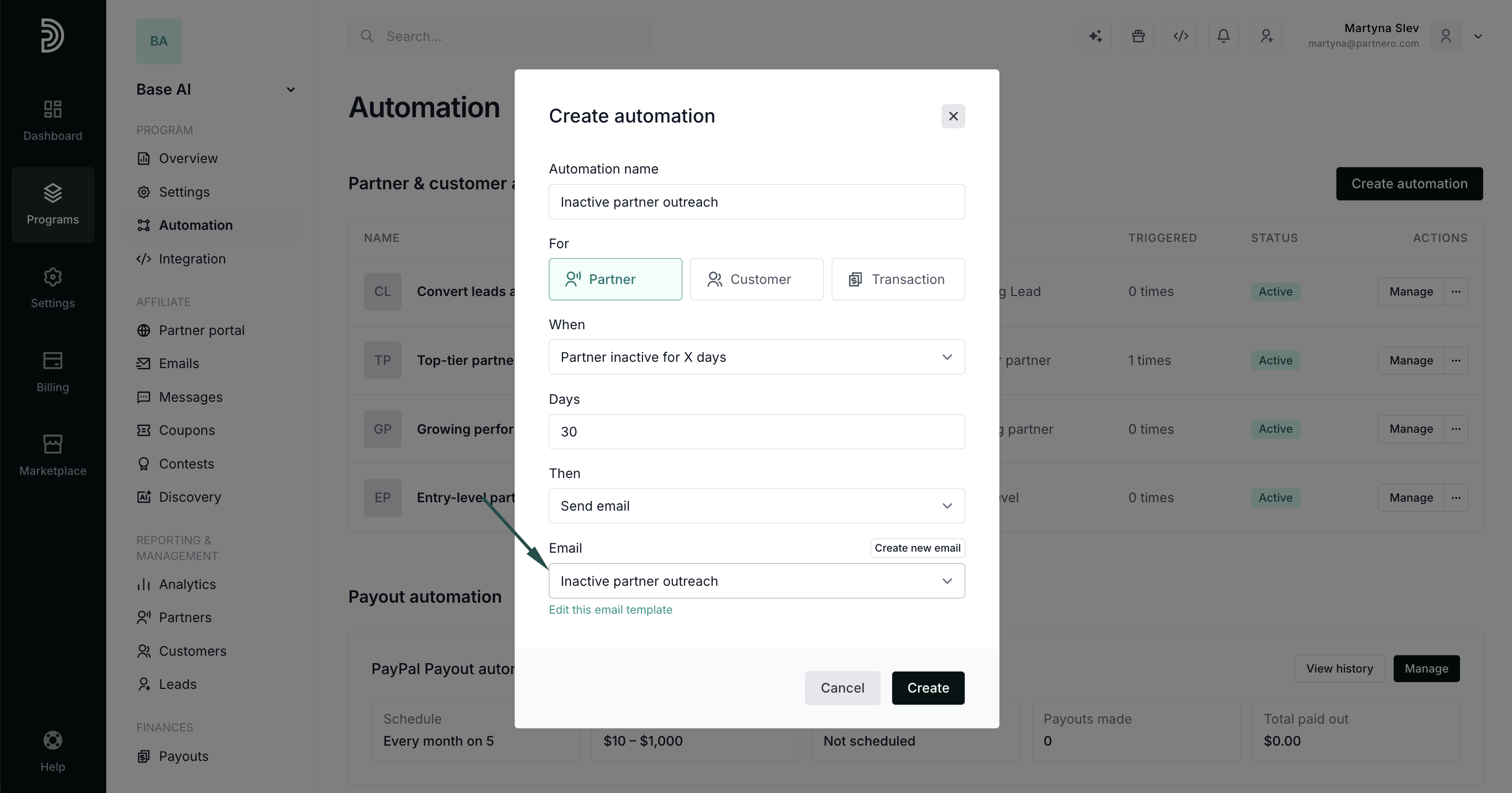
- For the action, select Send email:
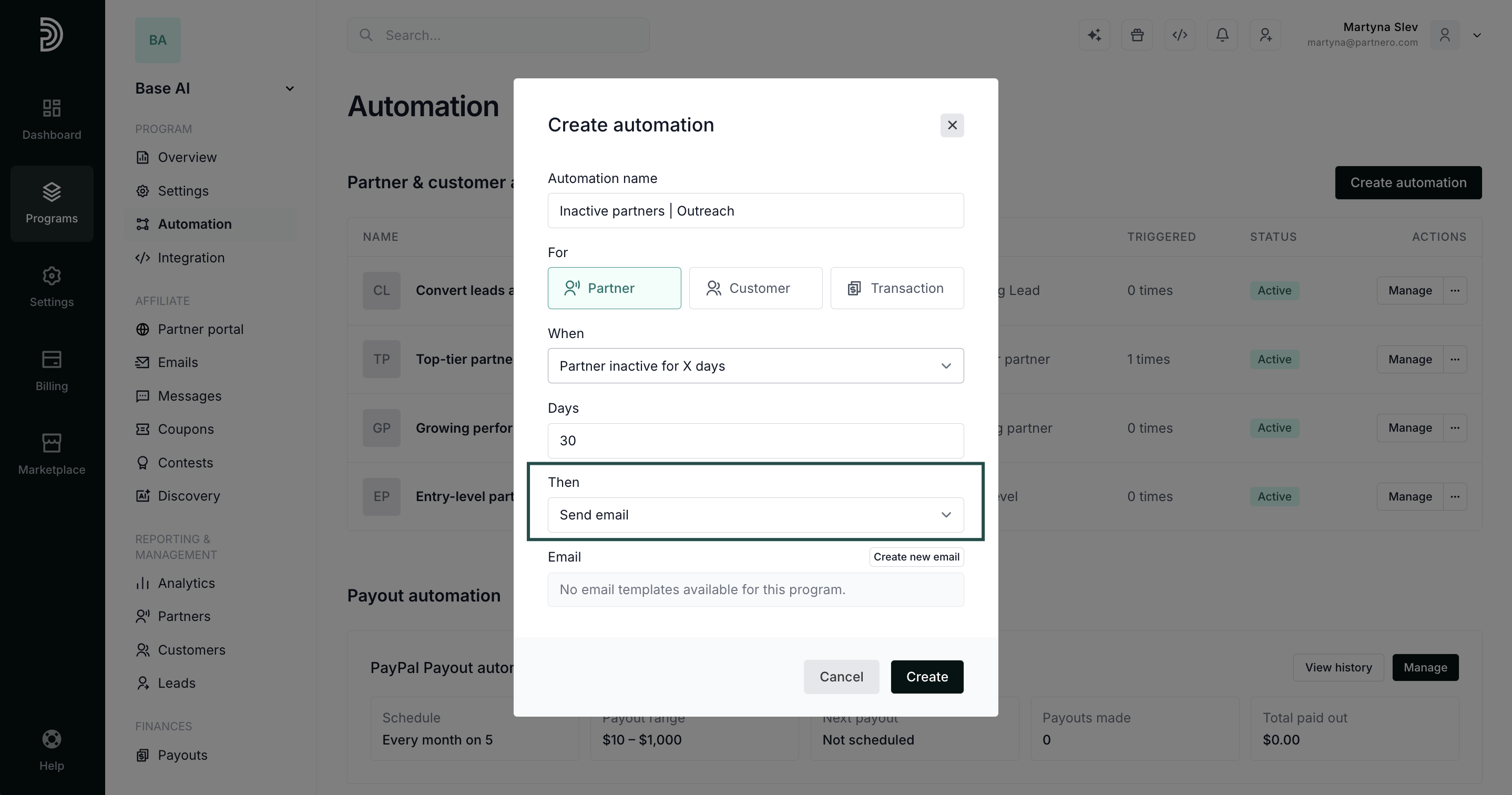
- Pick the email template to send. Click Create new email to create your own template, or select one of your existing program emails or a custom email (see below).
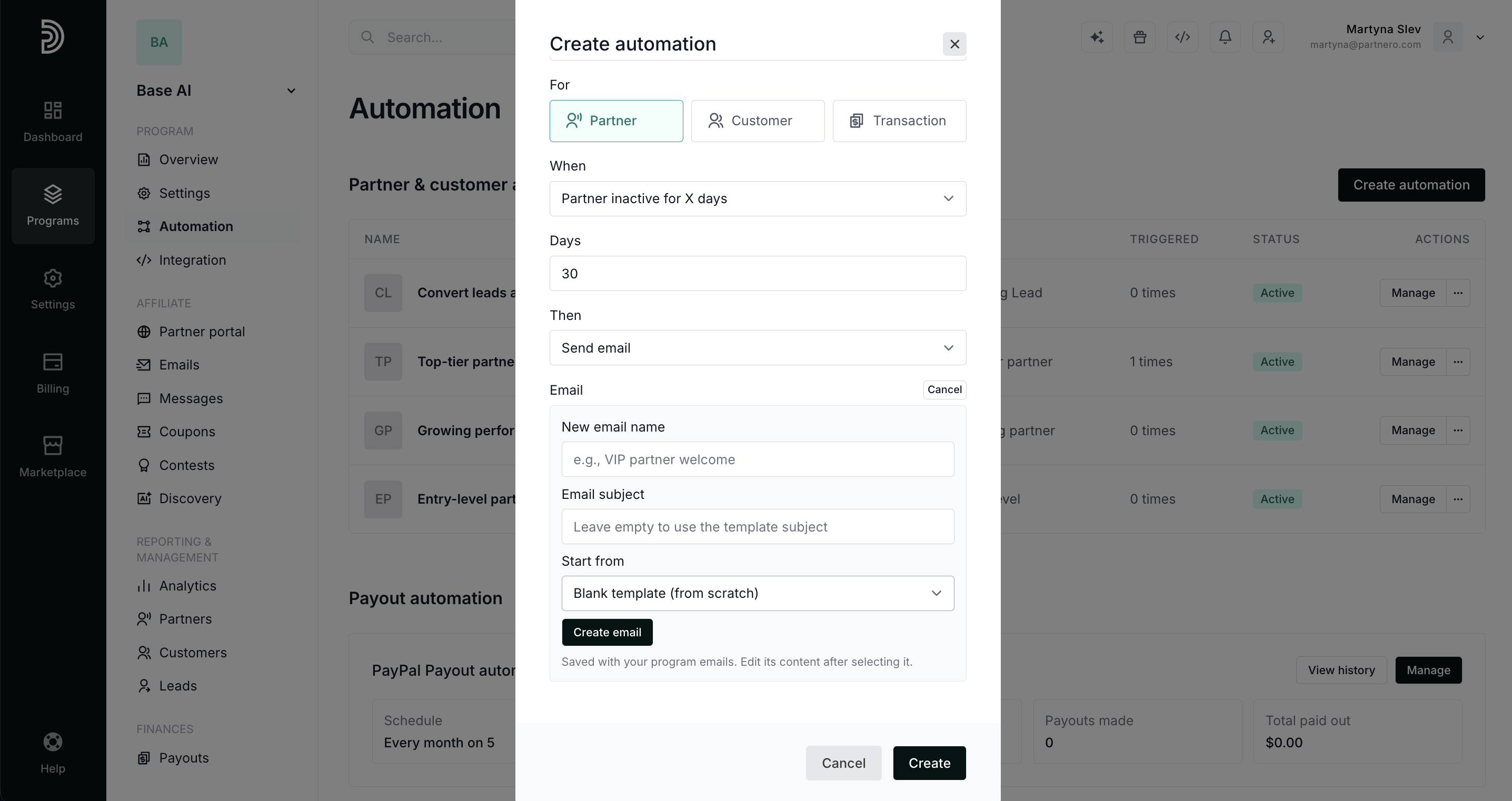
- Click Create to save the automation.
The email goes out automatically every time the trigger condition is met.
Create a custom email to use in an automation
If none of your existing emails fit, you can build a new one from scratch and use it in the Send email action.
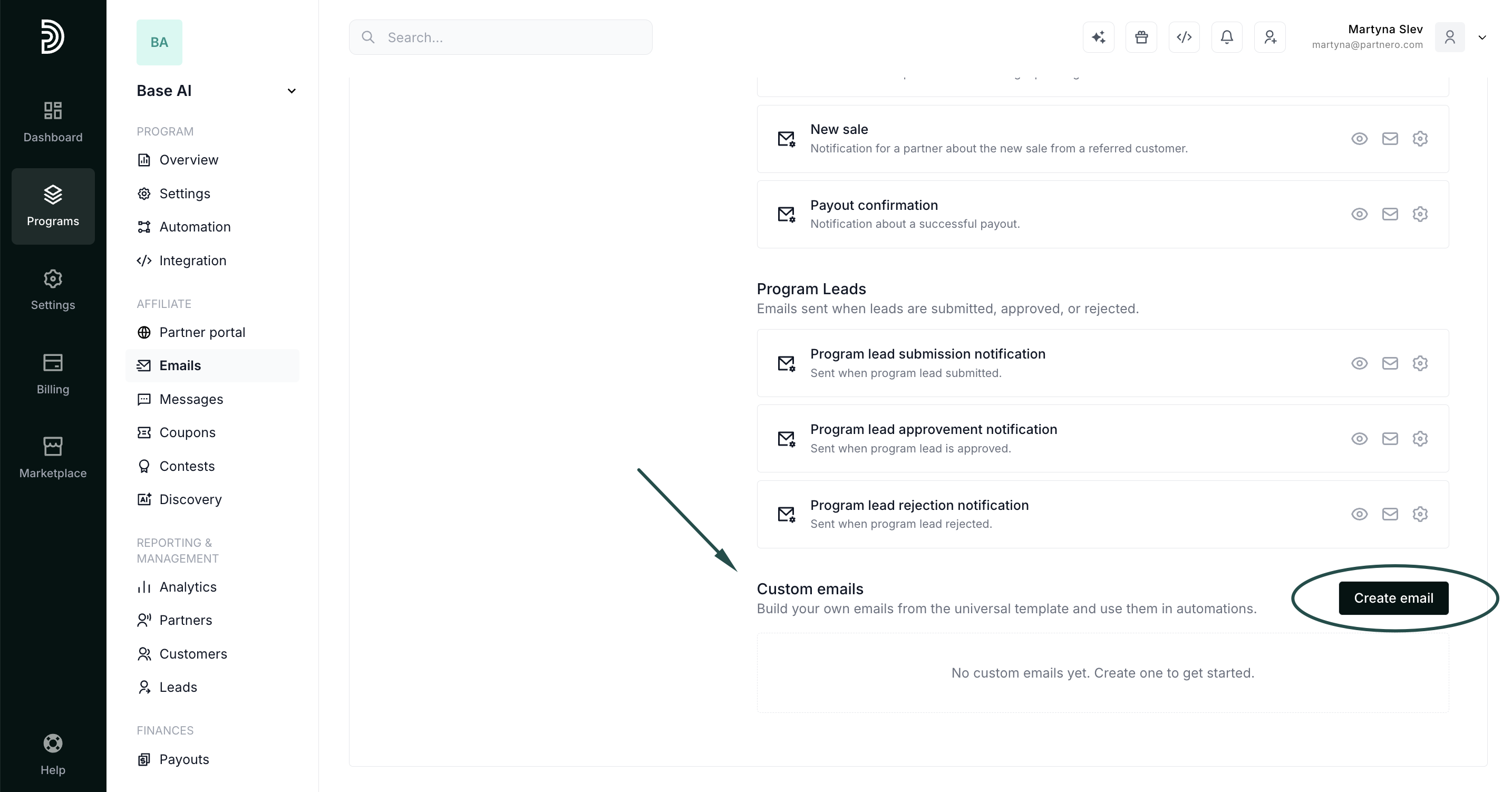
- Go to the Emails page for your affiliate program, Emails tab:
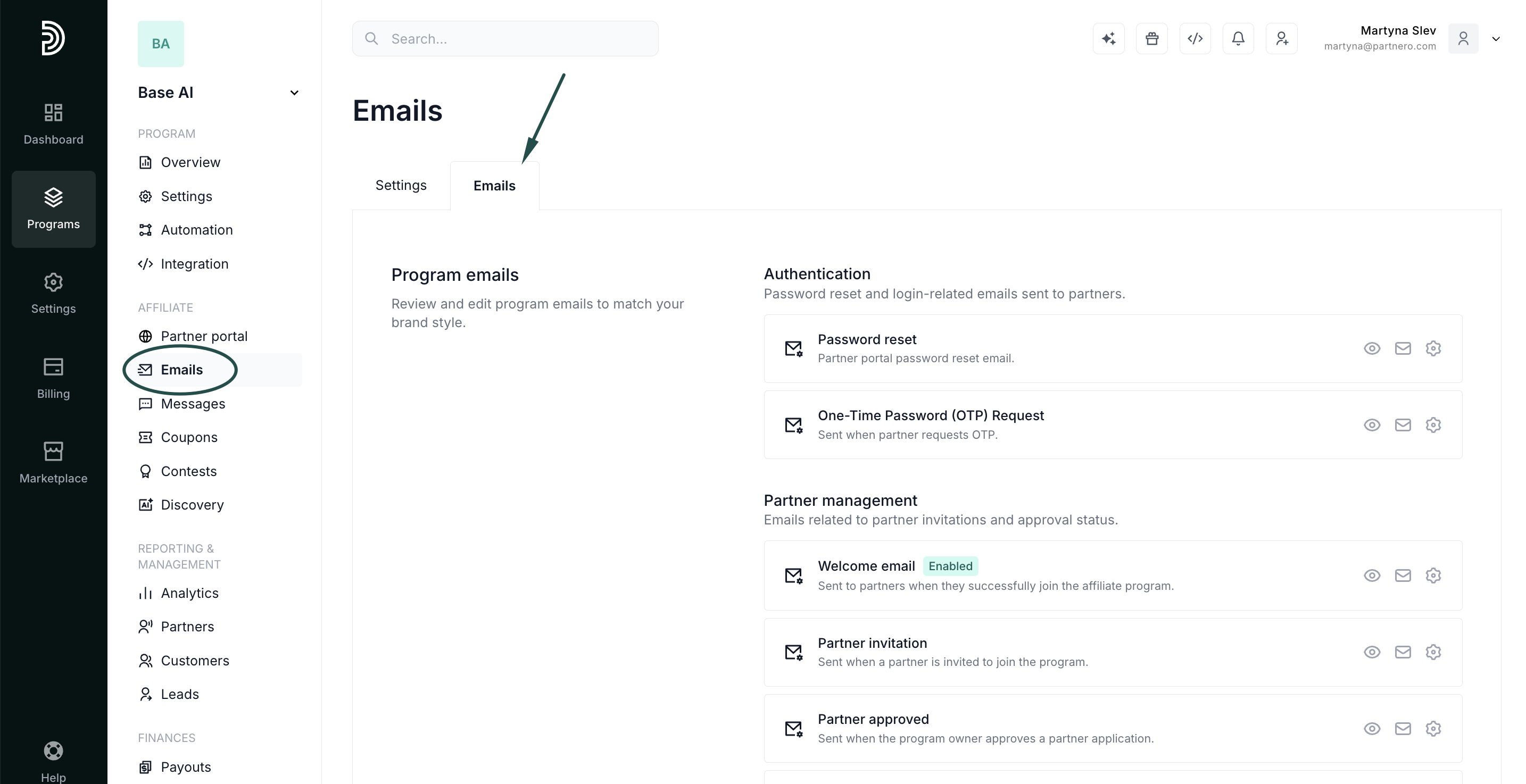
- Scroll down to the Custom emails section and click Create custom email:
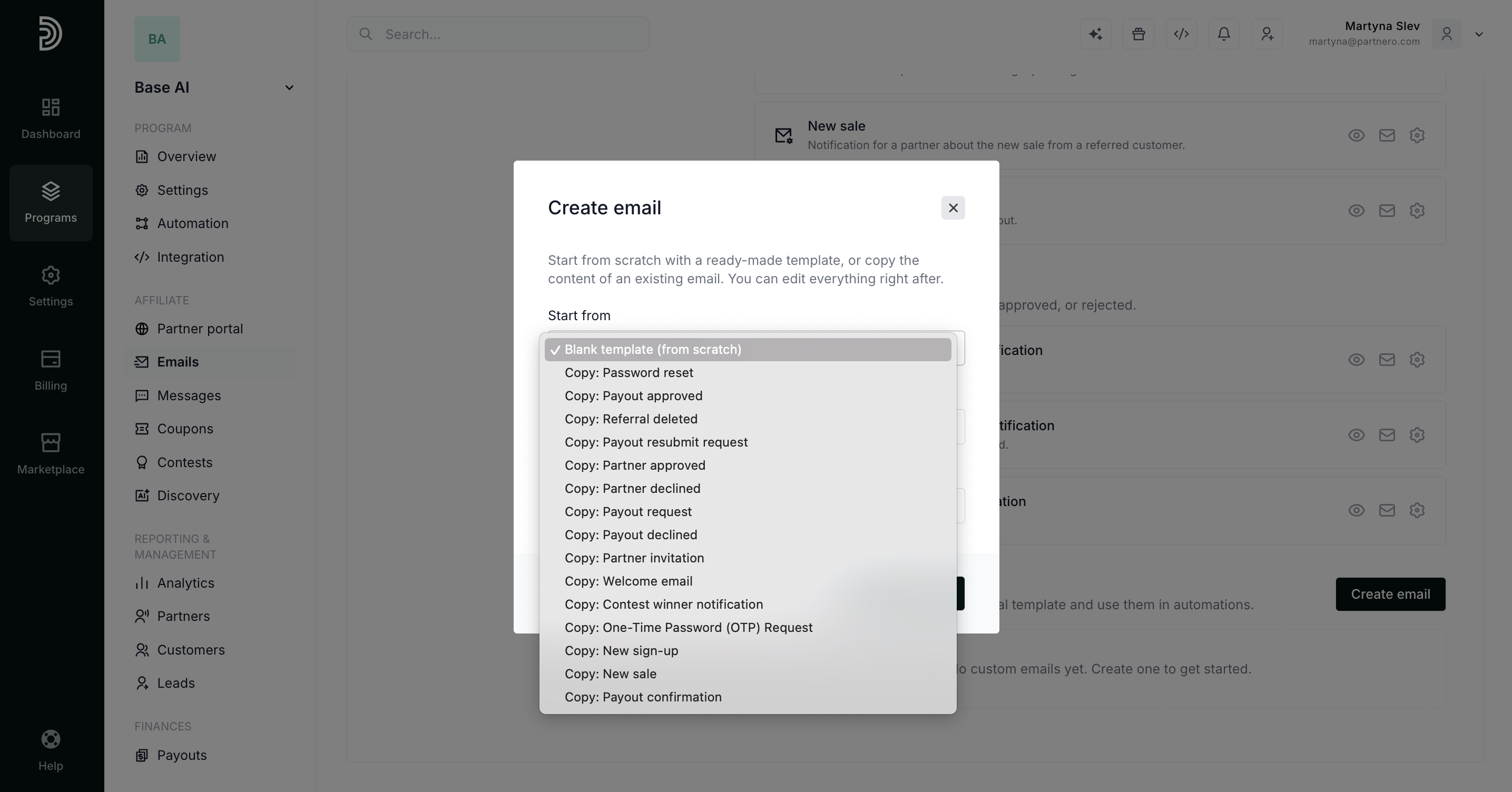
- You can start from a blank template or copy one of the existing program emails to edit:
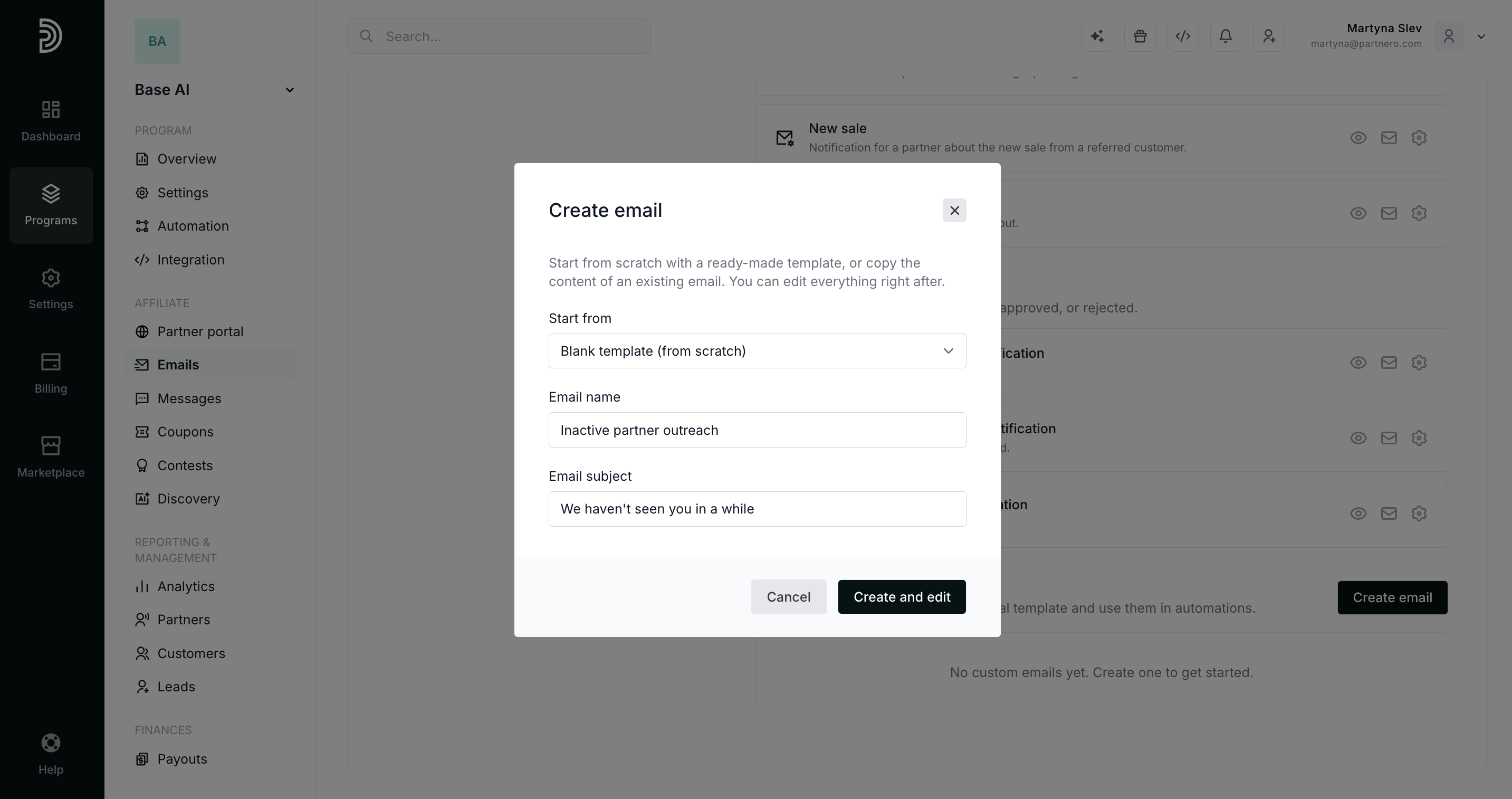
- Add the email name and subject, and click Create and Edit:
- Edit the content using the same editor you use for your other program emails.
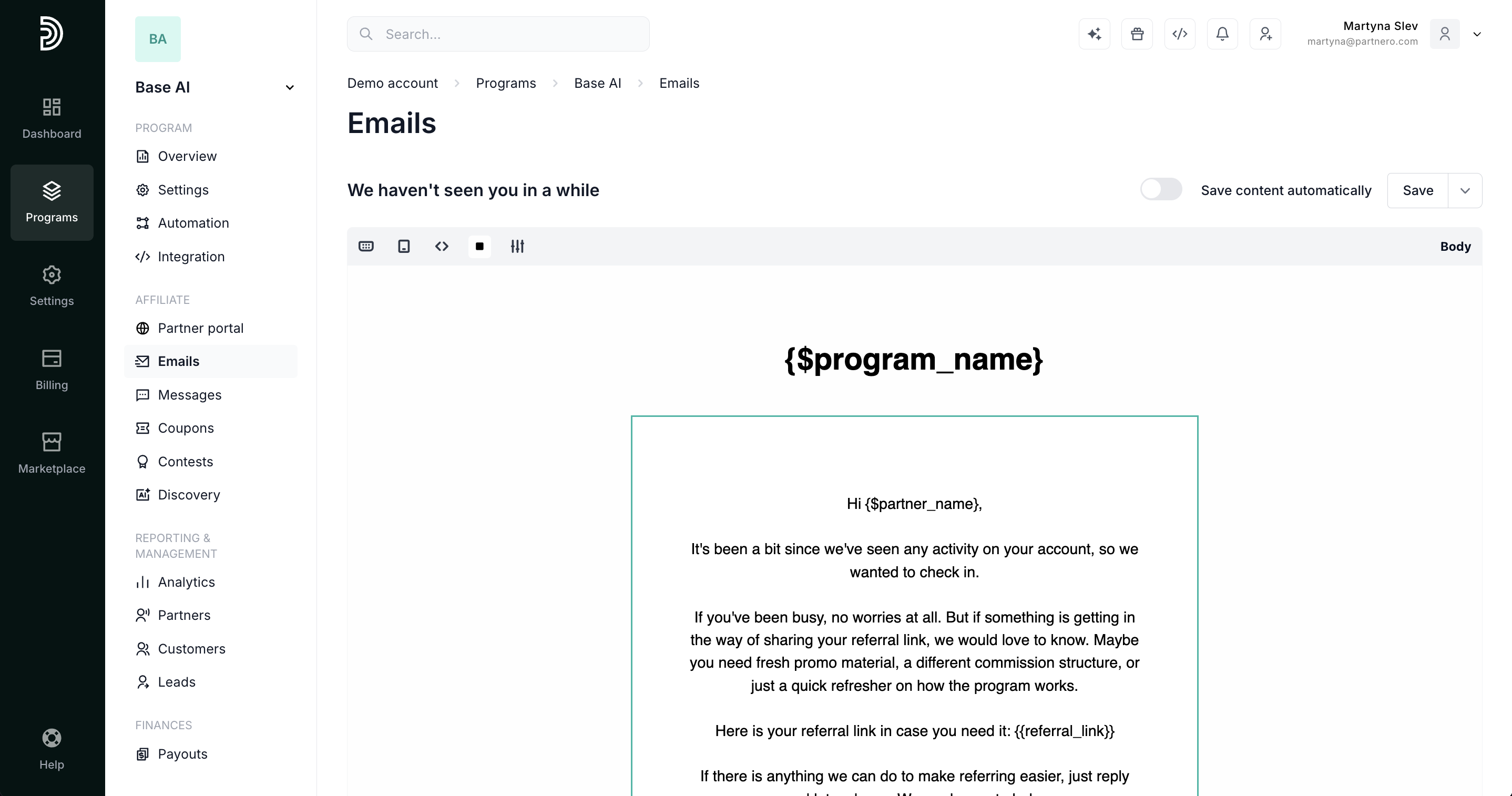
- Preview (Eye icon) and send yourself a test email (Envelope icon) to check formatting.
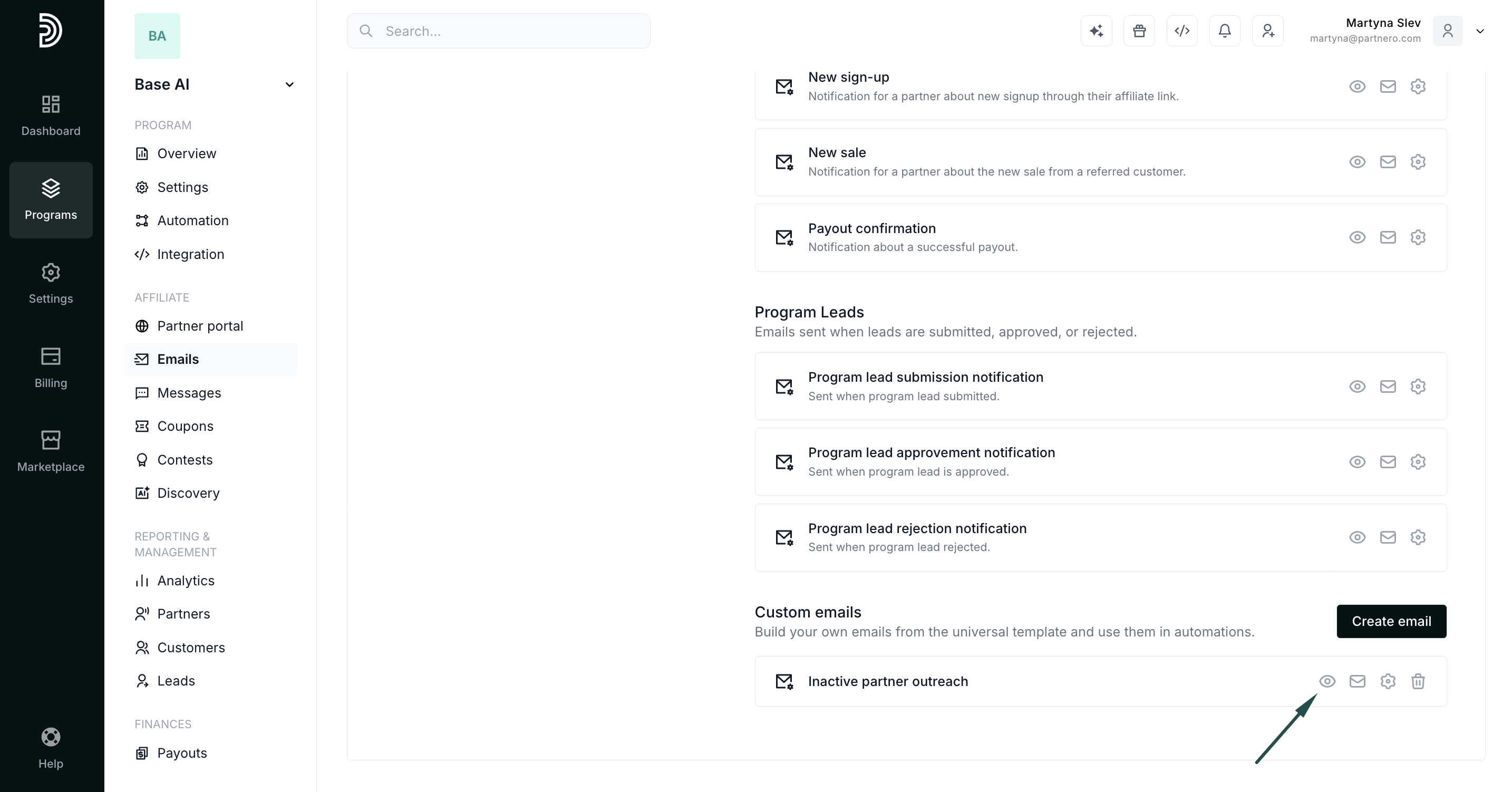
- Go back to your automation (or create a new one) and select the custom email in the Send email action picker. Custom emails appear in the same list as your other program emails.
You can edit, preview, test, or delete a custom email at any time from the Emails → Custom emails section. 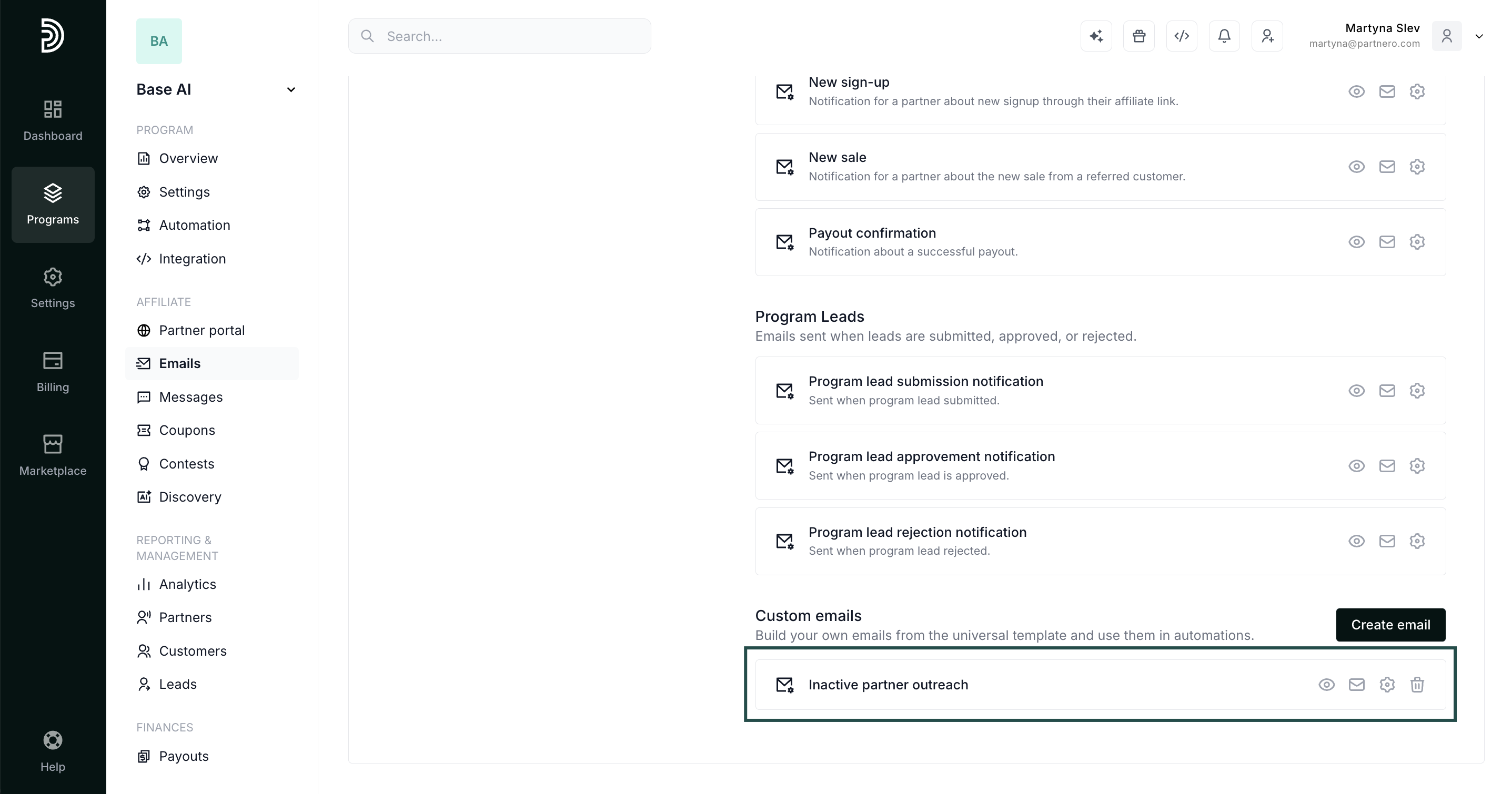
Available triggers
Here are all available automation triggers that can trigger an email:
| Trigger | Description |
|---|---|
| Partner joins program | Fires immediately when a new partner signs up |
| Partner makes first referral | Fires when partner generates their first lead |
| Partner generates first sale | Fires when partner's referral makes first purchase |
| Partner earns first commission | Fires when partner earns their first commission |
| Partner reaches milestone | Fires when partner reaches X signups, customers, or $X in all-time or recurring revenue |
| Partner anniversary | Fires X days after partner joined (daily check) |
| Partner inactive for X days | Fires when partner has no activity for X days (daily check) |
| Partner hasn't referred in X days | Fires when partner has no new referrals for X days (daily check) |
| Tag is assigned to partner | Fires when a specific tag is assigned, through any path: manually, bulk action, API, or another automation |