
Refer-a-friend: Auto-apply promotion codes at checkout
What is auto-apply for promotion codes?
Auto-apply allows promotion codes to be automatically included in your customers' referral links. When a friend clicks a referral link, the promotion code is passed to your website and is automatically pre-filled in the coupon input field at checkout, creating a seamless discount experience for new customers.
Requirements
To use auto-apply promotion codes, you need:
- An active integration (Stripe, Paddle Billing, Shopify, or WooCommerce) or a custom API setup
- At least one coupon with promotion codes assigned to customers
- The Partnero tracking script installed on your website.
How to enable auto-apply promotion codes
Follow the two-step process to enable auto-apply promotion codes for your program.
Step 1: Enable "Include promotion codes in referral links"
- Go to Settings in your program dashboard and scroll down to the Coupon tracking section.
- Toggle Include promotion codes in referral links:
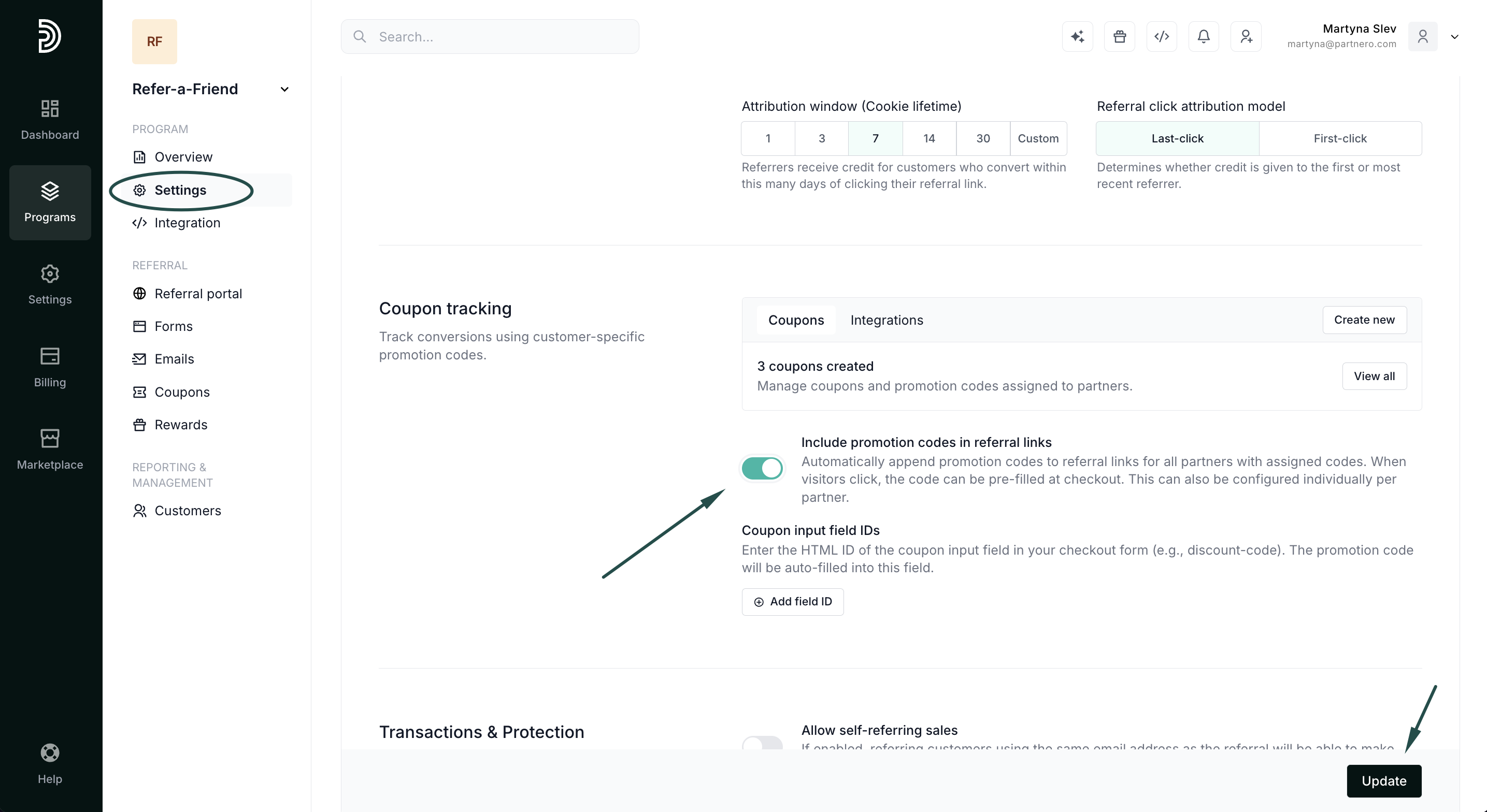
- Click Update.
When enabled, this setting automatically appends the customer's promotion code to all their referral links. For example:
- Original link: https://yoursite.com/?via=john
- With promotion code: https://yoursite.com/?via=john&coupon=JOHN20
Note: This can also be configured individually for each partner on their profile page.
Step 2: Configure coupon input field IDs
Coupon input field IDs tell Partnero where to auto-fill the promotion code on your checkout page.
- Under Program → Coupon tracking section, find the Coupon input field IDs.
- Click Add field ID:
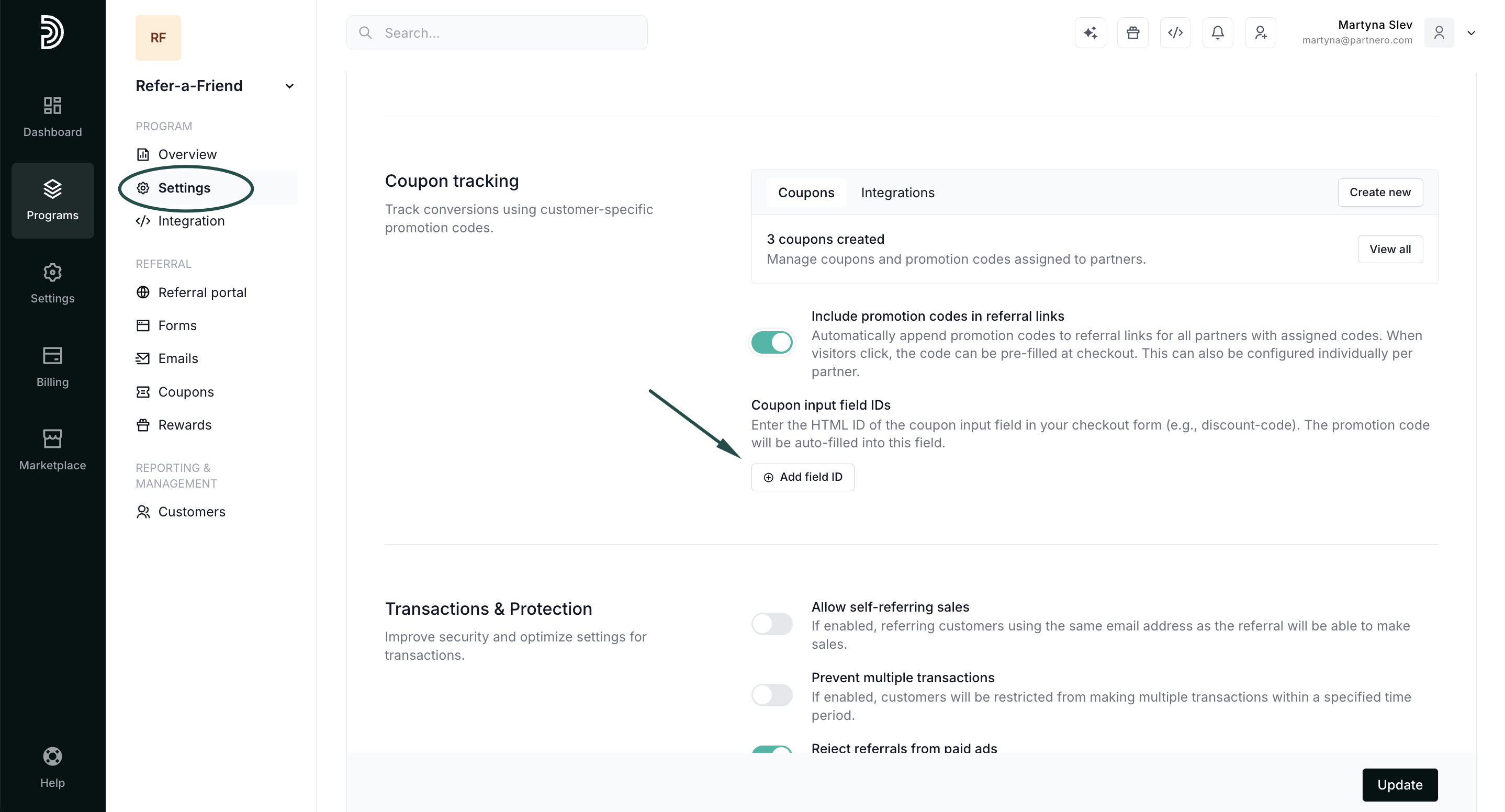
- Enter the HTML ID of your coupon input field (e.g., discount-code).
- Click Update.
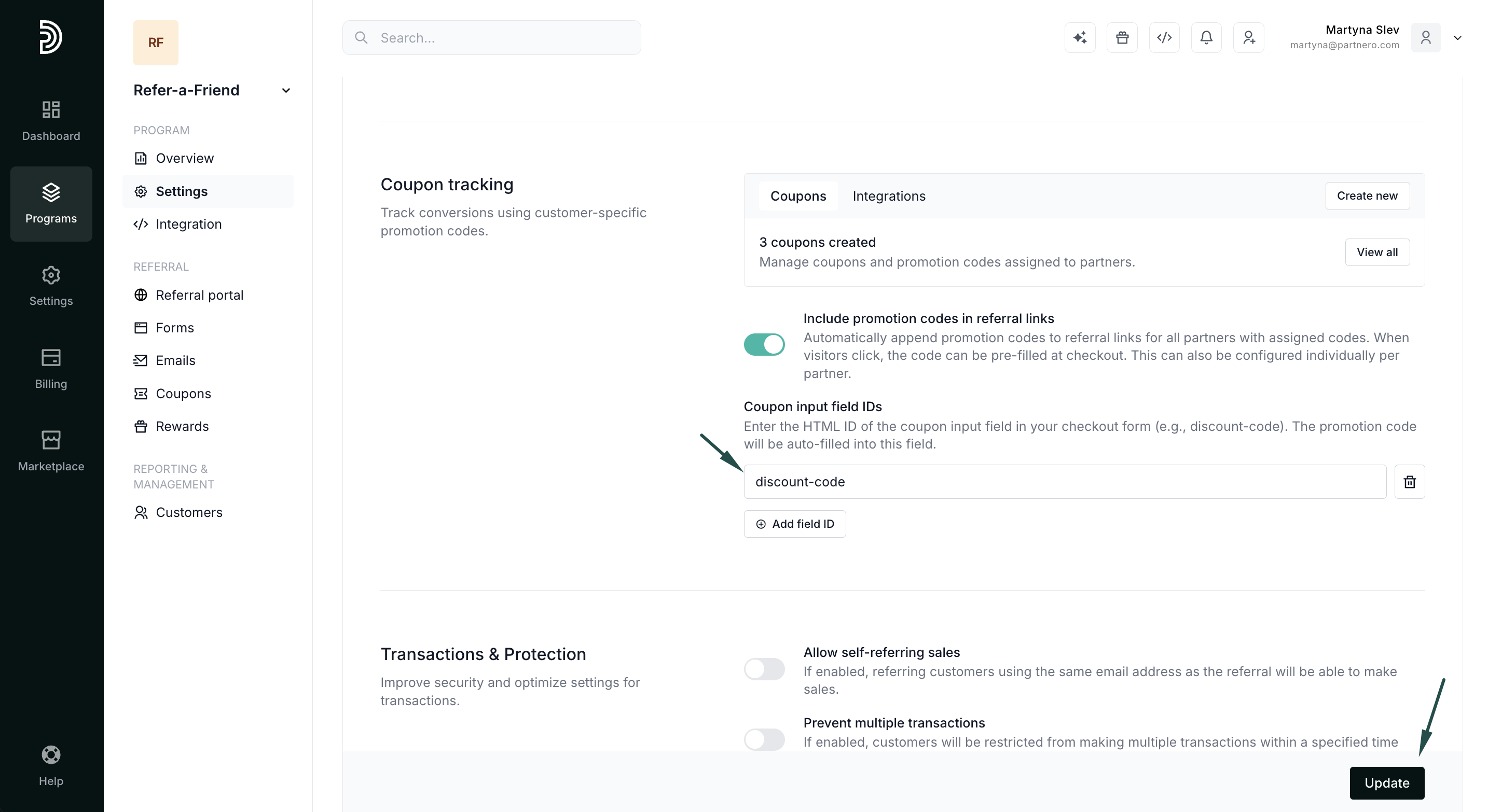
You can add multiple field IDs if your website has different checkout pages with different coupon field names.
Important: Make sure the field ID exactly matches your checkout form (IDs are case-sensitive).
Auto-apply with Stripe
Stripe offers several ways to accept payments. How auto-apply works depends on which Stripe product you're using:
Stripe Payment Links
Automatic coupon application is fully supported with Stripe Payment Links.
When a visitor clicks a partner's referral link that includes a promotion code (e.g., ?coupon=JOHN20), the coupon is automatically applied at the Stripe Payment Link checkout. No additional configuration is needed; it just works.
Custom checkout page
If you have a custom checkout page (not using Stripe's hosted solutions), configure the coupon input field ID as described in Step 2, and Partnero will auto-fill the code into your form.