
Partner Managers overview
Partner managers let you assign a dedicated point of contact to each partner (affiliate) in your program. Once assigned, the manager's name and email appear in the partner's portal, so partners always know who to reach out to. You can also filter and organize your partner list by manager.
What is a partner manager?
A partner manager is a user (team member) in your Partnero account who is responsible for a set of partners. Assigning one:
- Shows the manager's name and email to the partner in their portal (dashboard and profile).
- Lets you filter your partner list by manager to see who owns which partners.
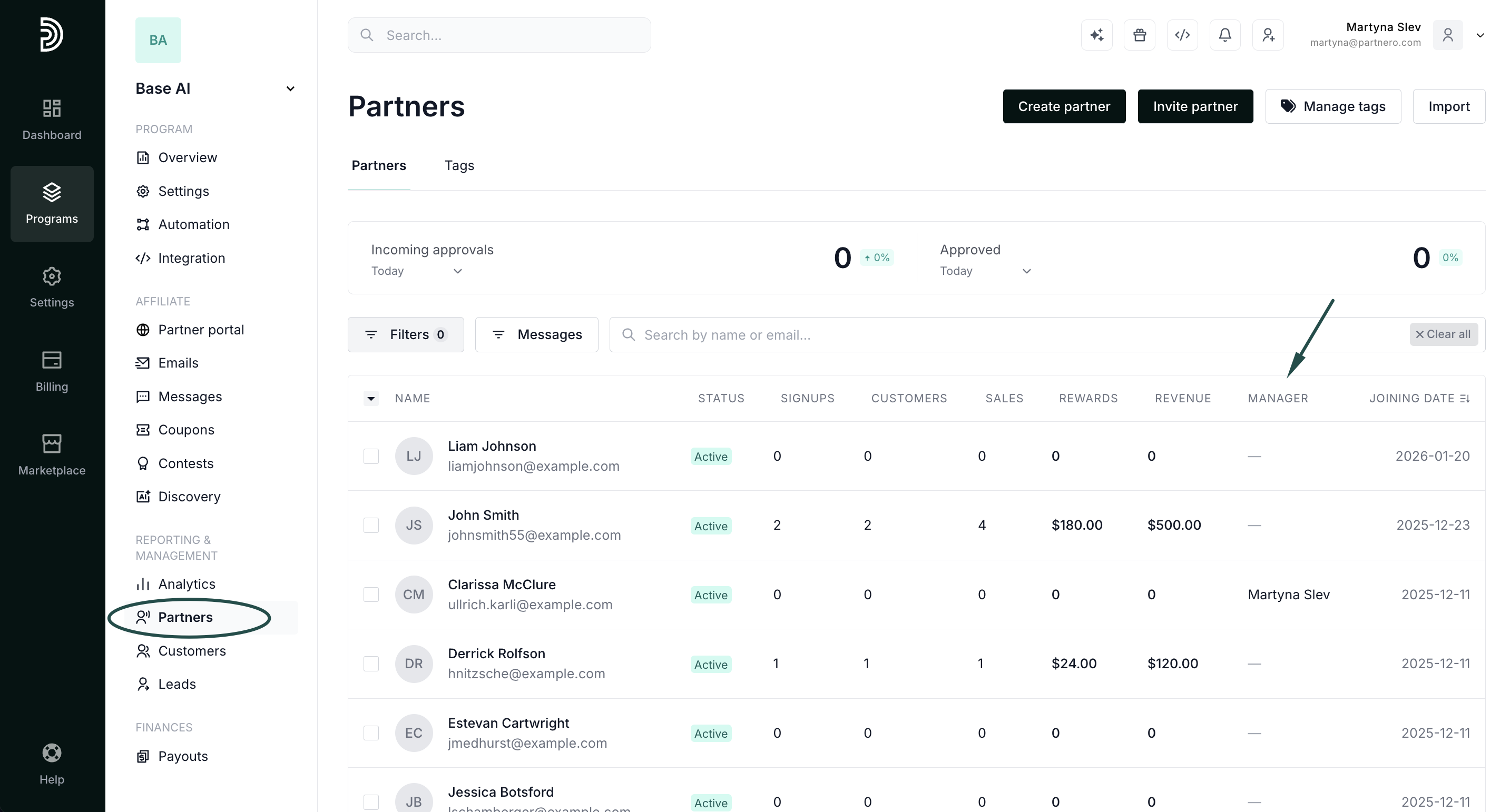
- Adds an optional Manager column to your partners table.
Each partner can have one manager at a time.
Who can be a partner manager?
You don't need a special role to be assignable. Any of the following users can be set as a partner's manager, as long as they have access to that program:
- Admins
- Regular users
- Partner Managers (a dedicated role, see below)
The Partner Manager role is a distinct role you can invite people into when their main job is managing partners rather than administering the account.
Who can assign or remove managers?
How to assign a partner manager
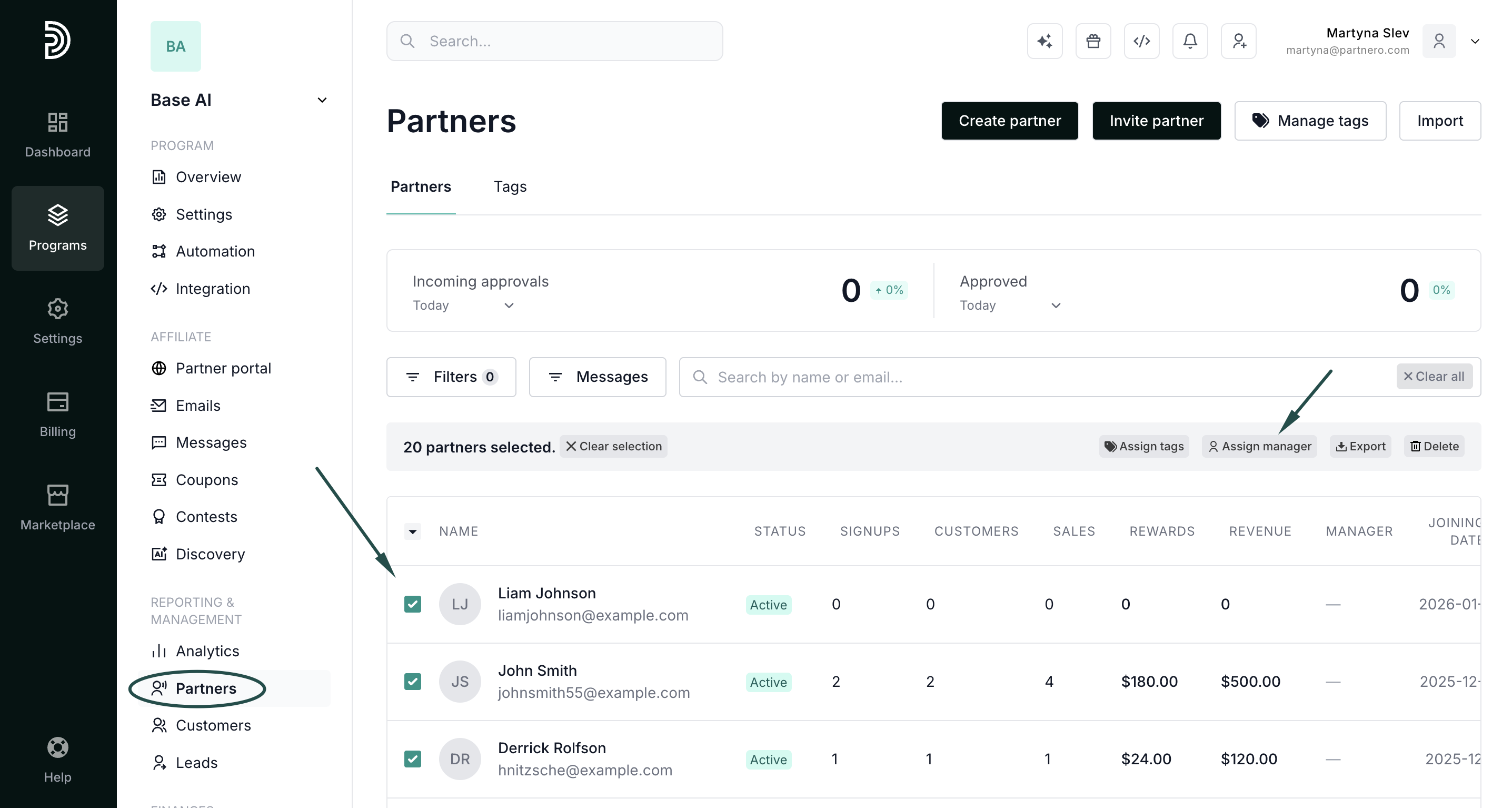
To several partners at once (bulk):
- Go to your program's Partners list.
- Select the partners you want; tick individual partners, use Select all, or, if needed, apply filters.
- Click Assign manager:
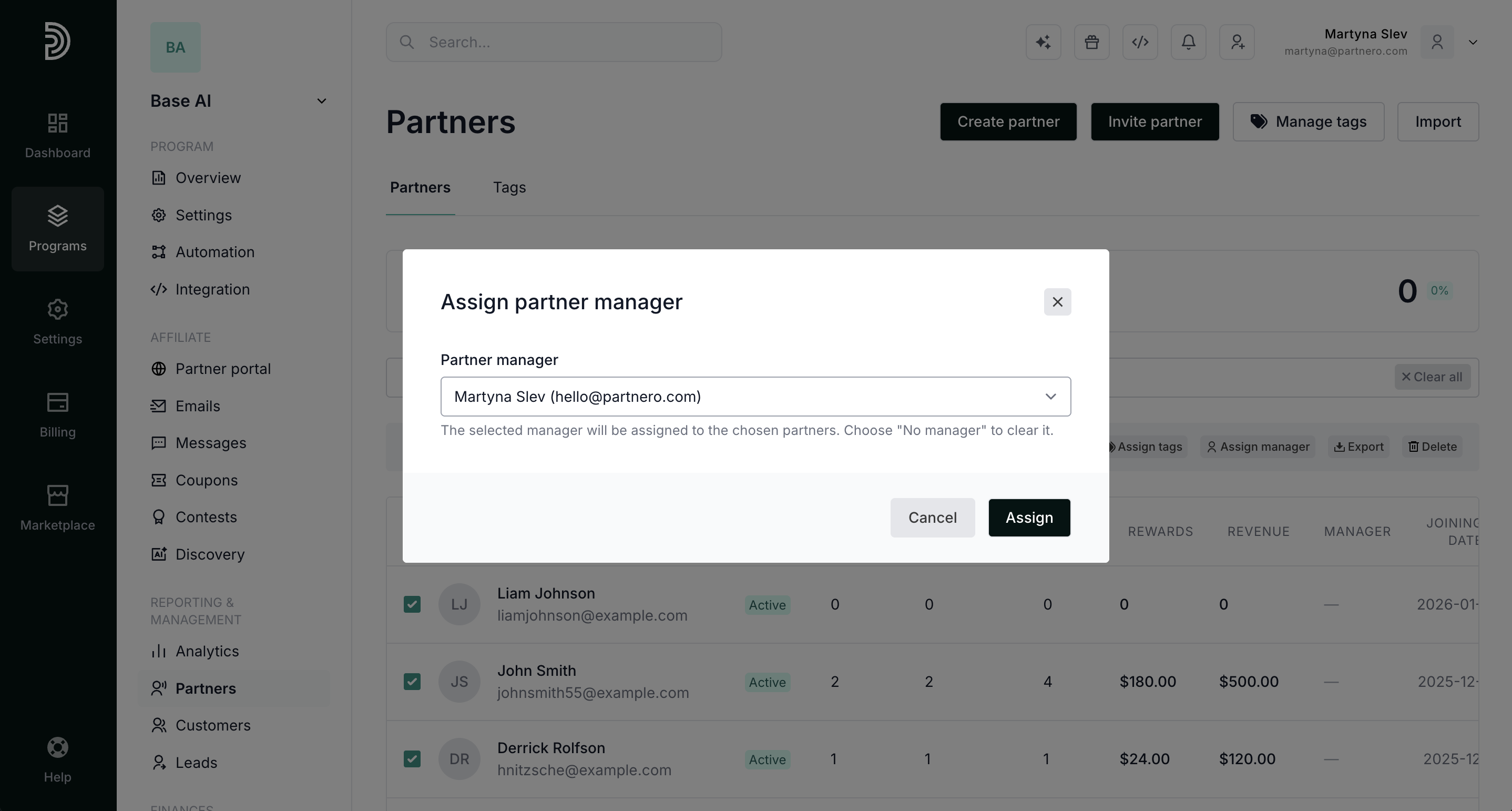
- Choose a manager from the dropdown:
 To remove an assigned partner manager, select No manager (unassign):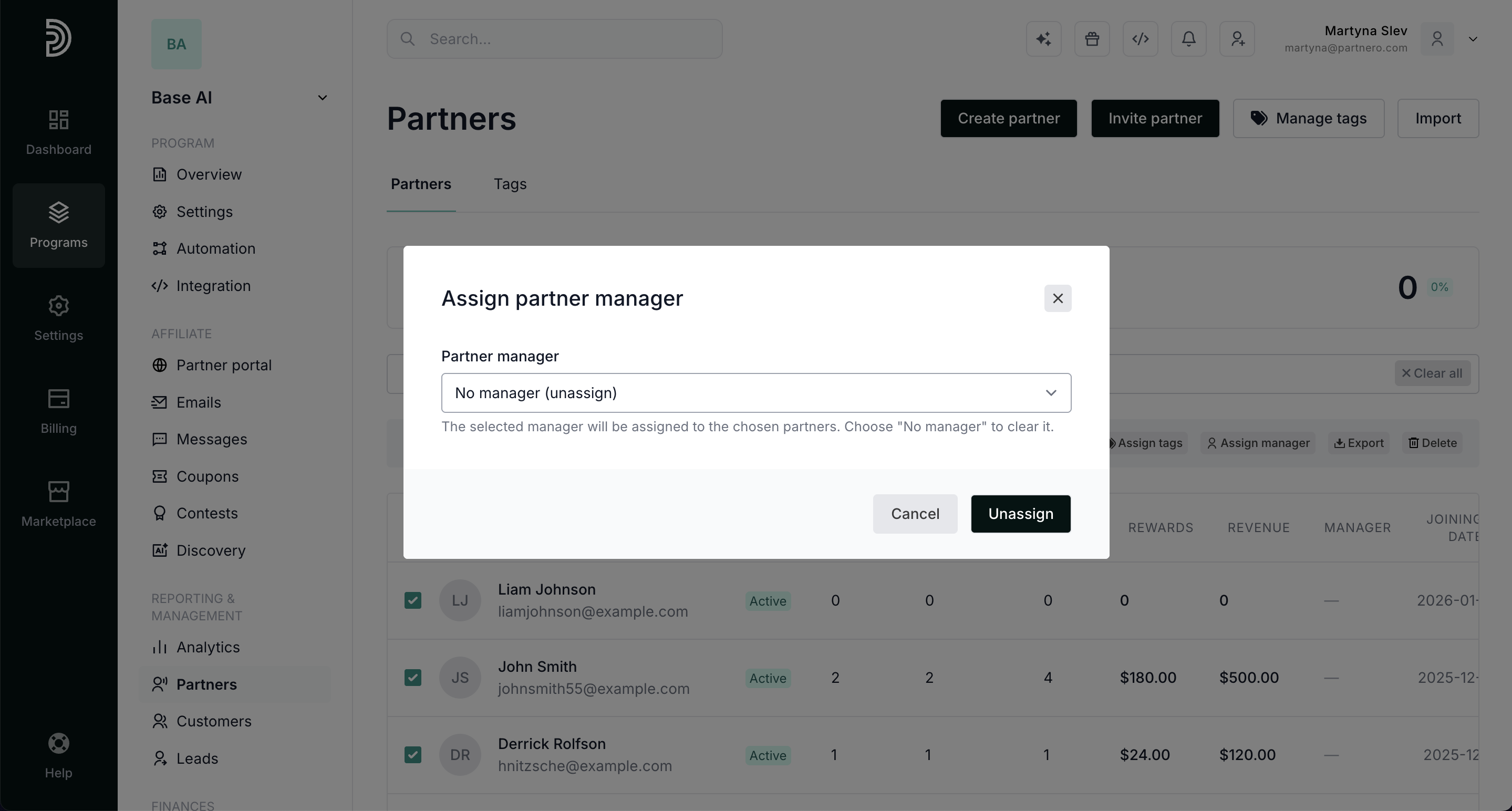
- Confirm with the Assign / Unassign button.
 To remove an assigned partner manager, select No manager (unassign):
Note on "Select all": When you select all after filtering, the manager is applied only to the partners that match your current filters/search, not to every partner in the program.
To a single existing partner:
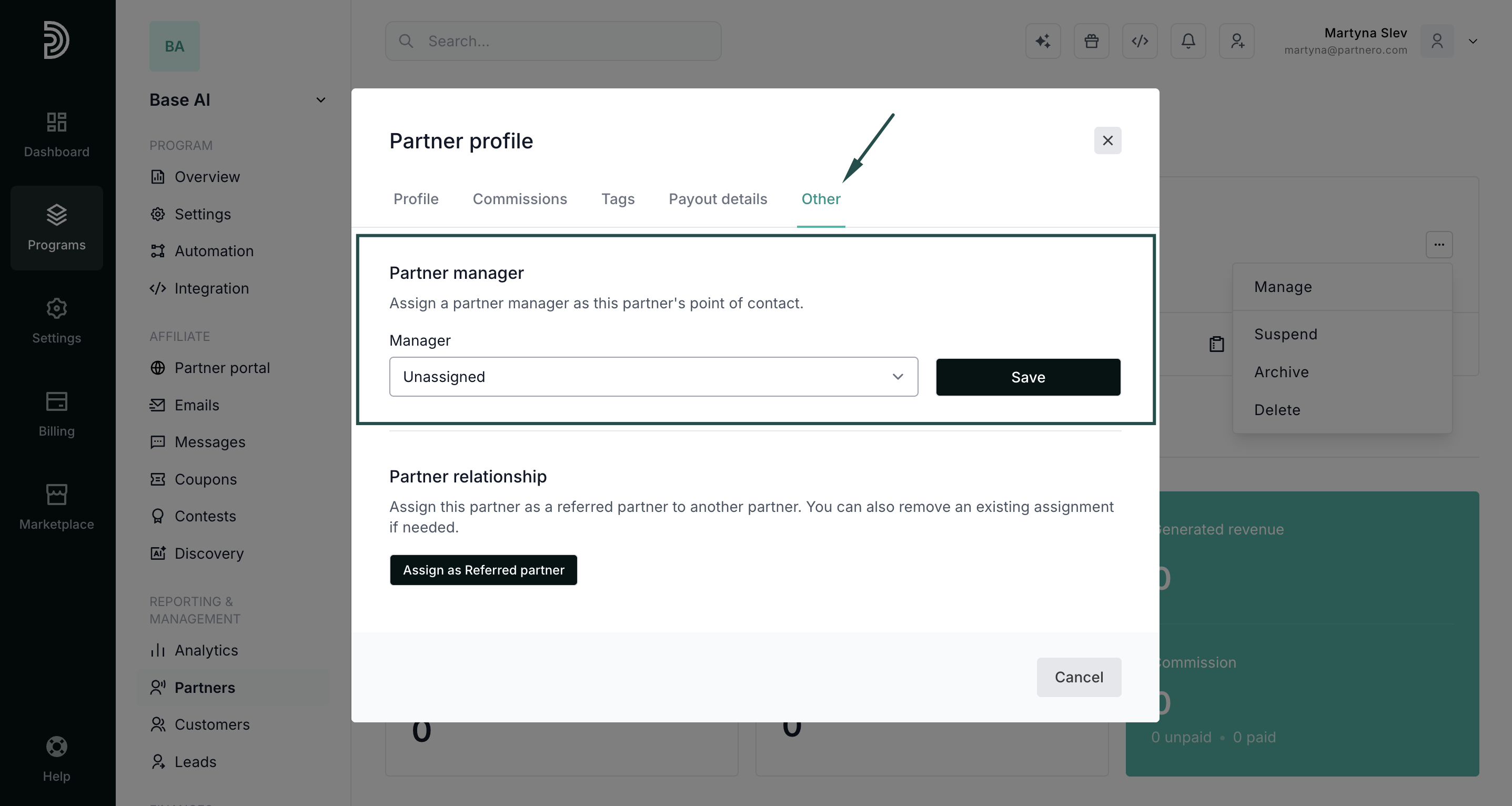
- Open the partner's profile, click the three dots in the upper right, and click Manage:
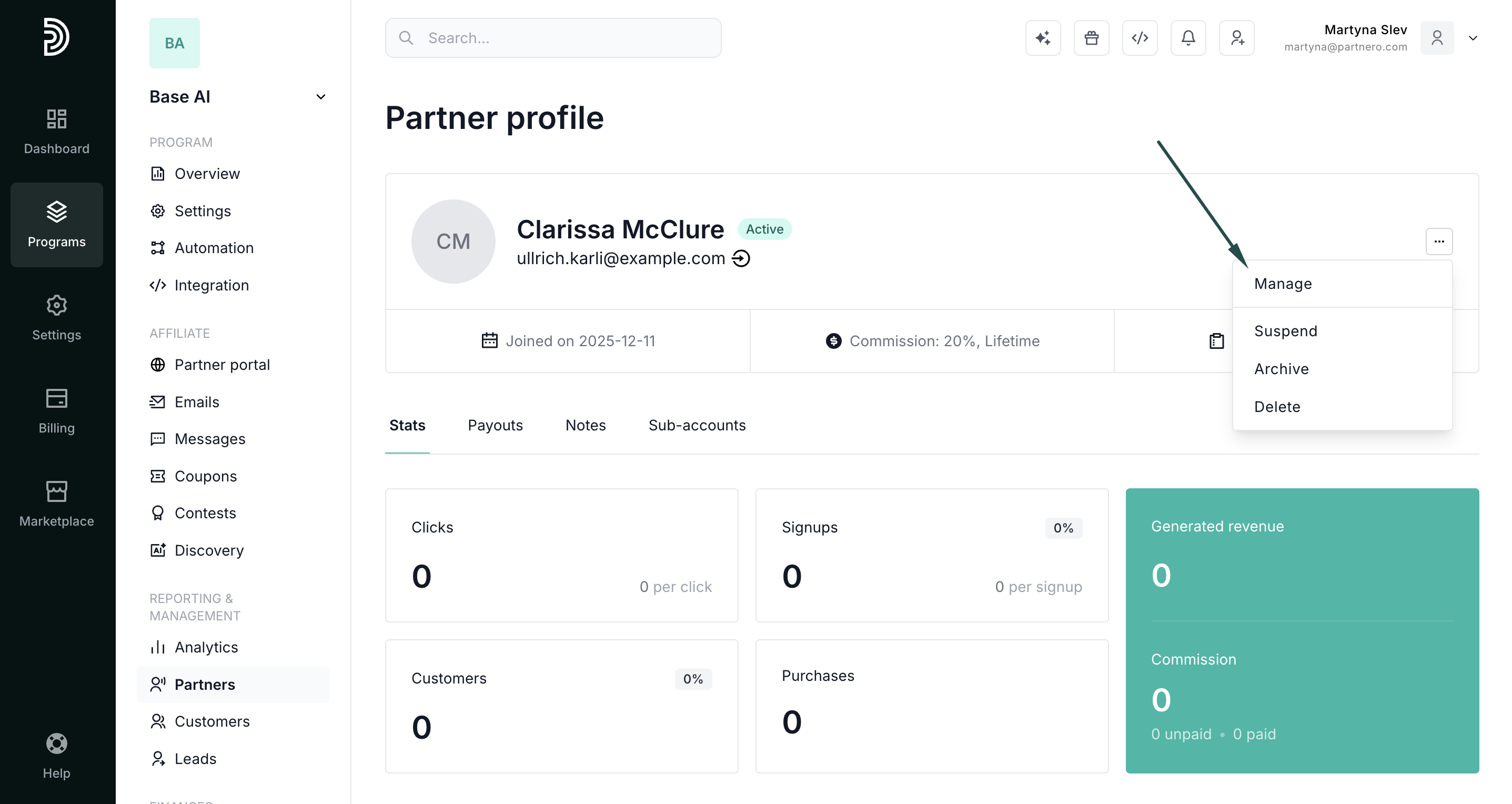
- Switch to the Other tab and use the Partner Manager section to assign or change the manager:
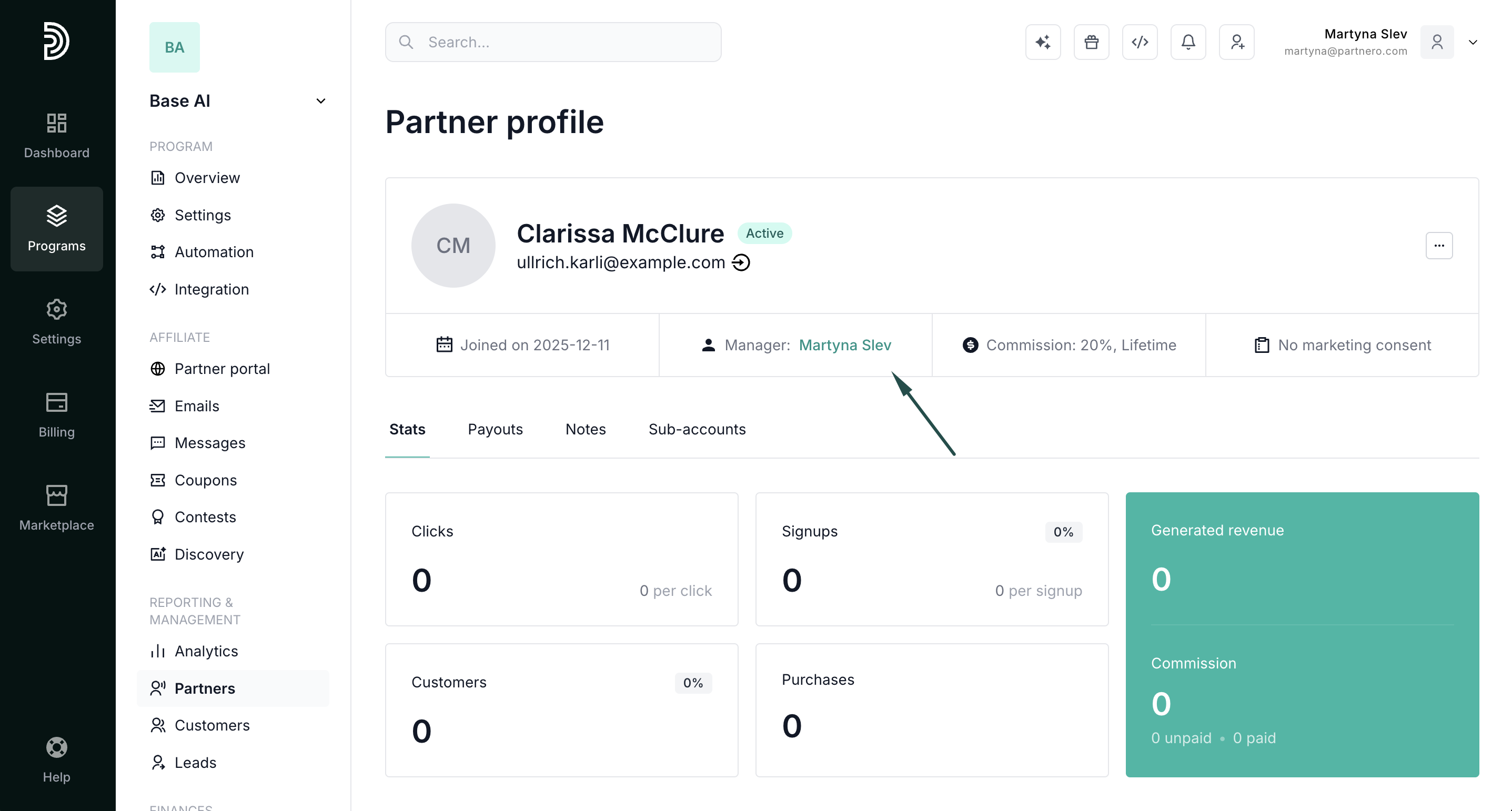
- The assigned manager's name appears in the profile and links to that team member's profile.
Filtering and viewing by manager
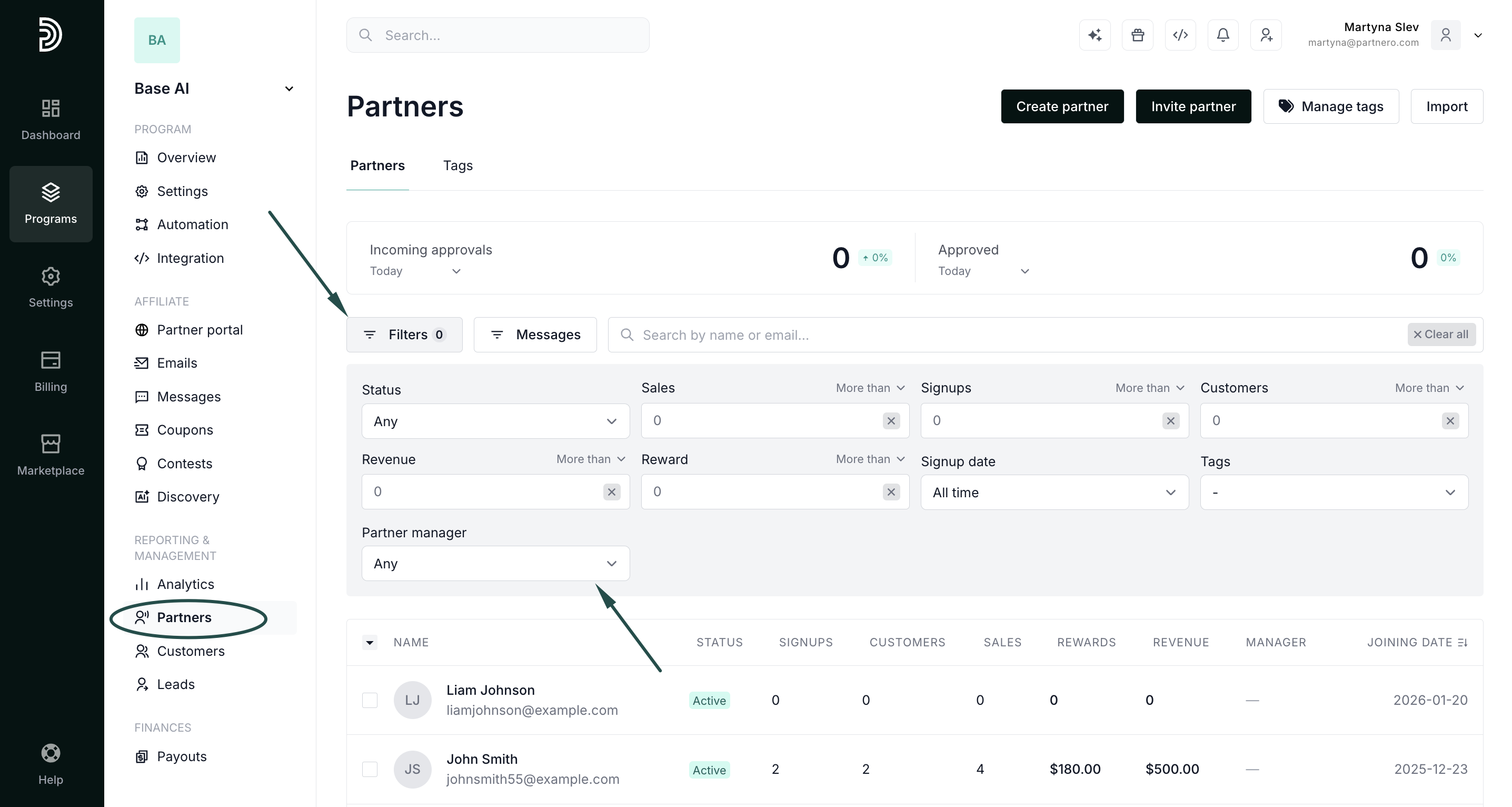
On the Partners list you can:
- Filter by manager: choose a specific manager, or find unassigned partners:
- View the Manager column: see each partner's manager inline in the partner table:
What the partner sees
When a partner has a manager assigned, their portal displays a "Your partner manager" section showing the manager's name and email (the email is a clickable link). It appears prominently on the partner's dashboard and on their profile page.

Profile view: 
Limiting a partner manager's access to program settings
- Program Settings
- Integrations
- Partner portal settings
- Emails settings
- Automation settings
- Notification settings

Read more about managing team members here.