
Partner portal: Settings
To access Partner Portal settings:
- Open your affiliate program.
- On the left sidebar, click on Partner Portal under Affiliate.
- You will land on the Settings tab:
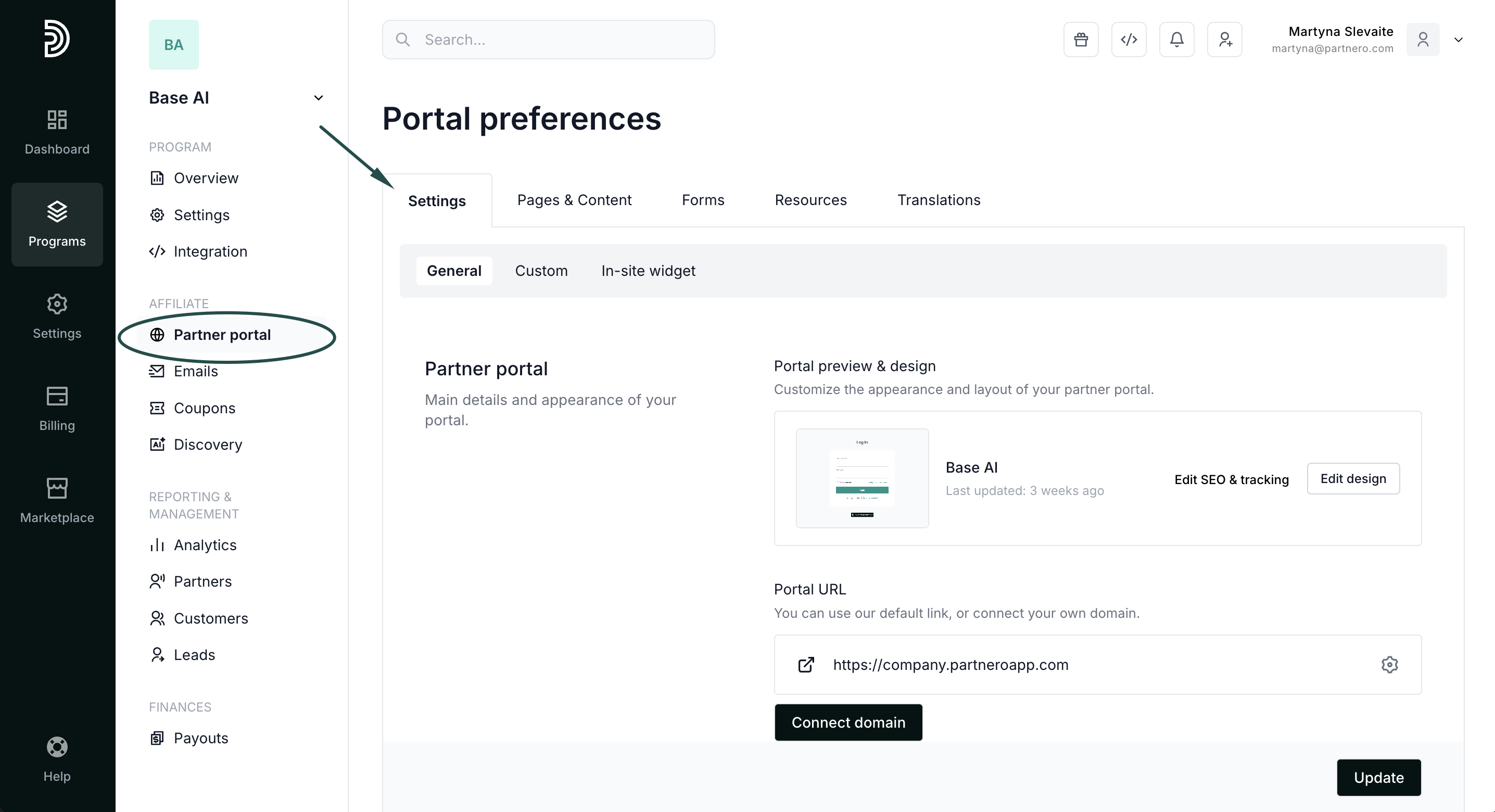
There are three sections here: General, Custom, and In-site widget. Below, we will review each tab.
1. General
 The first section allows you to:
- Customize the portal appearance and layout using Live Designer.
- Edit portal SEO and tracking.
- Connect a custom partner portal domain.
- Select a default page to be shown, then access the partner portal. You can choose between a standard log-in page and the program introduction page.
Below you'll find Branding settings: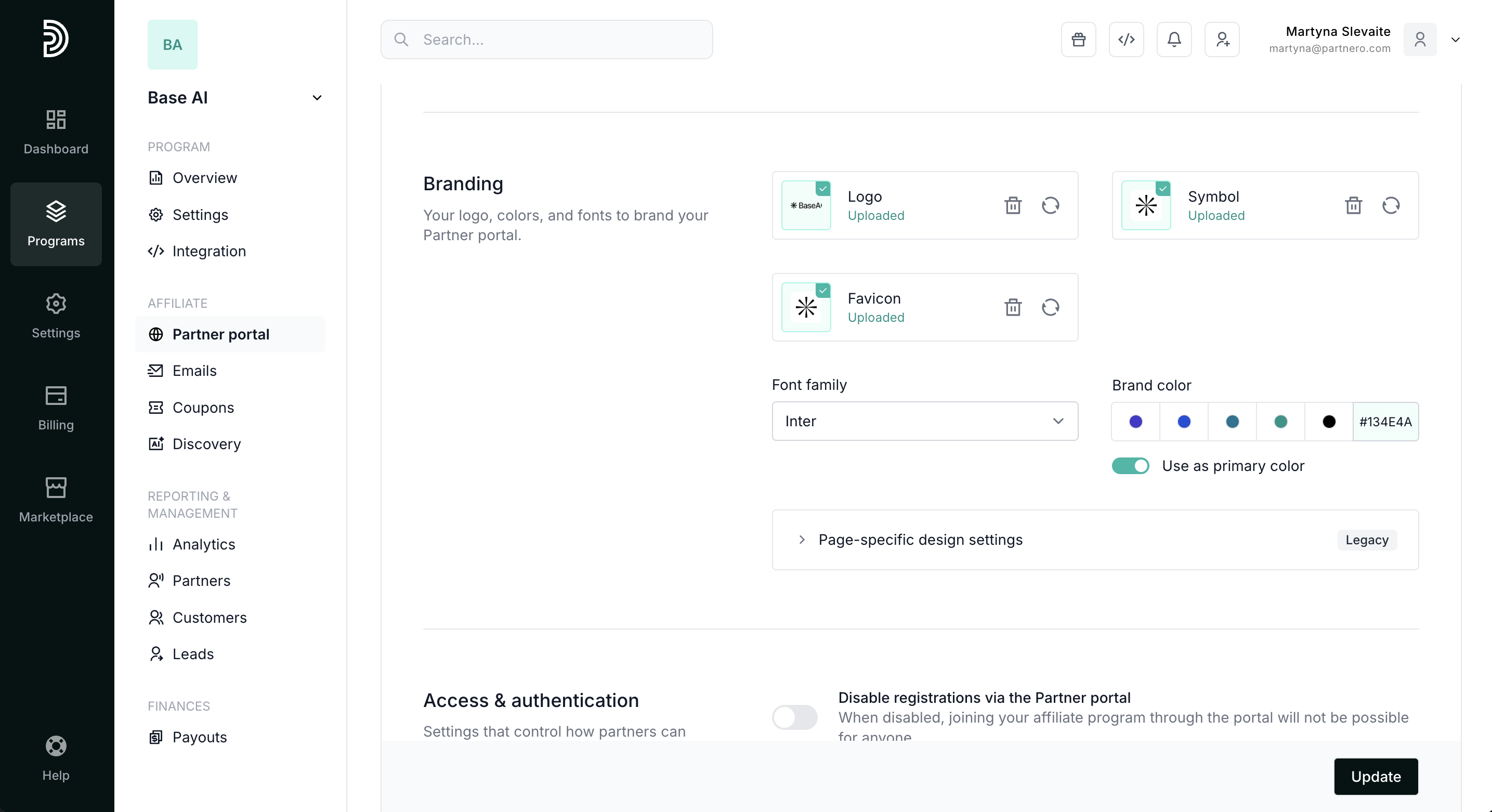
Here you can upload your logo, symbol, and favicon. Additionally, you can select your font family and primary brand color.
Next, you'll find Access & Authentication settings: 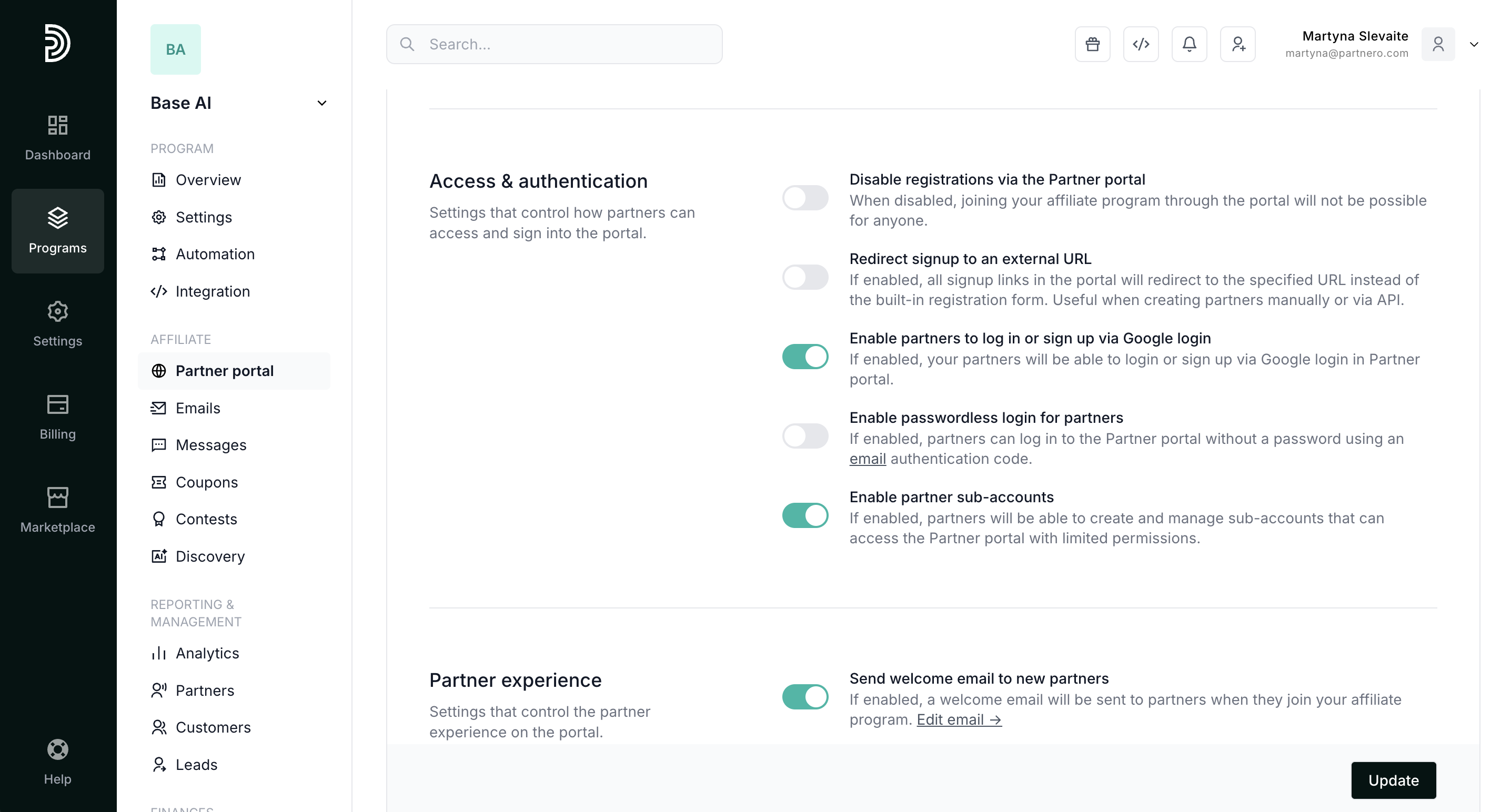
The following options are available:
- Disable registrations via the Partner portal: hides the signup page to pause new partner registrations.
- Redirect signup to an external URL: If enabled, all signup links in the portal will redirect to the specified URL instead of the built-in registration form. Useful when creating partners manually or via API. Read more.
- Enable partners to log in or sign in via Google login: add the Google login option to the partner portal. Read more.
- Enable passwordless login for partners: if enabled, partners will not be required to create a password. A one-time authentication code will be sent to your partners every time they log in. Read more.
- Enable partner sub-accounts: if enabled, partners can create and manage sub-accounts in the partner portal. Read more.
Next, you will find the Portal features: 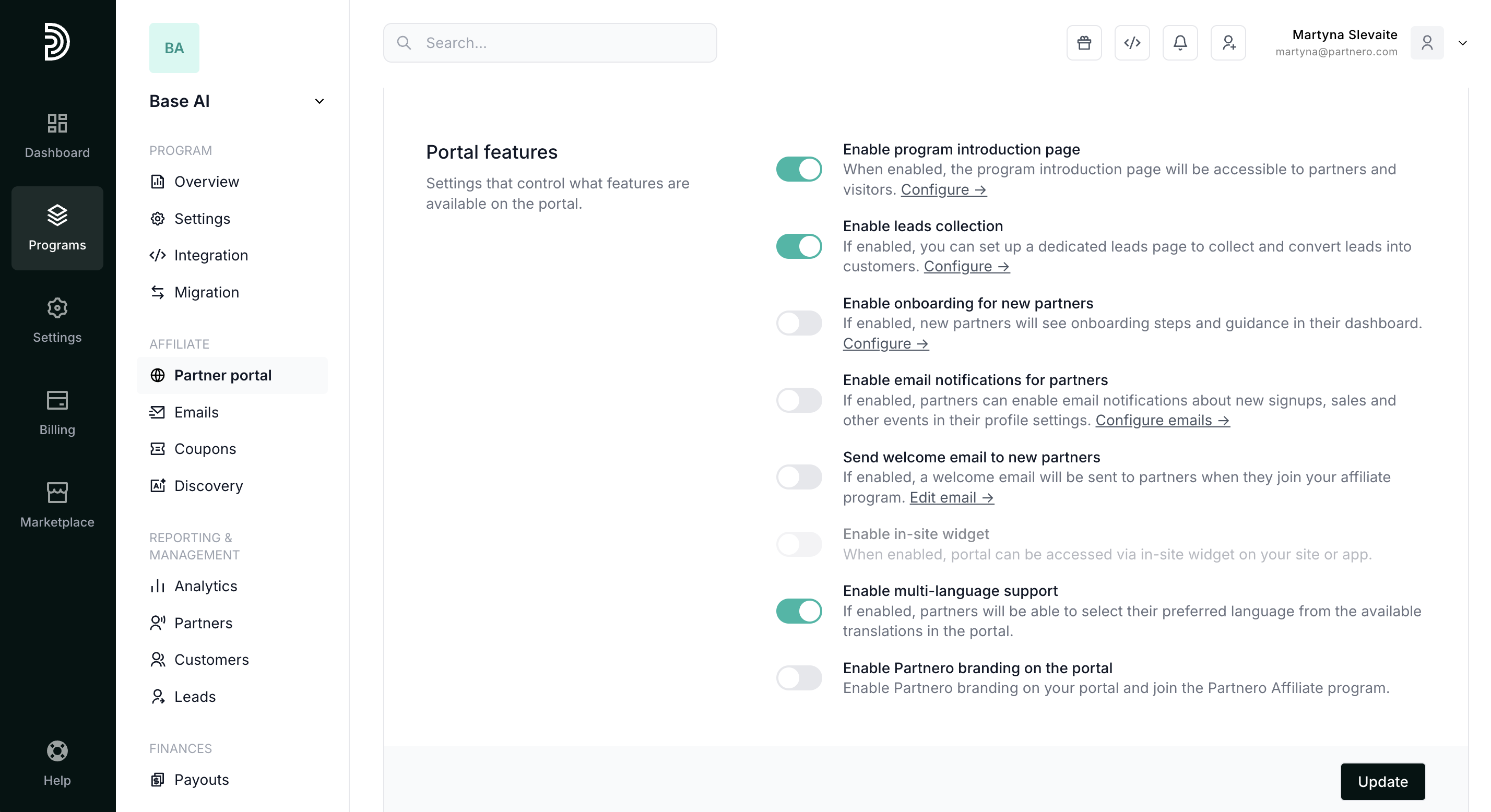
The following options are available:
- Enable program introduction page: if enabled, the program introduction page will be accessible to partners and visitors. Read more.
- Enable leads collection: if enabled, you can set up a dedicated leads page to collect and convert leads into customers. Read more.
- Enable onboarding for new partners: if enabled, new partners will see onboarding steps and guidance in their dashboard. Read more.
- Enable email notifications for partners: if enabled, partners can enable email notifications about new signups, sales, and other events in their profile settings. Read more.
- Send welcome email to new partners: if enabled, a welcome email will be sent when partners join your affiliate program.
- Enable in-site widget: insert a widget on your website to access the partner portal. Read more.
- Enable multi-language support: if enabled, partners can select their preferred language from the available translations in the portal. Read more.
- Enable Partnero branding on the portal: Partnero branding on the portal will be generated with a unique link assigned to you. If anyone signs up and purchases a plan through that link, you'll get a commission.
Next, you'll find settings for Partner permissions: 
Here you can:
- Hide referral contact information: partners will not see referral contact information on their portal if enabled.
- Hide signup events in referral activity: if enabled, signup events will be hidden from referral activity.
- Disable option to create new links: if enabled, partners cannot create unique referral links in their Resources section.
- Disable option to edit referral links: if enabled, partners cannot edit the referral links in their Resources section.
- Enable partners to create customers: if enabled, partners can manually create customers they brought in. Read more.
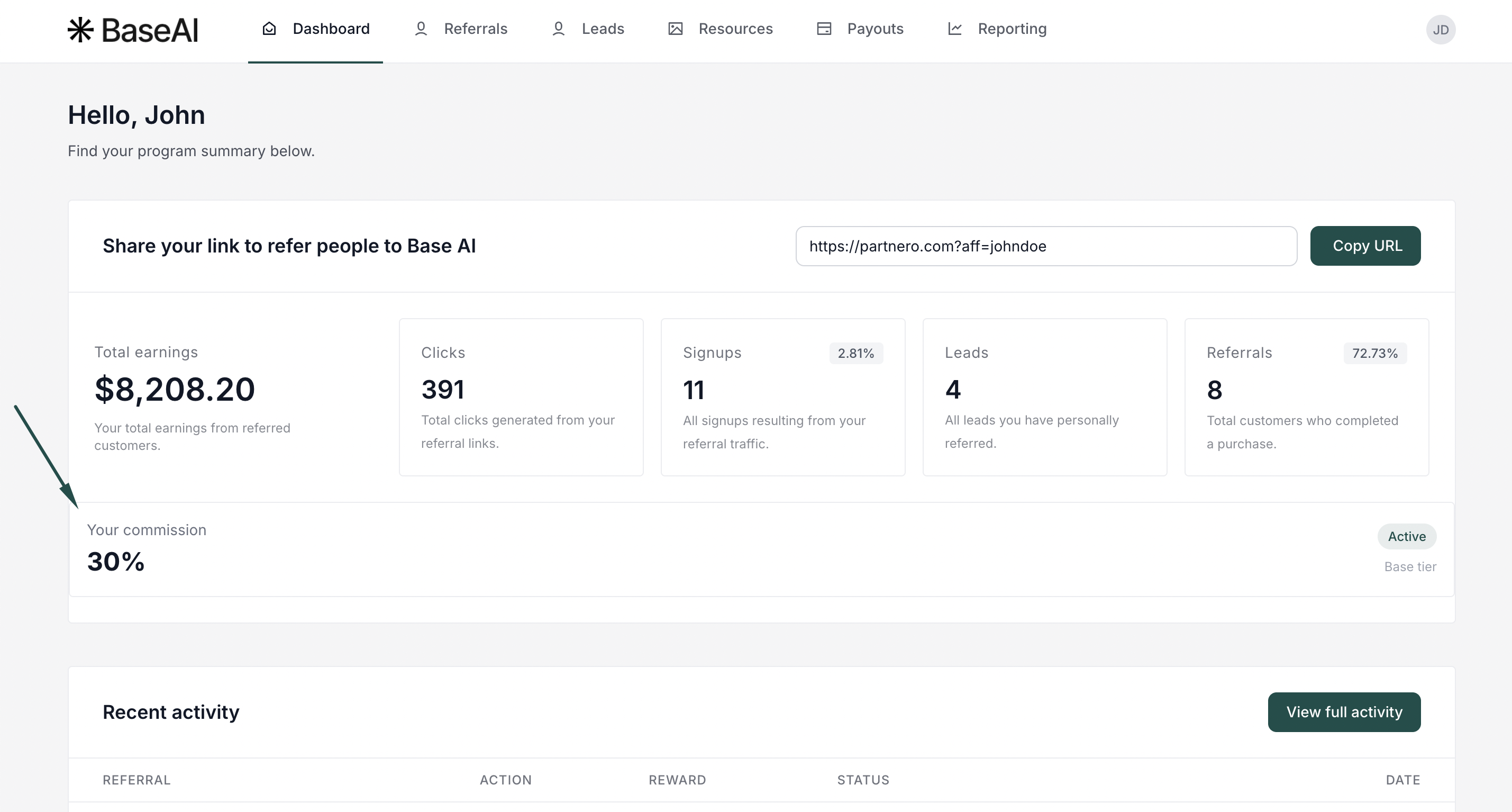
- Show current commission on dashboard: if enabled, partners will see their commission rate next to the dashboard greeting:
- Disable link tracking options: If enabled, partners will not see referral link sharing, clicks, and signups tracking on the dashboard, reporting page, and referral links on the resources page.
- Show referred partners table: If enabled, partners will see a table of other affiliates who joined the program via their referral link on the Referrals page. Note: This setting is only available if multi-level commissions are enabled and configured.
The last section is Contact information:
 Here you can set the contact information for your partners in the portal's footer.
2. Custom
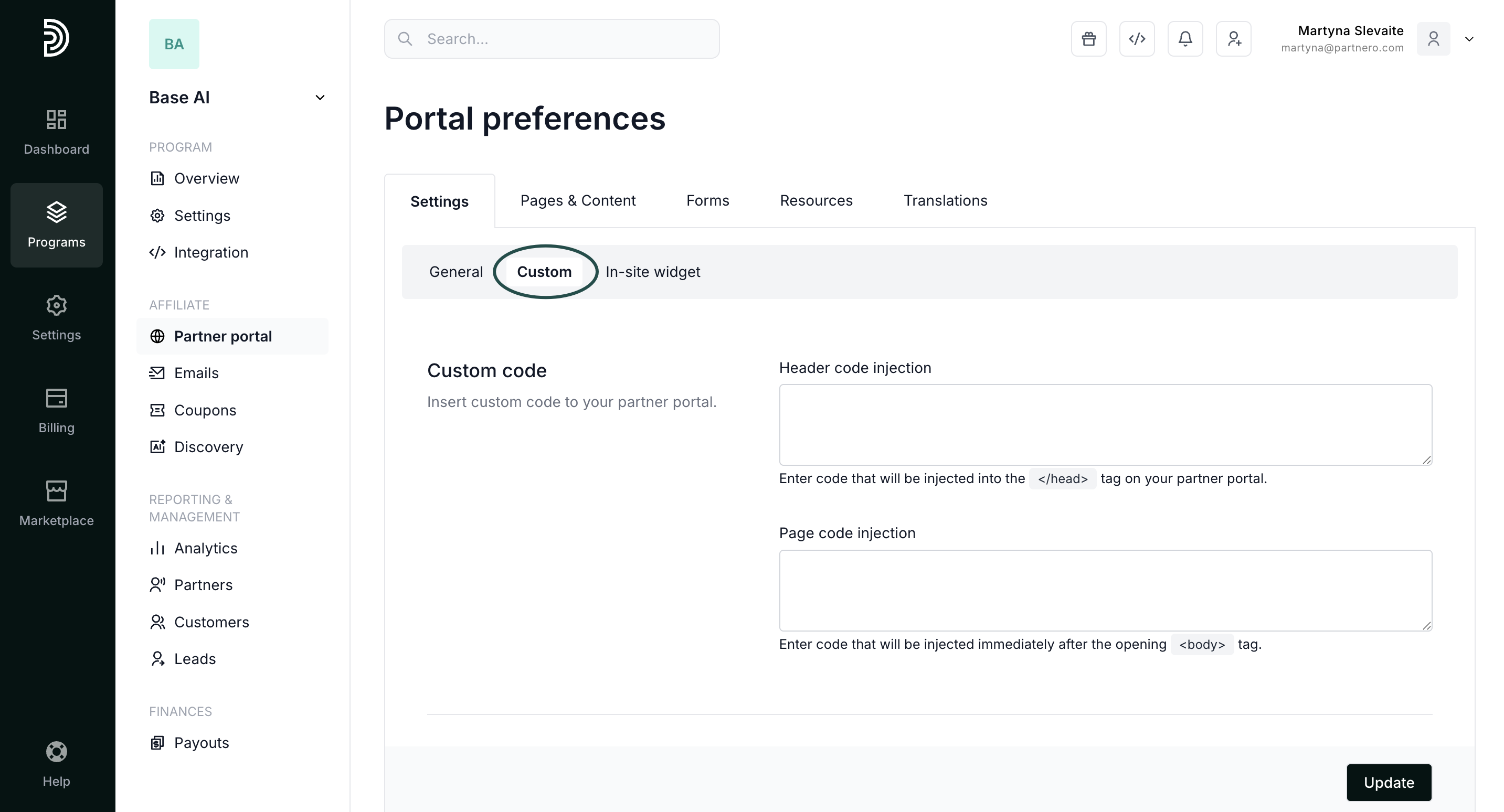
Here you'll find the following:
Custom code: Insert custom code into the <header> or the <body> of the partner portal.
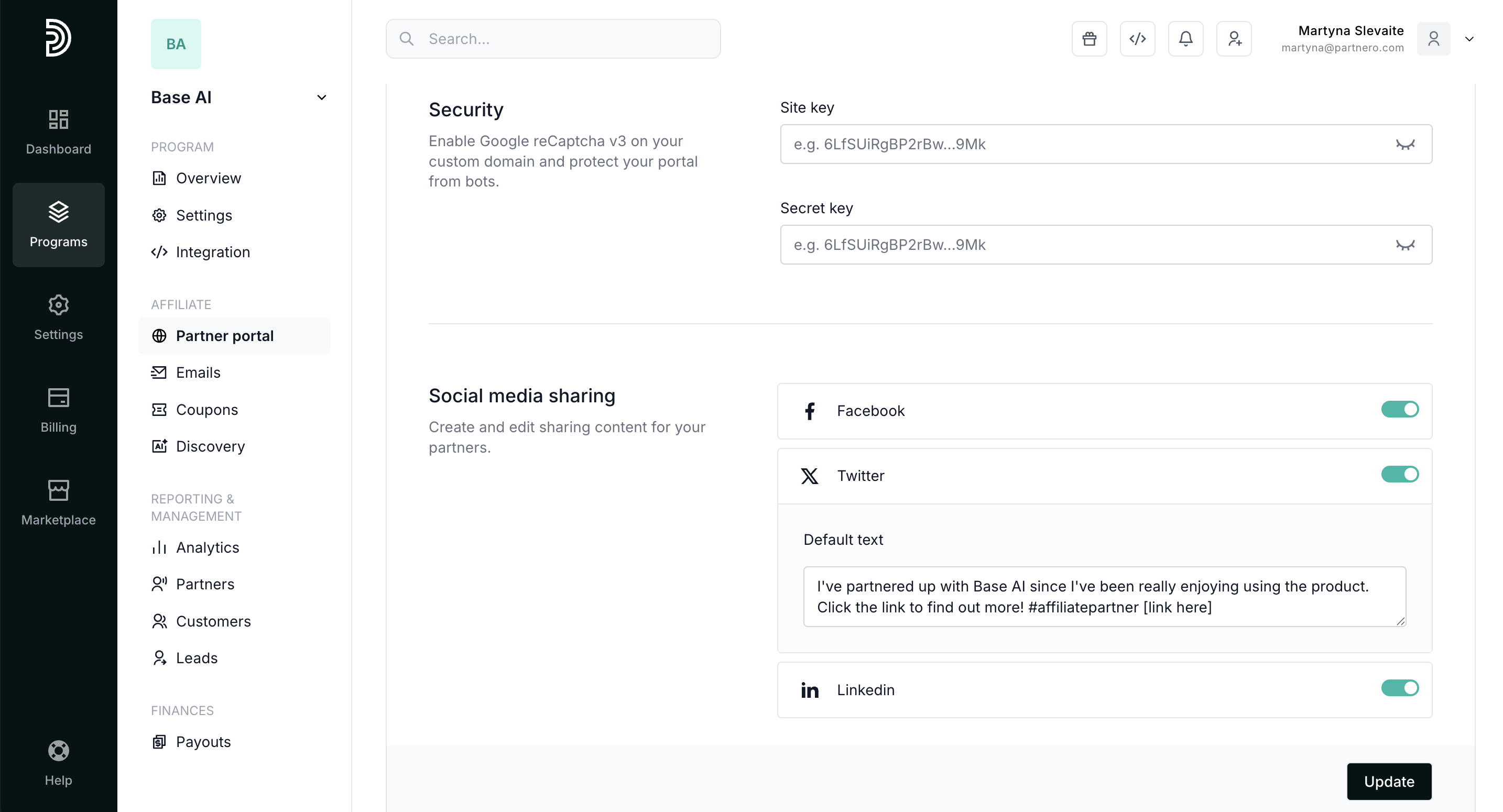
Security: Enable Google reCAPTCHA V3. Read more.
Social media sharing: enable social media sharing and customize the default messages. Read more.
3. In-site widget
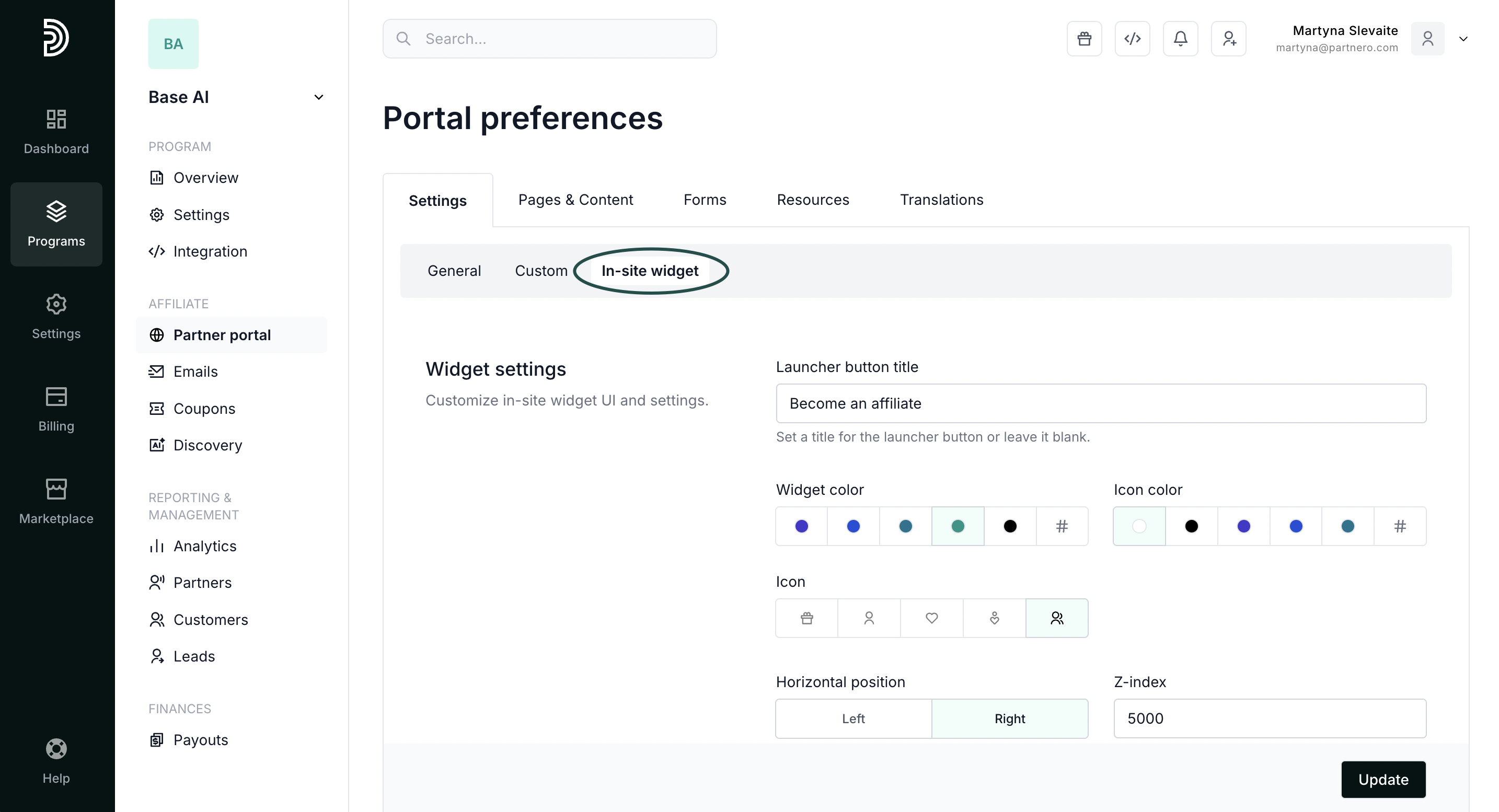
The final section on the Settings tab is where you can customize the in-site widget by adding a button title, and selecting the colors and positions. Read more.
Don't forget to click Update after you make any changes!